Alerting highlights suspicious, prohibited, or otherwise notable traffic and consolidates it into a centralized notification hub. When configured, Teleseer's advanced analytics engine runs during each topology build, creating new alerts based on incoming telemetry and user-provided configuration.
Enabling Alerts Panel
Note: The alerts panel should be available by default in Teleseer 1.0.14 and onward. These instructions are provided in the event the panel is not visible by default
- Select the account settings drop-down in the top-right corner of the screen.
- Toggle Dev Mode on under the Advanced section.
- Select the panel layout menu by clicking the name of the current layout in use, for example Standard or Custom.
- In the Panels section, toggle Alerts on.
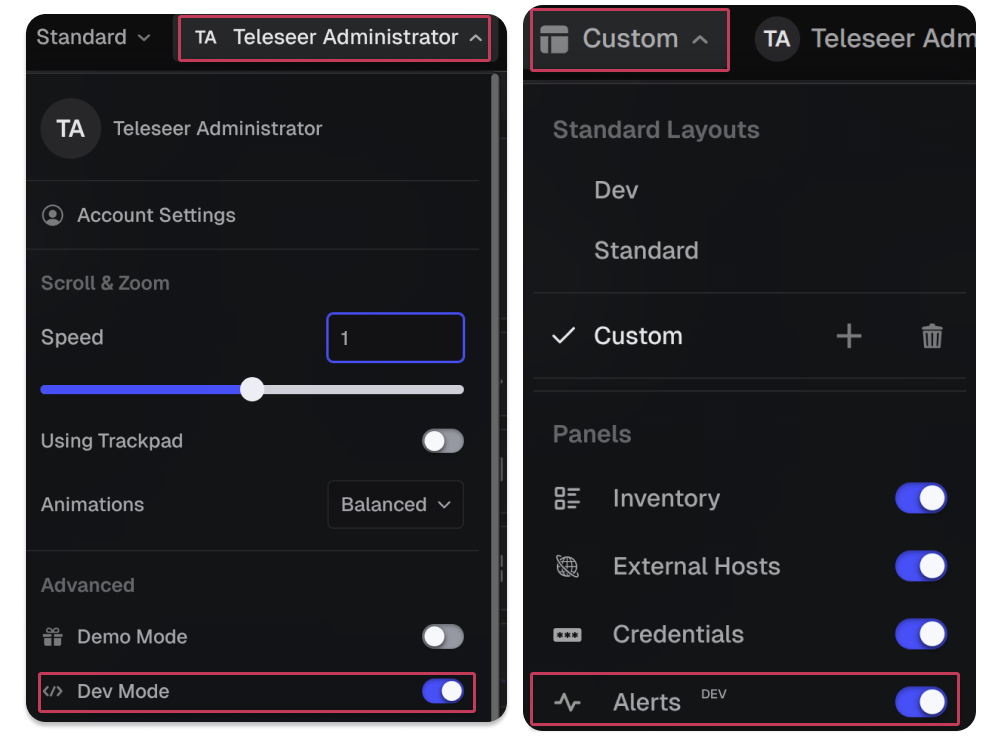
The Alerts panel will then appear in the top navigation bar alongside other panels such as Inventory, Flows, and Dashboard.
Alert Types
Teleseer ships with a library of built-in alert generators. Each targets a specific category of network behavior or policy violation. All built-in alerts are disabled by default and must be enabled before use.
Beaconing Behavior
Beaconing Behavior detects periodic communication patterns characteristic of malware calling back to a command-and-control (C2) server. The engine analyzes connection timing and regularity to identify hosts that exhibit automated, repeating communication intervals; a hallmark of C2 implants. This alert uses a confidence scoring algorithm to rate the likelihood of beaconing.
Parameter:
Beaconing Threshold: controls the minimum confidence score (between 0.0 and 1.0) required to trigger the alert. Higher values reduce false positives but may miss irregular beaconing patterns; lower values increase sensitivity at the cost of more noise.
Blocklisted Application Usage
Fires when a host is observed communicating via an application explicitly prohibited by organizational policy. Operates on a "default allow" model so all applications are permitted unless specifically listed.
Parameter:
Blocklisted Applications: a list of prohibited application names (case-insensitive). This is useful when only a small number of known-bad applications need to be flagged.
Blocklisted Operating Systems Detected
Fires when a host is detected running an operating system explicitly prohibited by policy. Useful for enforcing policies against outdated, unsupported, or unauthorized operating systems.
Parameter:
Blocklisted Operating Systems: a list of prohibited OS names (case-insensitive).
Blocklisted Protocol Usage
Fires when traffic uses a protocol explicitly prohibited by policy. Useful for environments that need to block specific protocols such as Telnet or FTP.
Parameter:
Blocklisted Protocols: a list of prohibited protocol names (case-insensitive).
DDoS Behavior
Detects potential distributed denial-of-service activity by monitoring for a high number of connections from multiple clients to a single server within a short time window. Unlike the DoS alert, which focuses on a single attacker, this alert looks for coordinated traffic from many sources.
Parameters:
DDoS Connection Threshold: the maximum number of connections to a single server before triggering.DDoS Time Window: a time bucket in which bursts are measured (e.g., "5s", "1m").
Excessive Authentication Attempts
Fires when a host makes an unusual number of login or authentication attempts against a target, suggestive of brute-force or credential-spraying activity. Tuning should account for legitimate patterns such as automated service accounts or centralized authentication workflows.
Parameter:
Mass Login Threshold: the minimum number of login attempts required to trigger.
File Transfer Outside Authorized CIDR Destination Range
Monitors file transfer activity and fires when a file is sent to a destination outside the approved list of subnets. Designed to detect unauthorized data movement to external or unexpected network segments.
Parameter:
Authorized File Destination Subnets: a list of CIDR ranges considered approved destinations.
High Connection Count to Server (DoS)
Detects potential denial-of-service activity by monitoring for a high number of connections or packets from a single client to a server within a short time window.
Parameters:
DoS Connection Threshold: the maximum number of connections from a single client before triggering.DoS Connection Time Window: a time bucket for measuring connection rate.DoS Packet Threshold: the maximum number of packets to a server before triggering.DoS Packet Time Window: a time bucket for measuring packet volume.
High Port to High Port Connection
Fires when two hosts communicate using high (ephemeral) ports on both sides of the connection. Normal client-server traffic typically involves one low port (the service) and one high port (the client), so high-to-high port traffic can indicate peer-to-peer communication, tunneling, covert channels, or malicious infrastructure. Connections where both ports exceed their respective thresholds trigger this alert.
Parameters:
High-to-High Source Port Threshold: the minimum source port number considered ephemeral.High-to-High Destination Port Threshold: the minimum destination port number considered ephemeral. Ports above 49152 are considered ephemeral by default.
High Port Usage
Fires when a host uses a large number of distinct ports for communication, which may indicate port scanning, malicious activity, or a misconfigured application.
Parameter:
High Port Usage Threshold: the minimum number of distinct ports a host must use before triggering. Tuning this value depends on the expected behavior of hosts in your environment; servers offering many services may legitimately use more ports than typical workstations.
Interface Count
Fires when a host has an unusual number of active network interfaces, which could indicate a misconfigured device, a virtual machine with excessive network adapters, or a compromised host acting as a network bridge.
Parameter:
Max Interface Count: the maximum number of active interfaces a host is expected to have.
Non-Allowlisted Application Usage
Fires when a host is running or using an application not included in the approved allowlist. Operates on a "default deny" model — any application not on the list triggers the alert. Effective in environments where only sanctioned software should be present.
Parameter:
Allowlisted Applications: a list of approved application names (case-insensitive).
Non-Allowlisted Operating System
Fires when a host is detected running an operating system not included in the approved allowlist. Enforces a strict posture where only known, approved operating systems are acceptable.
Parameter:
Allowlisted Operating Systems: a list of approved OS names (case-insensitive).
Non-Allowlisted Protocol Usage
Operates on a "default deny" model so only protocols explicitly approved are permitted, and all others trigger the alert. Well-suited to tightly controlled environments where the expected set of protocols is well-defined and any deviation warrants investigation.
Parameter:
Allowlisted Protocols: a list of approved protocol names (case-insensitive).
Potential Sensitive File Transfer Detected
Identifies file transfers matching sensitive filename patterns that are leaving the network to unauthorized destinations, indicating possible data exfiltration. Combines filename matching with destination validation to reduce false positives. Transfers of matching files to destinations outside the specified ranges trigger this alert.
Parameters:
Exfiltration File Regexes: accepts regular expressions matching filenames or paths considered sensitive (e.g., classified documents, database exports, encryption keys).Authorized File Transfer Subnets: accepts CIDR ranges where file transfers are permitted.
Remote Access Protocol Activity
Fires when traffic is observed using protocols commonly associated with remote administration, such as RDP, SSH, and VNC. Provides visibility into remote access activity across the network to help analysts identify authorized and unauthorized remote sessions. This alert monitors for all remote access protocols, and therefore has no user-configurable parameters.
Suspicious File Detected
Identifies files on the network with names matching suspicious patterns. Can be used to flag known malware filenames, hacking tools, or other files that should not be present in the environment.
Parameter:
Suspicious File Regexes: accepts regular expressions matching filenames or paths considered suspicious or prohibited.
Top Sender
Identifies hosts that exceed a data volume threshold, marking them as the largest data senders on the network. Excessive data transmission may indicate data exfiltration, unauthorized backups, or misconfigured services.
Parameter:
Top Sender Data Volume: the minimum number of bytes a host must send to trigger this alert.
Top Talker
Identifies hosts that exceed a threshold of total connections, marking them as the most active communicators on the network. High connection counts may indicate compromised hosts performing reconnaissance, command-and-control activity, or misconfigured services generating excessive traffic.
Parameter:
Top Talker Connections: the minimum number of connections a host must make to trigger this alert.
Unauthorized DHCP Server Activity
Detects DHCP server responses from hosts not authorized to act as DHCP servers. Rogue DHCP servers can be used in man-in-the-middle attacks or may indicate a misconfigured device handing out incorrect network configurations. This alert doesn't have user-configurable parameters because it identifies any host responding to DHCP requests and flags the activity for analyst review.
Unauthorized Traffic Between Subnet Ranges
Detects connections between hosts in two subnets where inter-subnet communication is not allowed. Particularly valuable for enforcing network segmentation policies in environments where certain zones should be isolated from one another.
Parameters:
CIDR Overlap Block 1: the source subnet (CIDR range).CIDR Overlap Block 2: the destination subnet (CIDR range).
Uncommon Port
Fires when an asset is communicating on a port not commonly associated with standard services. May indicate backdoors, tunneling, or misconfigured applications. This alert has no user-configurable parameters because it relies on Teleseer's built-in knowledge of standard port assignments.
Configuring Alerts
The Manage Alerts panel lists all available alert generators organized by source and group. To configure an alert:
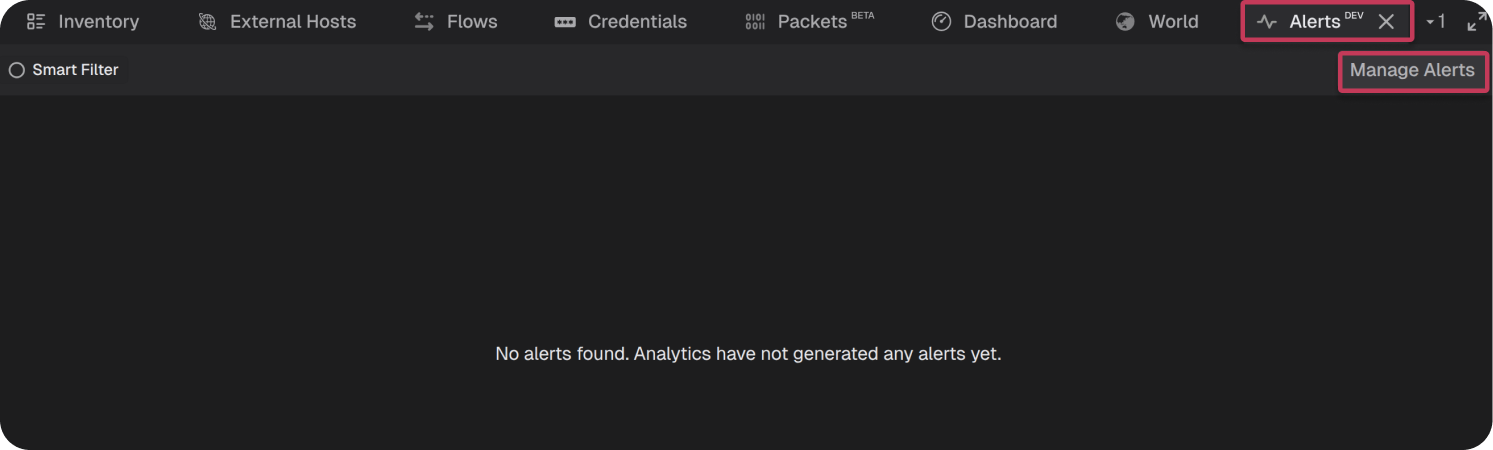
- Click Manage Alerts in the Alerts panel header.
- Select the desired alert, then click Edit and toggle Enabled.
- Set Order and Quota as needed.
- Configure Alert Filters to scope the alert to specific hosts, subnets, or protocols.
- Adjust Parameters to tune detection sensitivity for your environment.
- Upload a new telemetry file or reprocess an existing one to trigger the alert engine.
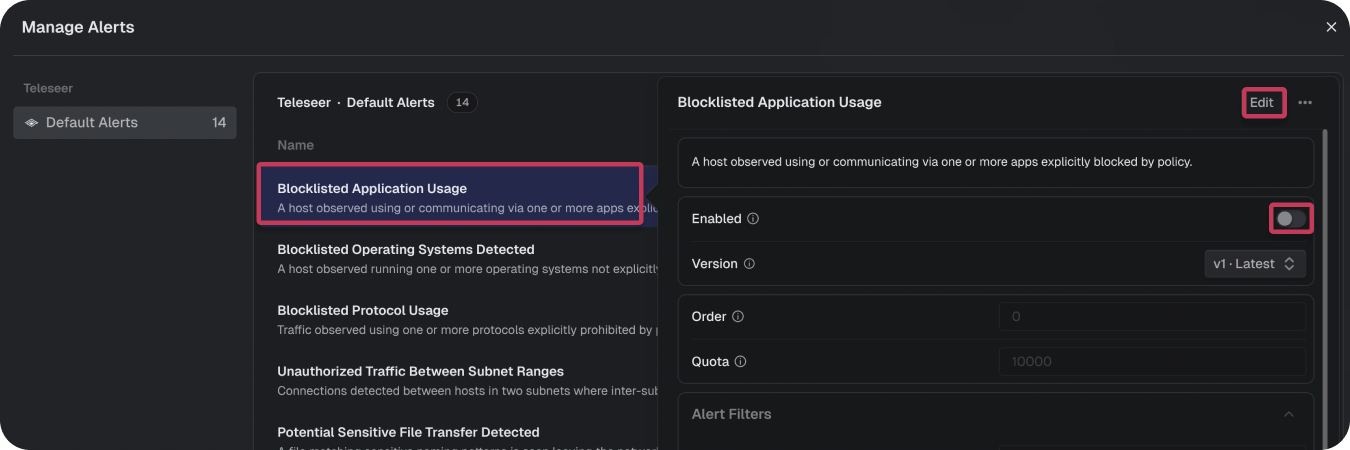
Note: Next to each setting is an information icon ⓘ that provides additional context about its function.
Alert Management Panel
The Manage Alerts panel displays a list of all available alert generators organized by source. The left sidebar shows the alert source (e.g., "Teleseer") and alert group (e.g., "Default Alerts") with a count of total alert types. The main area lists each alert type with:
- Name: The alert type name.
- Description: A brief explanation of what the alert detects.
- Status: An enabled/disabled indicator. Enabled alerts show a green status with an "Enabled" label. A yellow warning icon accompanying an alert indicates the most recent alert run reached quota, a strong indicator the configuration may require tuning.
From this panel, the user can quickly review which alerts are active and identify which ones need to be enabled or tuned for their environment.
Tuning an Alert
Clicking on any alert type in the Manage Alerts panel opens its configuration view. This view is divided into several sections:
General Settings:
- Enabled: Toggle to activate or deactivate the alert generator.
- Version: The current version of the alert configuration (e.g., "#1 - Latest"). Alerts can be reverted to a previous configuration. Every saved change generates a new snapshot.
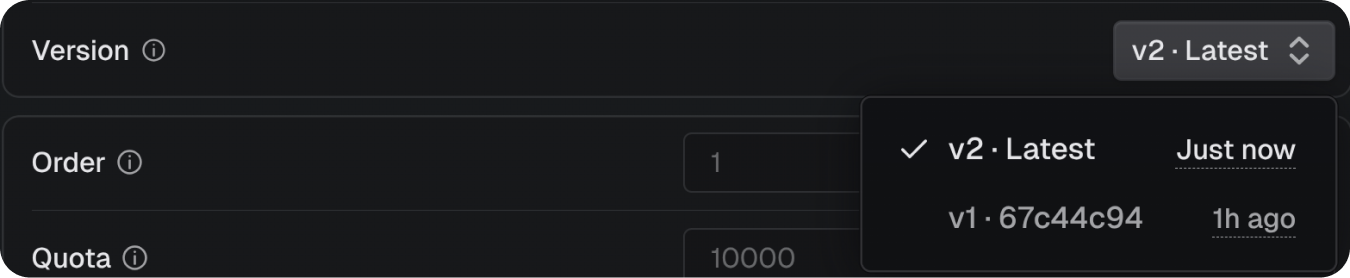
- Order: Priority order for alert evaluation. Lower values are processed first.
- Quota: The maximum number of alerts this configuration can generate (default: 1000). This prevents a single noisy alert from flooding the system.
Alert Filters:
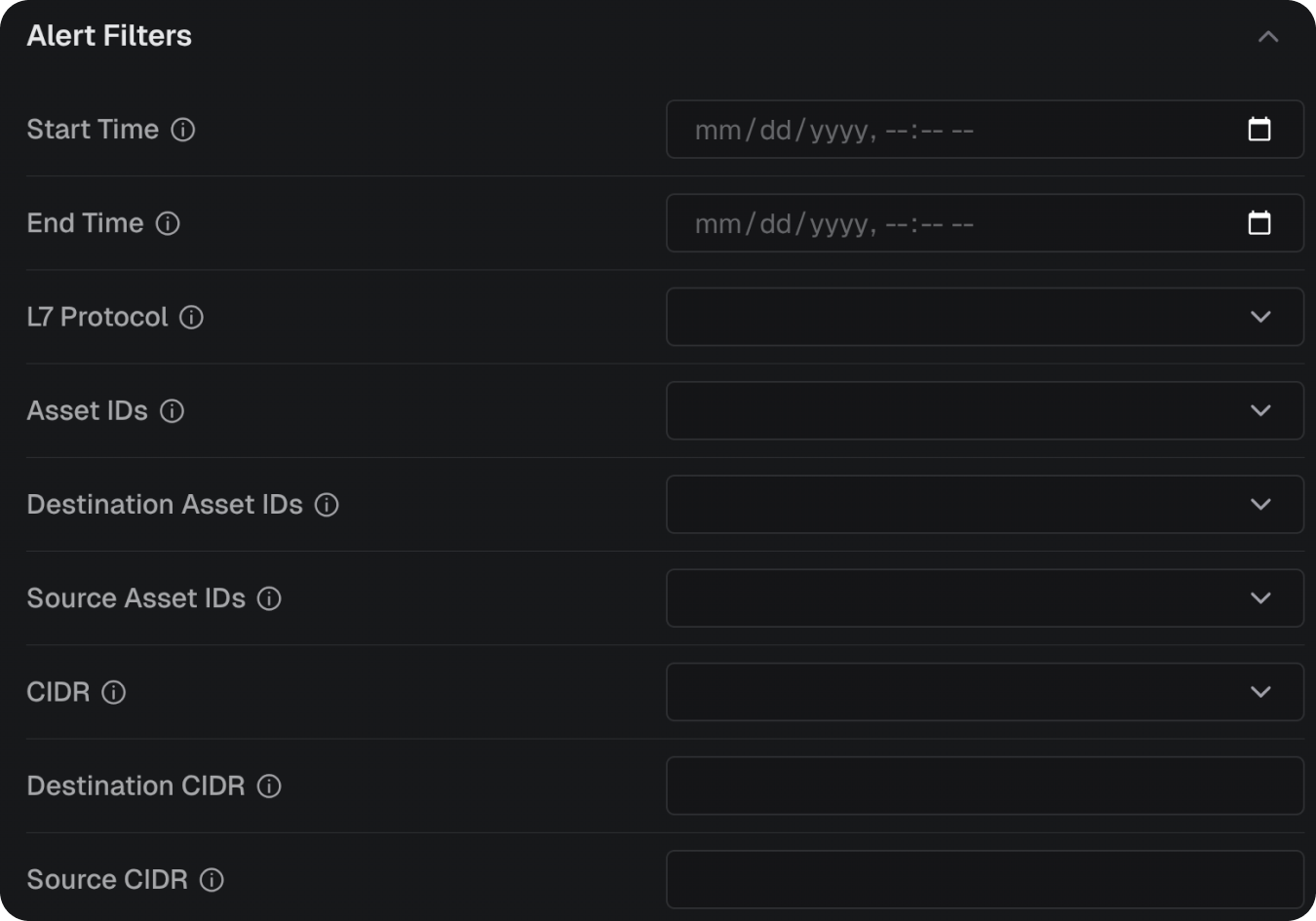
Filters narrow the scope of data evaluated by the alert engine. All filter fields accept null to include all values (i.e., no filtering). Available filters include:
- Asset IDs: UUIDs of specific hosts to monitor as either source or destination.
- CIDR: IP address ranges in CIDR notation to include in monitoring.
- Destination Asset IDs: UUIDs of specific destination hosts to monitor.
- Destination CIDR: IP address range in CIDR notation for destination filtering.
- L7 Protocol: Application layer protocols to include (e.g., ssl, http, https, dhcp, tcp, udp).
- Source Asset IDs: UUIDs of specific source hosts to monitor.
- Source CIDR: IP address range in CIDR notation for source filtering.
Alert Parameters:
Parameters are specific to each alert type and control the detection logic and thresholds. For example, the Beaconing Behavior alert exposes a Beaconing Threshold parameter; a confidence score between 0.0 and 1.0 that determines how aggressively the engine flags potential beaconing. Refer to the Alert Types section above for the parameters available on each alert type.
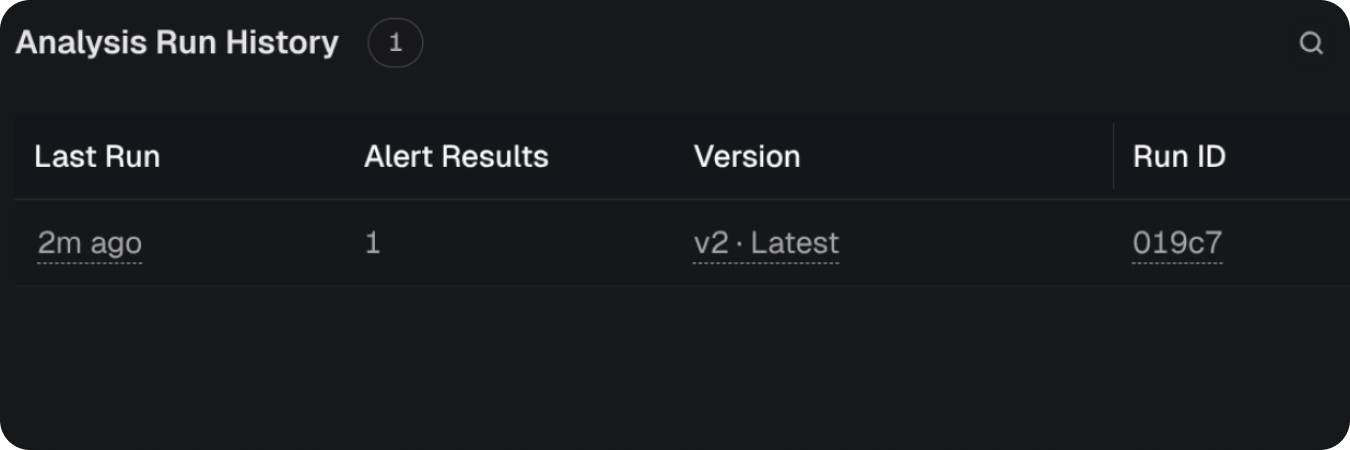
Analysis Run History:
The bottom of the configuration view shows the history of analysis runs for this alert type, including when the alert engine last evaluated data against this configuration.
Understanding Alert Quotas
Each alert configuration includes a Quota setting that caps the maximum number of individual alerts a single alert type can generate per analysis run. By default, this value is set to 1000. The quota mechanism exists to prevent any single alert type from overwhelming the system with excessive results and to encourage the user to refine and focus each alert configuration for their specific environment.
When an alert generator reaches its quota limit during an analysis run, a caution icon appears next to that alert in the Alert Management panel. This icon serves as a clear indicator that the alert has hit its ceiling and that the user should revisit the configuration.
Important: When a quota is reached, the alert results have been preempted and truncated. This means that additional underlying events, flows, or hosts that would have produced alerts were not surfaced. The results shown represent only a subset of the total matching activity — not the complete picture. Users should exercise caution when interpreting quota-limited results: the displayed alerts should not be treated as a comprehensive representation of the total population of matching activity. Drawing conclusions about volume, scope, or prevalence from truncated results can lead to inaccurate assessments.
A triggered quota is a strong signal that the alert configuration is too broad for the current environment. To address this, the user should:
- Narrow the filters: Apply more specific Asset IDs, CIDR ranges, or protocol filters to reduce the scope of data the alert evaluates.
- Adjust thresholds: Raise detection thresholds or tighten parameters to target only the most significant activity.
- Split the alert: Consider creating multiple, more focused alert configurations that each target a specific segment of the network or a narrower behavior pattern, rather than relying on a single broad configuration.
By tuning alerts so they operate well within their quota, users ensure that every generated alert is meaningful and that no relevant activity is hidden behind a truncation boundary.
Alert Scheduling
Teleseer will run all enabled alerts each time a new topology is generated. Topology is generated each time Teleseer processes a new telemetry file — either one uploaded by the user, or one captured in a Teleseer streaming deployment. Alert analysis algorithms are only run on new files that aren't part of a previously built topology. If the user enables an alert, or configures its parameters, the user must upload a new file (or reprocess an existing one) before the engine will produce alerts.
Viewing Alerts
Alert Summary Table
To view alerts, the user must ensure the Alerts panel is visible. See Enabling Alerts section above for assistance.
If configured, a project will produce alerts. These will appear in an Alert Summary Table in the Alerts panel.
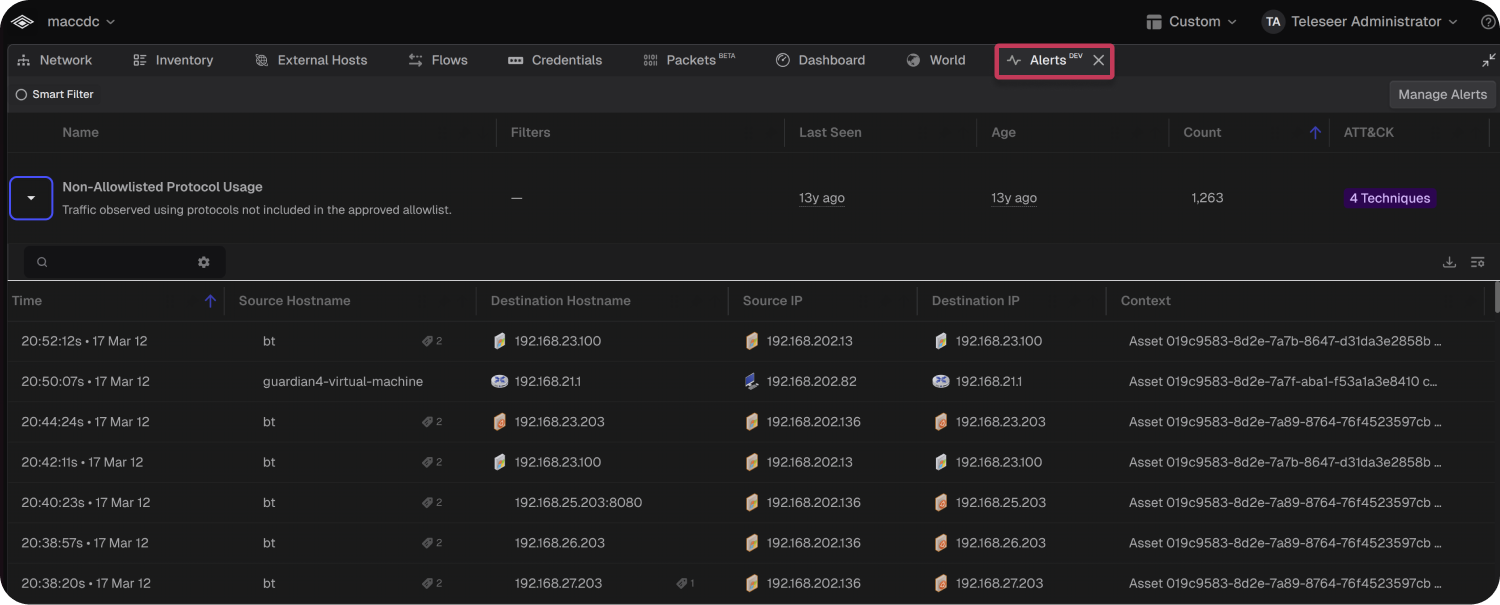
The Alert Summary Table displays one row per alert type that has fired. Each row includes:
Each row also shows metadata tags including the alert source (e.g., "Teleseer"), the alert configuration group (e.g., "Default Alerts"), and a unique alert configuration identifier.
Searching and Filtering Alerts
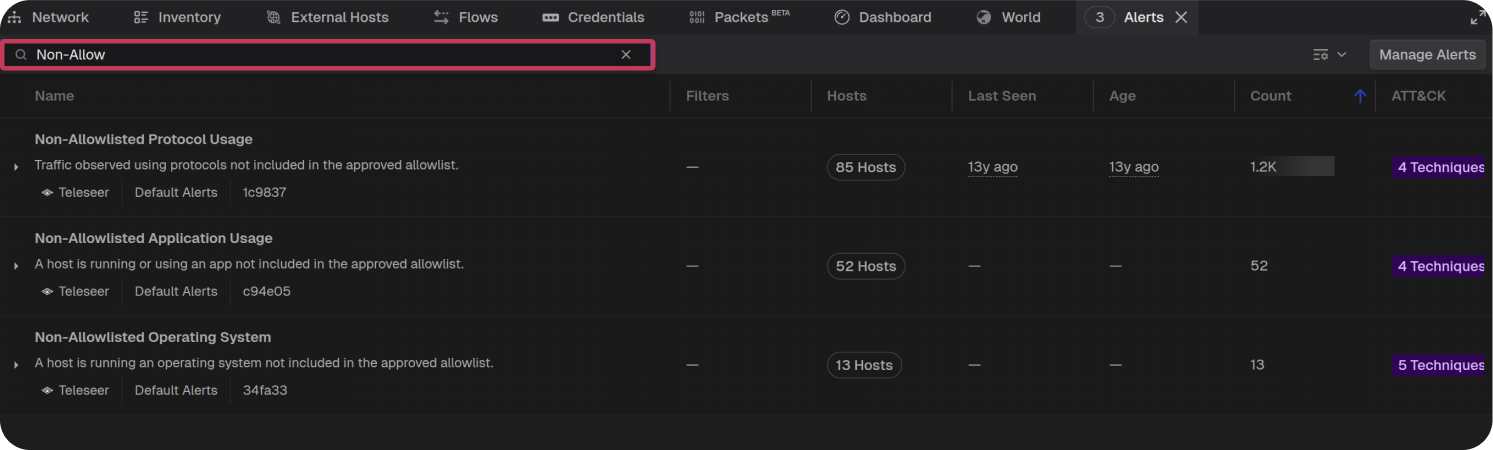
The search bar at the top of the Alerts panel can be used to filter alerts. For example, if the user wants to only see the Non-Allowlisted type alerts, they can type "Non-Allow" in the search bar, which will filter the table to show only matching alert types:
Alert Information
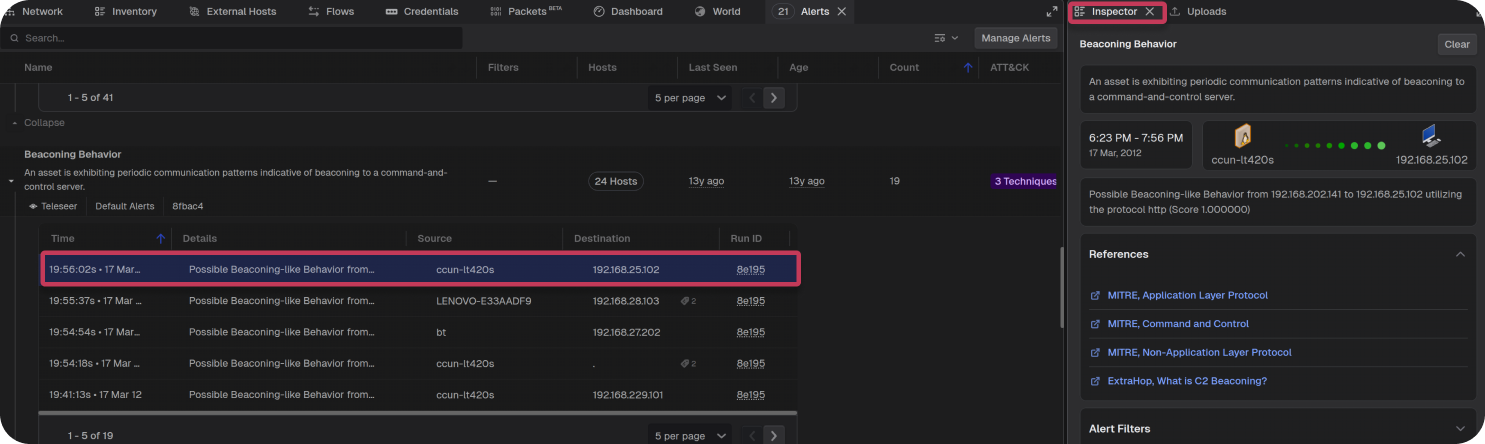
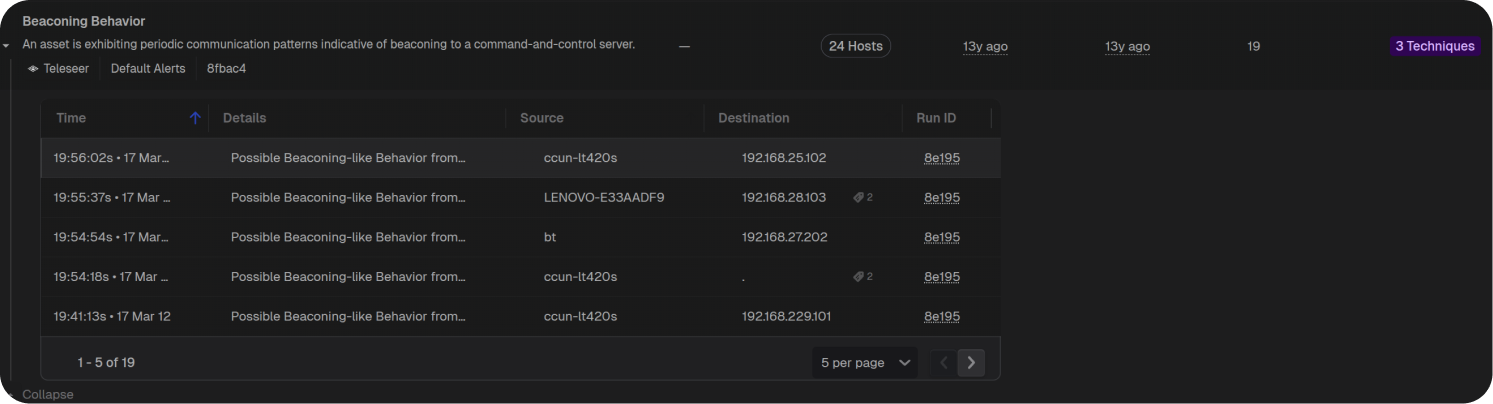
Each row of the Alert Summary Table is a grouping of all alerts for a certain alert type. Clicking the expand arrow on a row reveals the individual alerts that fired under that type. For example, expanding the Beaconing Behavior row shows all beaconing alerts with the following details:
- Time: The timestamp when the alert fired.
- Details: A brief description of the specific alert instance (e.g., "Possible Beaconing-like Behavior from...").
- Source: The hostname or identifier of the source asset.
- Destination: The IP address or hostname of the destination.
- Run ID: The identifier of the analysis run that produced this alert.
The table is paginated, allowing the user to navigate through results using the page controls at the bottom.
Clicking on an alert displays, in the Inspector Panel, more context for the alert:
- Alert Description: A full explanation of what the alert detects.
- Time Range: The time window during which the suspicious activity was observed (e.g., "6:23 PM – 7:56 PM").
- Source and Destination: Visual representation of the communicating hosts, including hostnames and IP addresses.
- Alert Details: Specific detection information such as the protocol used and the confidence score.
- References: Links to relevant MITRE ATT&CK techniques and external documentation. For example, a beaconing alert may reference MITRE, Application Layer Protocol, MITRE, Command and Control, and other relevant knowledge base entries.
- Alert Filters: The filter configuration that was active when this alert was generated.