The Inspector panel displays detailed information about the current selection, and its contents update based on what is selected. The Inspector supports single-item selection, multi-item selection with consolidated tables, and selection history.
Multi-selection
Selecting multiple items in the network topology populates the Inspector with consolidated tables, grouping items of the same type into a single table.
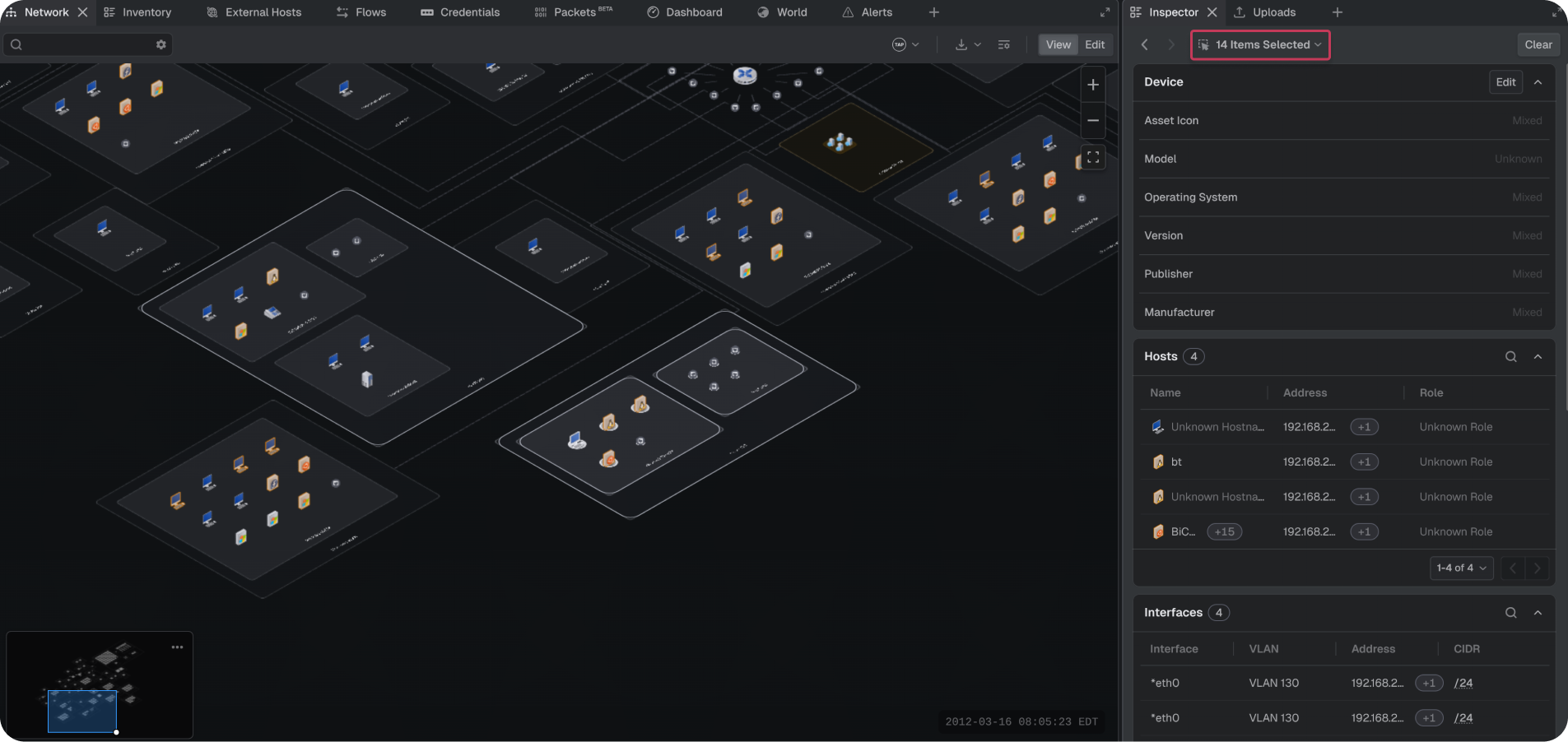
Table categories
Multi-item selections break out into dedicated tables by category. Categories include Hosts, Private Hosts, Internet Hosts, VLANs, Subnets, Interfaces, Gateways, Flows, Packets, Events, and Alert Groups. Each appears as its own section with a count, search ability, and pagination as applicable.
- Device: a list of common attributes across selected hosts.
- Hosts: assets observed as internal to the network topology.
- Private Hosts: external hosts that are private to their own network but external to the project.
- Internet Hosts: external hosts that are internet-accessible.
- Interfaces: the interfaces belonging to selected assets.
- Gateways: the router interfaces that connect to a given subnet, identifying which router interface belongs to which subnet.
- VLANs: the Virtual Land Area Networks that logically partitions the network into distinct broadcast domains at the data link level.
- Subnets: the network-level segmentation of the IP network.
Note: When a group of internet hosts is selected, the Inspector shows how many routers in the network topology have accessed the group and how many hops each path took. For example, a host may show that it was accessed through two different routers, with each path taking a different number of hops.
Mass editing hosts
When more than one host is selected, host device attributes can be edited in a single action.
- Select multiple hosts in the Network or Inventory panel
- In the Inspector panel, select the Edit button
- Modify any of the following: Asset Icon, Model, Operating System, Version, Publisher, or Manufacturer
- Select Save
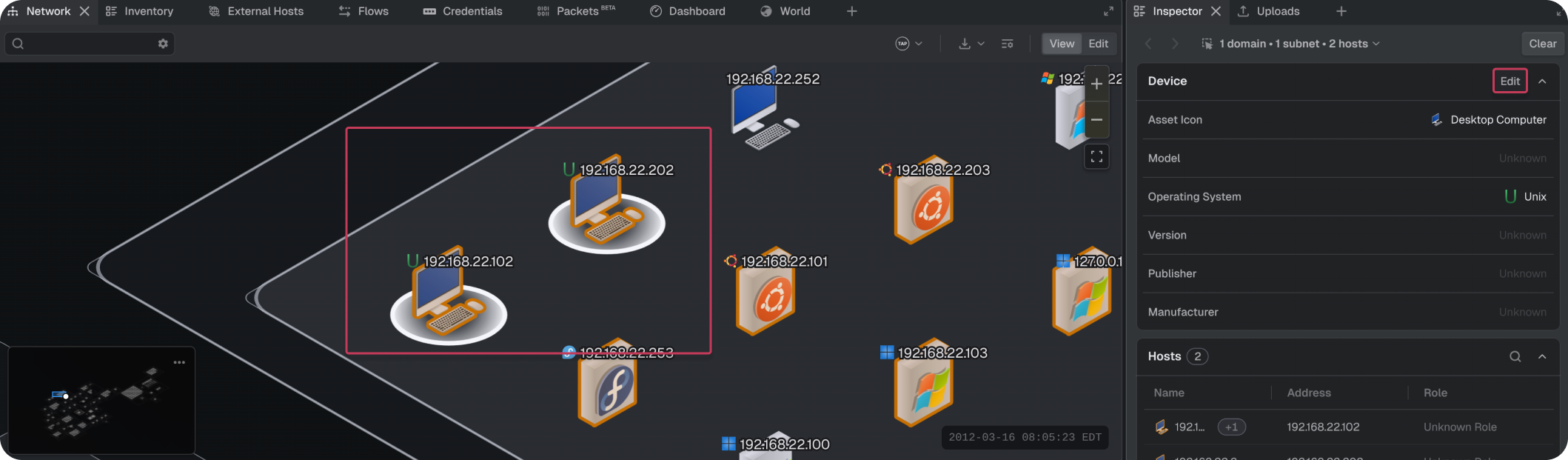
The specified values are applied to all selected hosts. When selected hosts have differing values for a field, that field displays "Mixed." Setting a new value overwrites it for every selected host.
Table interactions
The following interactions apply across consolidated tables.
- Search: the search icon in the section header toggles a search bar that filters for matching content in the selection.
- Pagination: tables paginate with previous and next controls and an adjustable page-size dropdown (5, 10, 25, or 50).
- Sorting: columns can be sorted alphabetically or numerically as applicable. Sort once to ascend, twice to descend, and three times to remove sorting.
- Hover highlighting: hovering over a table row highlights the corresponding item in the network topology. This applies to multi-selected Hosts (of any type), Interfaces, and Gateways.
Row quick actions
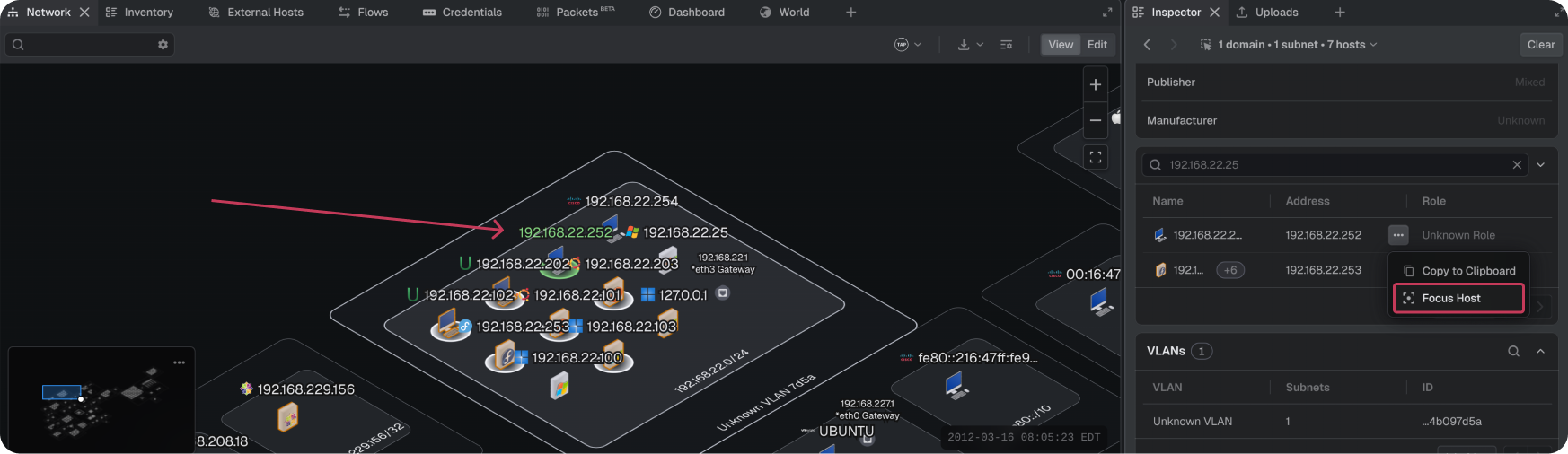
Table rows expose a `...` menu with quick actions that differ by table type:
- Flows: Copy to Clipboard, Focus Host, Smart Filter Host
- Hosts (of any type): Copy to Clipboard, Focus Host
Navigation
Use the following tools to return to a previous selection or adjust the current one:
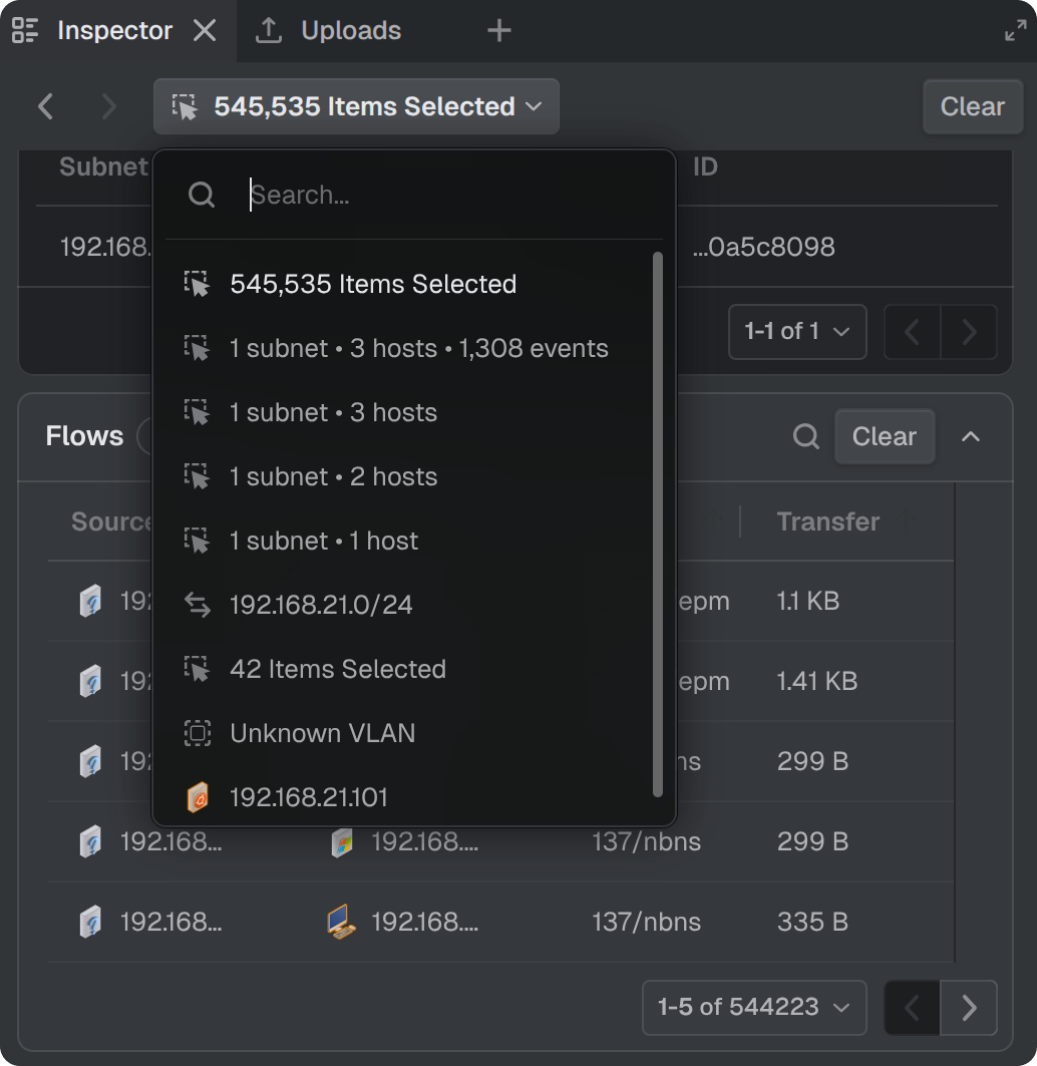
- History: Every Inspector panel selection displays a selection summary at the top. Clicking the summary opens a dropdown of previous selections, which can be searched or chosen to restore that view.
- Clear: multi-selection group has a clear button that removes only that selection from the Inspector panel. To clear all selections, select the Clear button at the top right of the Inspector panel.
Default view
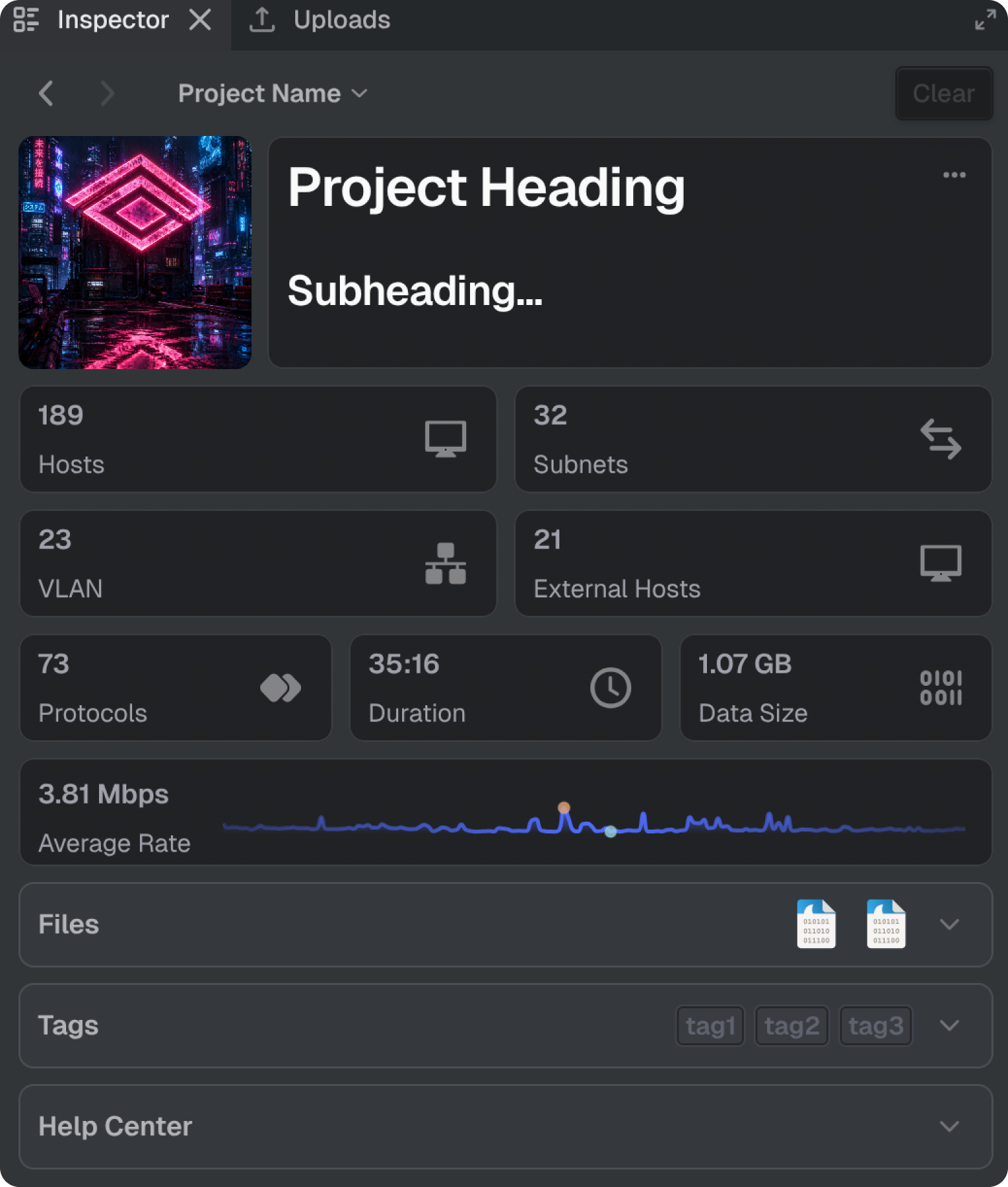
When nothing is selected, the Inspector displays project-level summary information.
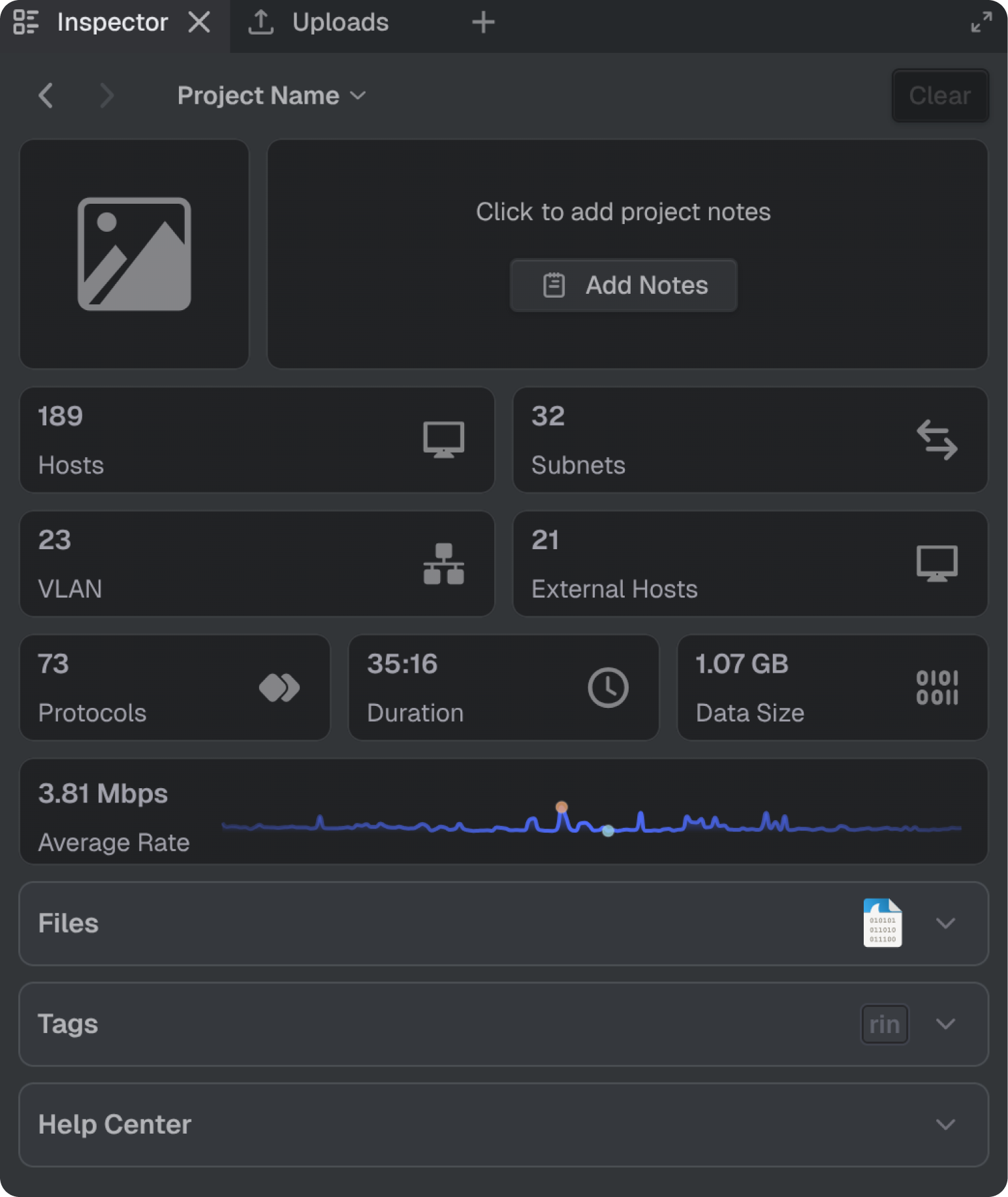
Project description
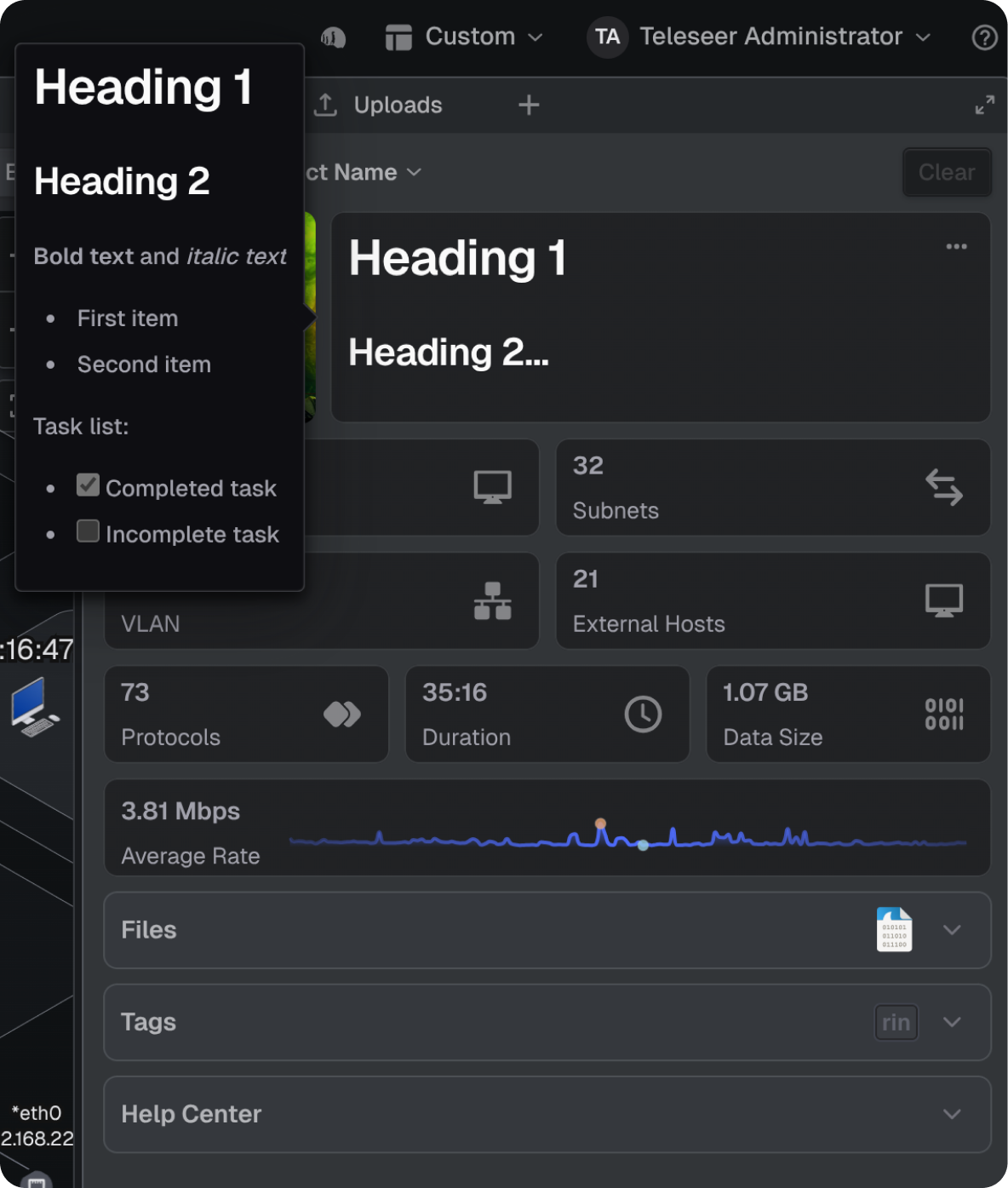
The project description can be added or modified by selecting Add Notes, or Edit Project Description if a description is already present. Once saved, the description renders with markdown formatting in the panel. Hovering over the rendered content opens a tooltip that expands the full text.
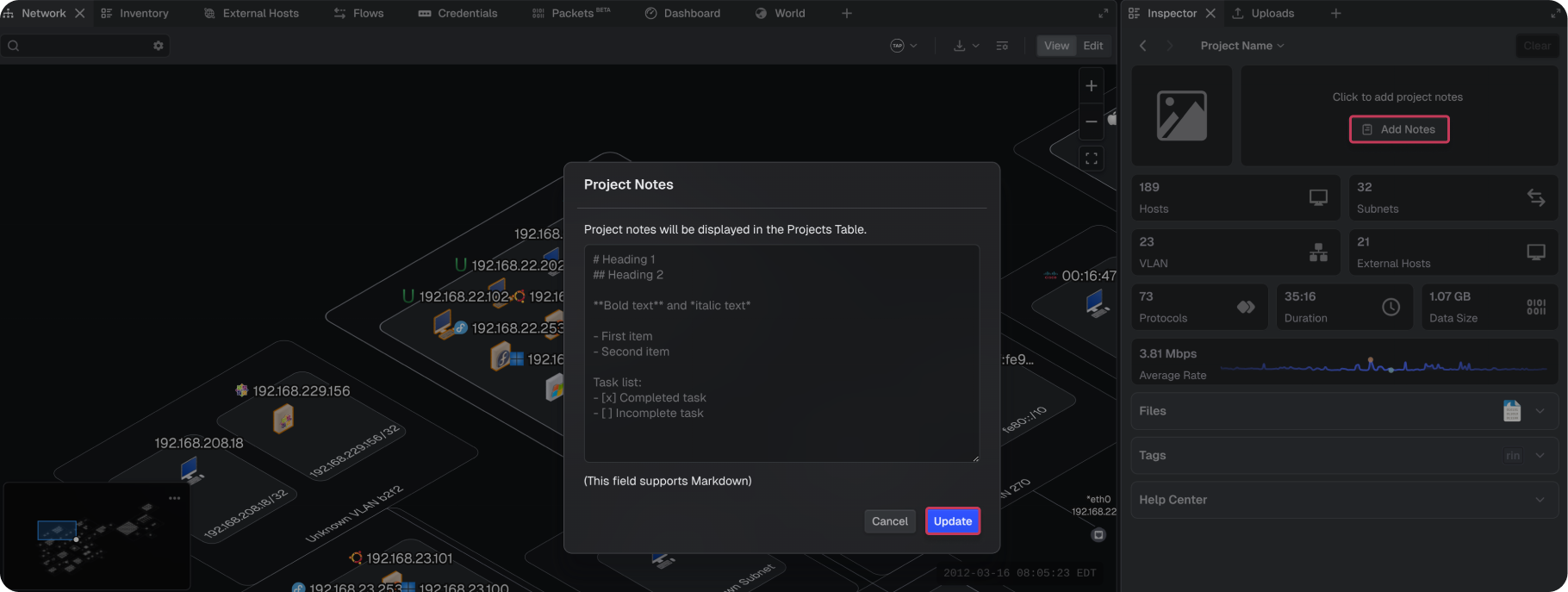
Project descriptions support standard markdown. For example:
# Heading 1
## Heading 2
### Heading 3

**Bold text**, *italic text*, and ~~strikethrough~~

- First item
- Second item
  - Nested item
  - Another nested item

1. Step one
2. Step two
3. Step three

Task list:
- [x] Completed task
- [ ] Incomplete task
- [ ] Another pending task

> A blockquote for notes

`inline code`, a [link](https://example.com)

| Column A | Column B |
| -------- | -------- |
| Value 1  | Value 2  |
Selected host
To view host-specific details, select a host from the Network, Inventory, or External Hosts panels. To highlight areas on interest for the host the search box can be used at the top of the inspector panel.
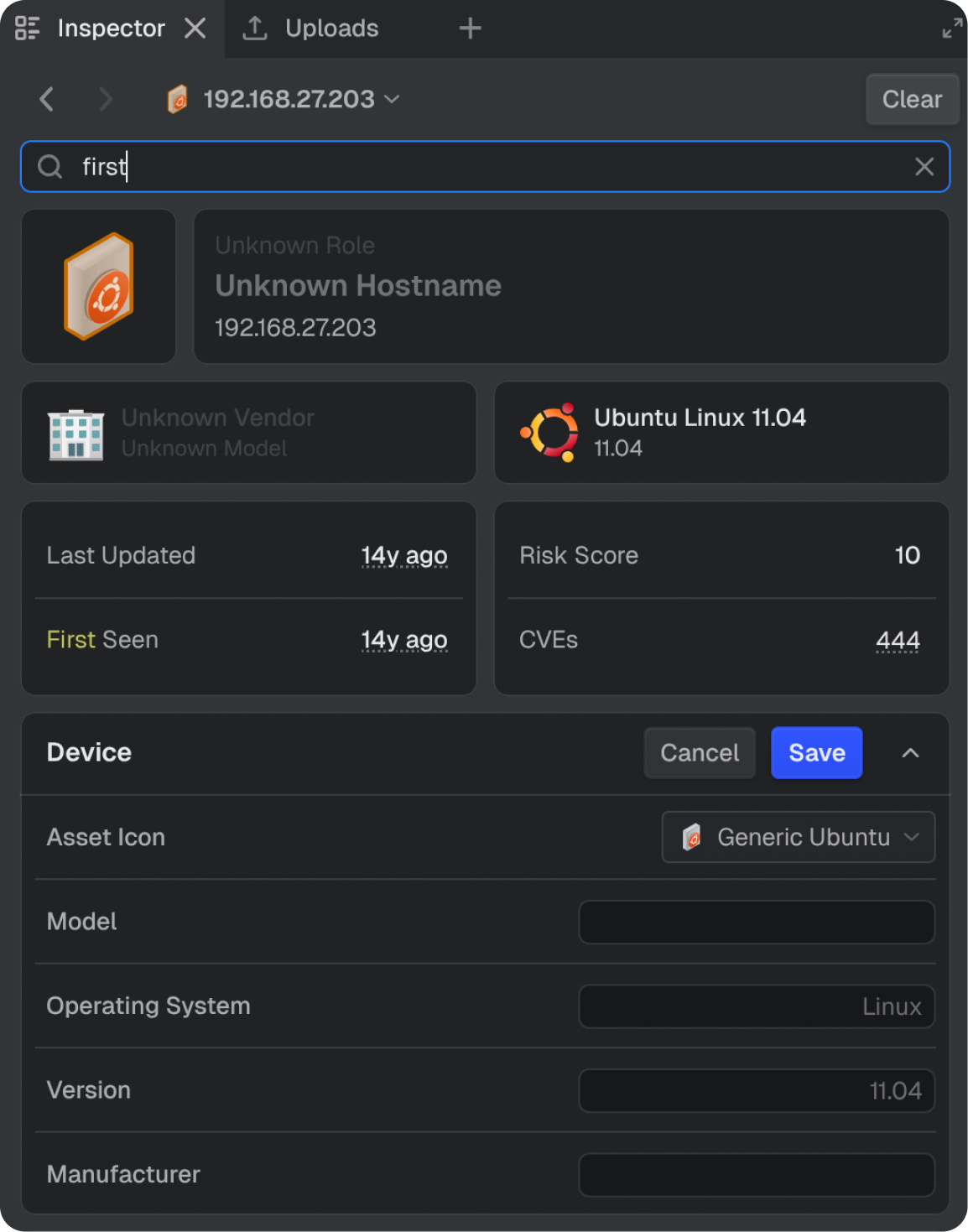
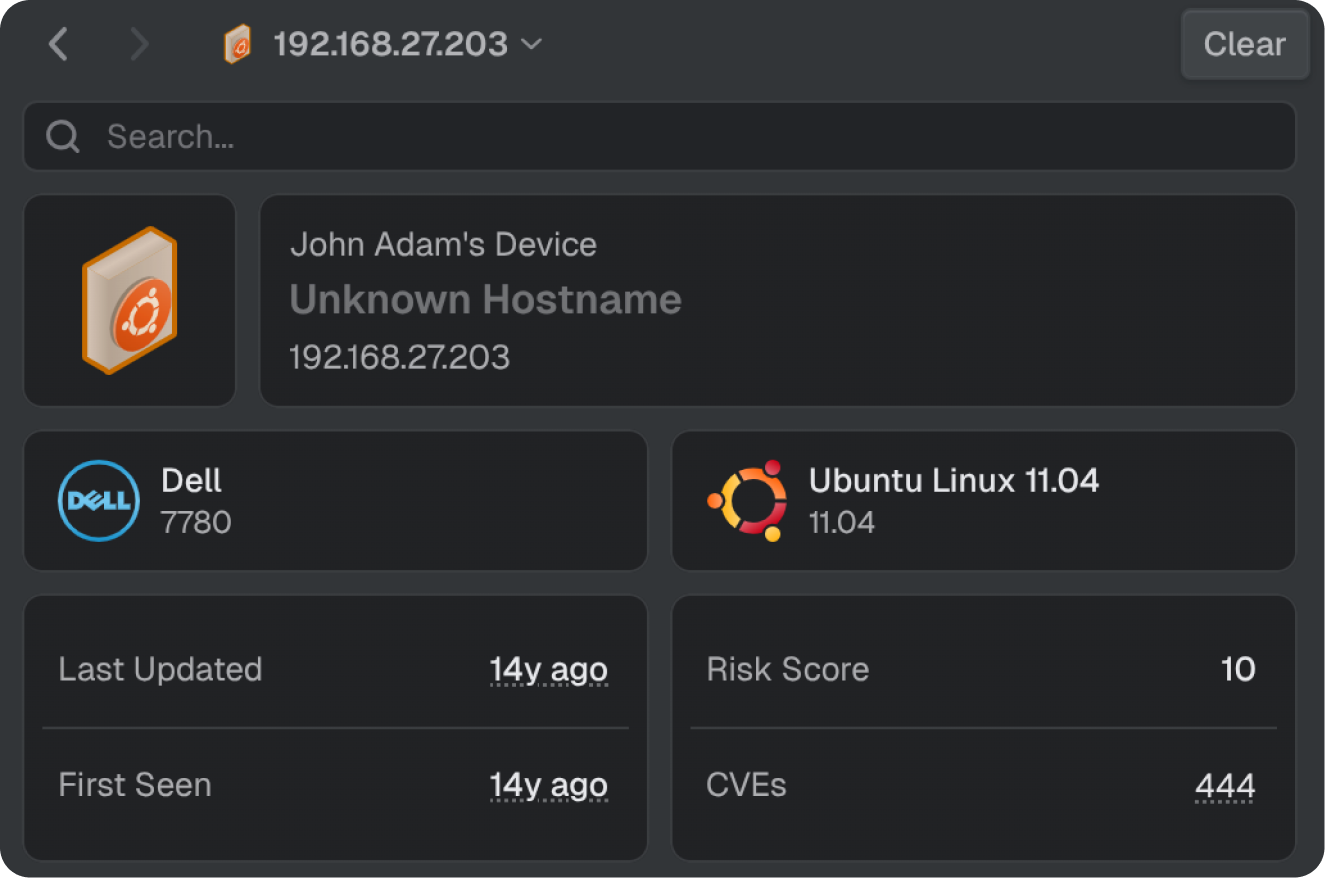
Summary
Provides a high-level overview of the host, including IP address(es), MAC address(es), hostname(s), device role, manufacturer details, first and last seen metrics, and vulnerability overview. The Risk Score reflects the host's highest CVE score. Selecting the CVEs card jumps to the Vulnerabilities section.
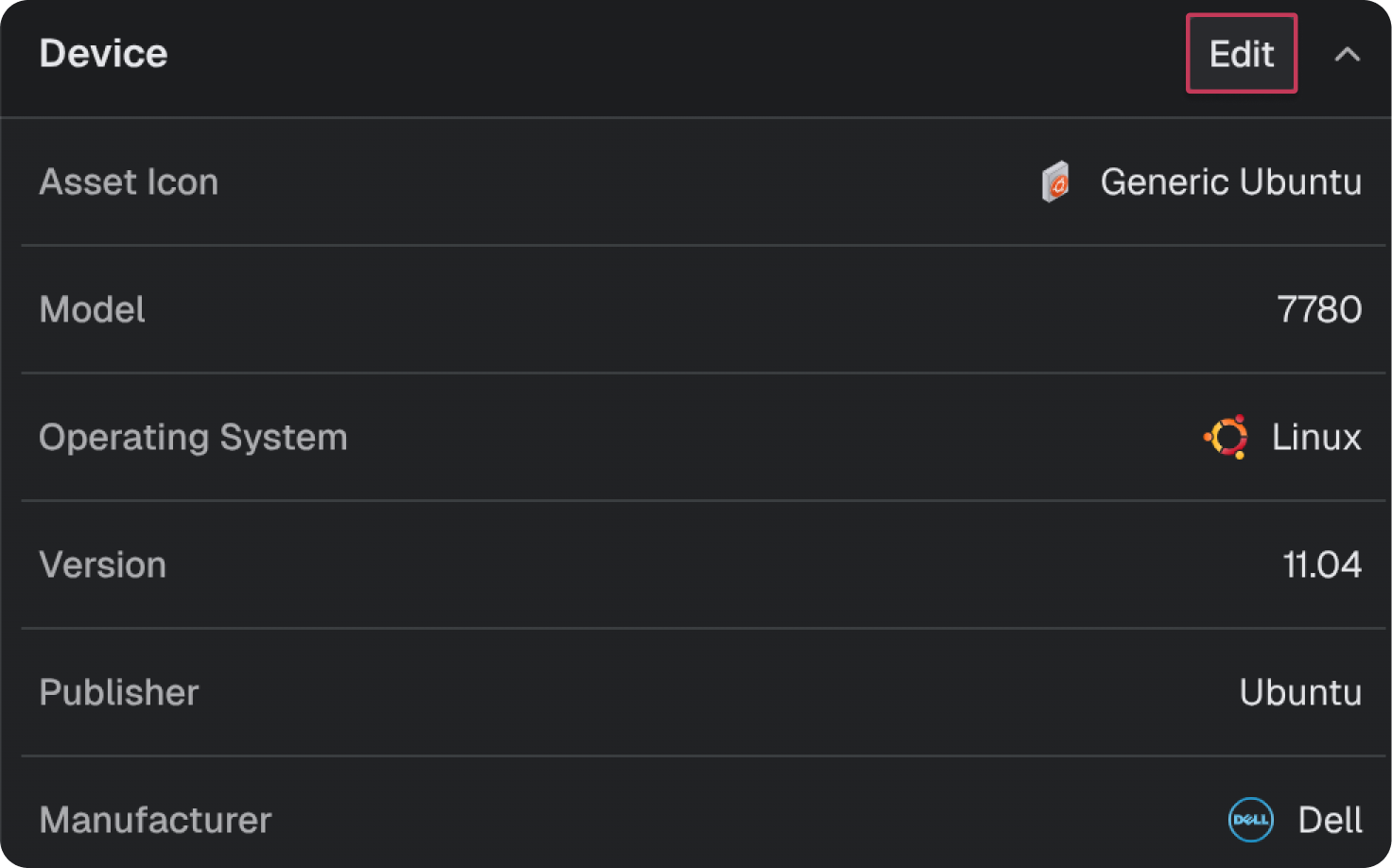
Device
Displays host attributes: asset icon, model, OS, version, publisher and Manufacturer. Select the Edit button to modify these values.
Notes
Notes can be added to an individual host. Asset notes support markdown formatting and render within a scrollable field. Hover and select Edit to make changes.
Interfaces
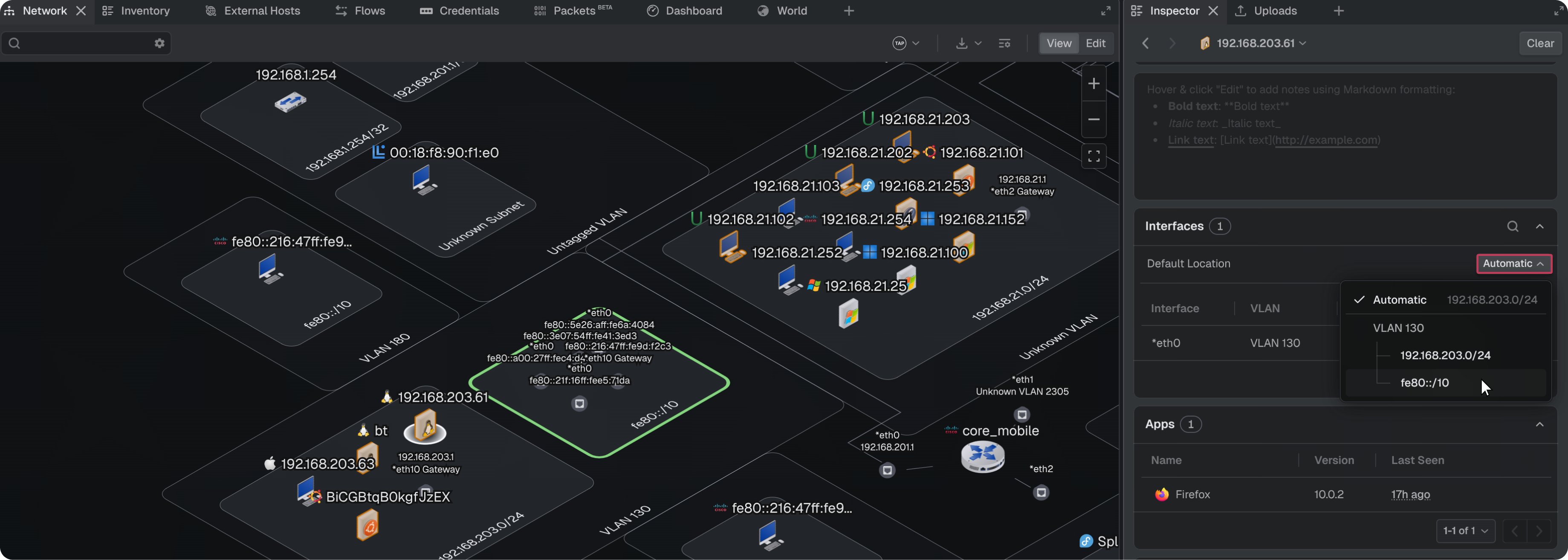
Displays a paginated table of the host's network interfaces with Interface number, VLAN, IP address, and subnet CIDR columns. Includes a count, a search field, and an adjustable Default Location control. When a host has multiple IP addresses associated with an interface, the Default Location control sets which IP address determines the host's placement in the topology.
VLANs
If a router host is selected, then a table of all its connected VLANs its interfaces are configured on will be listed.
Apps
Displays applications identified by Deep Packet Inspection (DPI) in a paginated table with name, version, and last seen columns. This is not an exhaustive list of installed applications; it reflects only applications observed in the traffic.
Services
Displays a paginated table of detected services with port, protocol, and Interfaces columns. Services reflect the ports and protocols the host has been observed communicating on, based on the analyzed packets.
Vulnerabilities
Displays identified CVEs (Common Vulnerabilities and Exposures) as a paginated list, including a count and a search field. Each entry shows the CVE identifier, a description, and severity. Select the chevron on an entry to expand its detail and view its references.
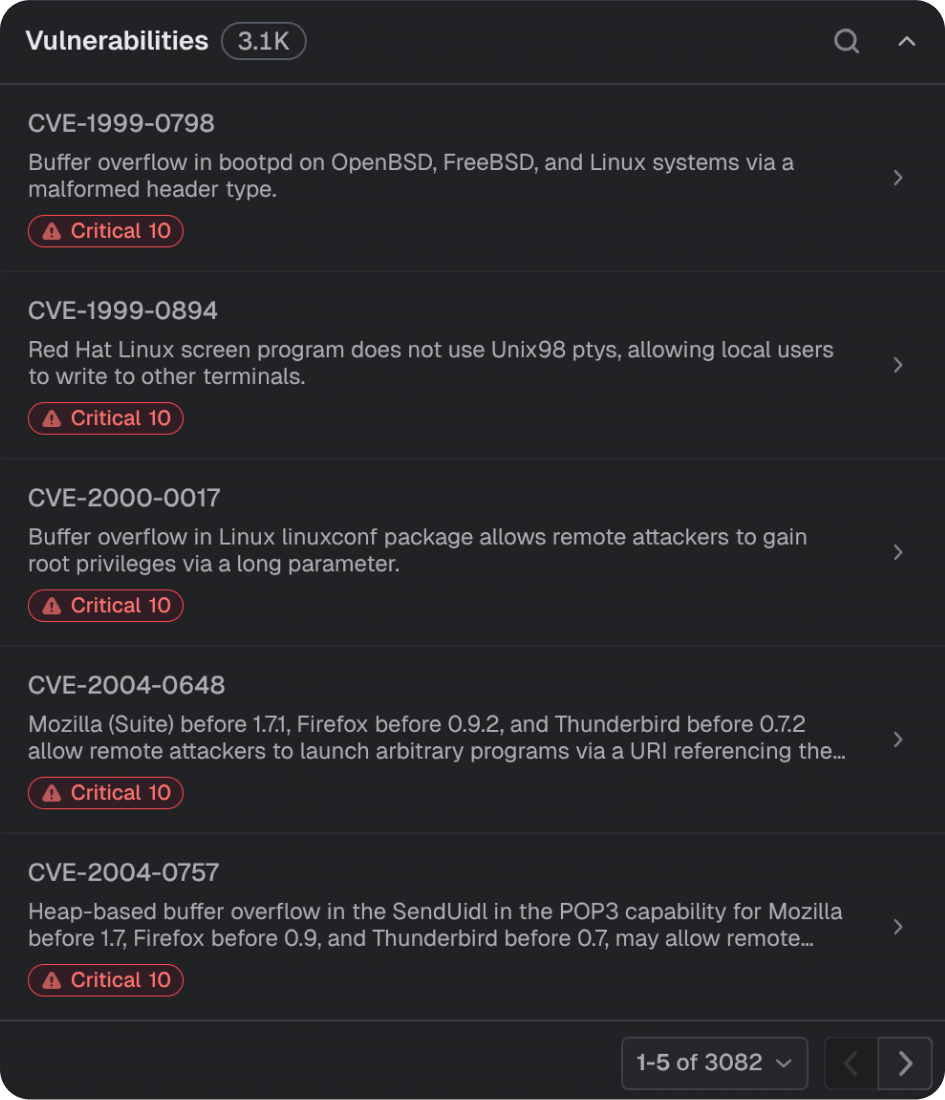
CVEs follow the format CVE-YYYY-NNNN, where YYYY is the year and NNNN is a unique identifier. For more information, see https://www.cve.org.
Hosts with detected vulnerabilities appear in the Network panel in orange.


Vulnerability scoring
Each host in the Network panel is assigned a vulnerability score based on identified CVEs and common vulnerability scanners.
Enabling vulnerability scoring
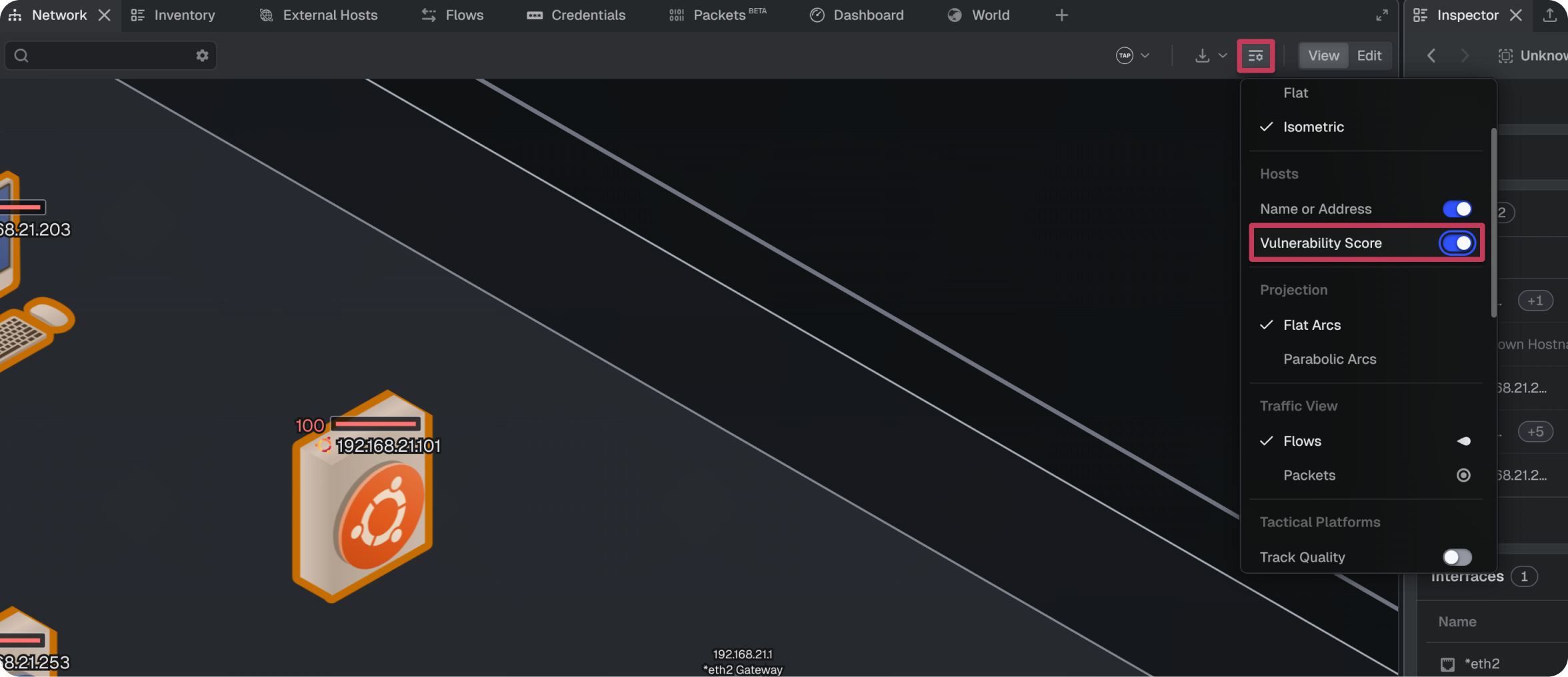
- Open the Network panel
- Select the Network View Settings icon
- From the dropdown, toggle Vulnerability Score
Tags
Tags are keywords or phrases used to identify and filter hosts. Common tags and colors can be applied to selected hosts.
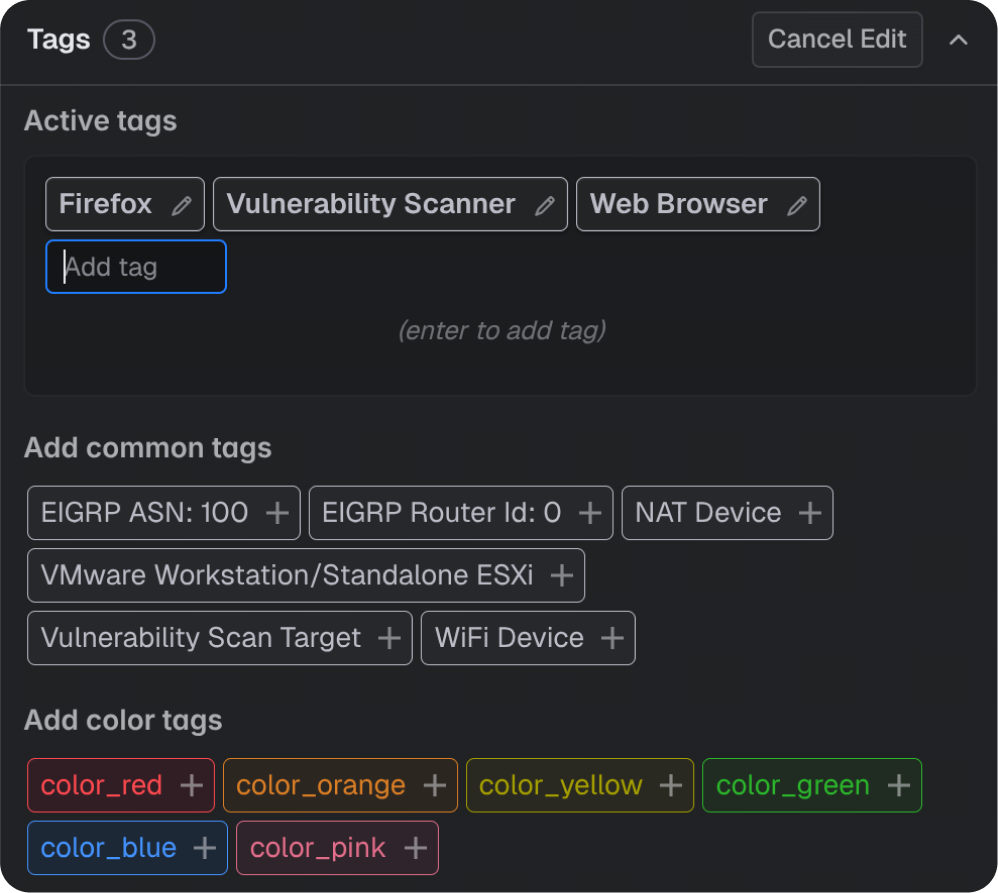
Adding tags
1. Select a host
2. In the Inspector panel, scroll to the Tags section
3. Expand using the chevron
4. Select the Edit button
5. Enter a tag and press Enter to save
Tagged hosts can be searched from the Network, Inventory, and External Hosts panels.
Roles
Roles describe the function of a host and can be added or removed directly in the Inspector. Select Add to enter a new role, or select Remove on an existing role. Roles can be fully custom (for example, "Building A") and applied to organize assets by any grouping. Select Save to save, or Cancel to discard.
The Router role affects placement in the network topology. Removing the router role from a host returns it to its appropriate subnet. By default, switches belong to their subnet and can optionally be moved outside all domains using the Elevate Switches toggle in the Network topology settings. Roles that affect MRT-C scoring include Router, Switch, DHCP Server, and DNS Server.
Selected interface
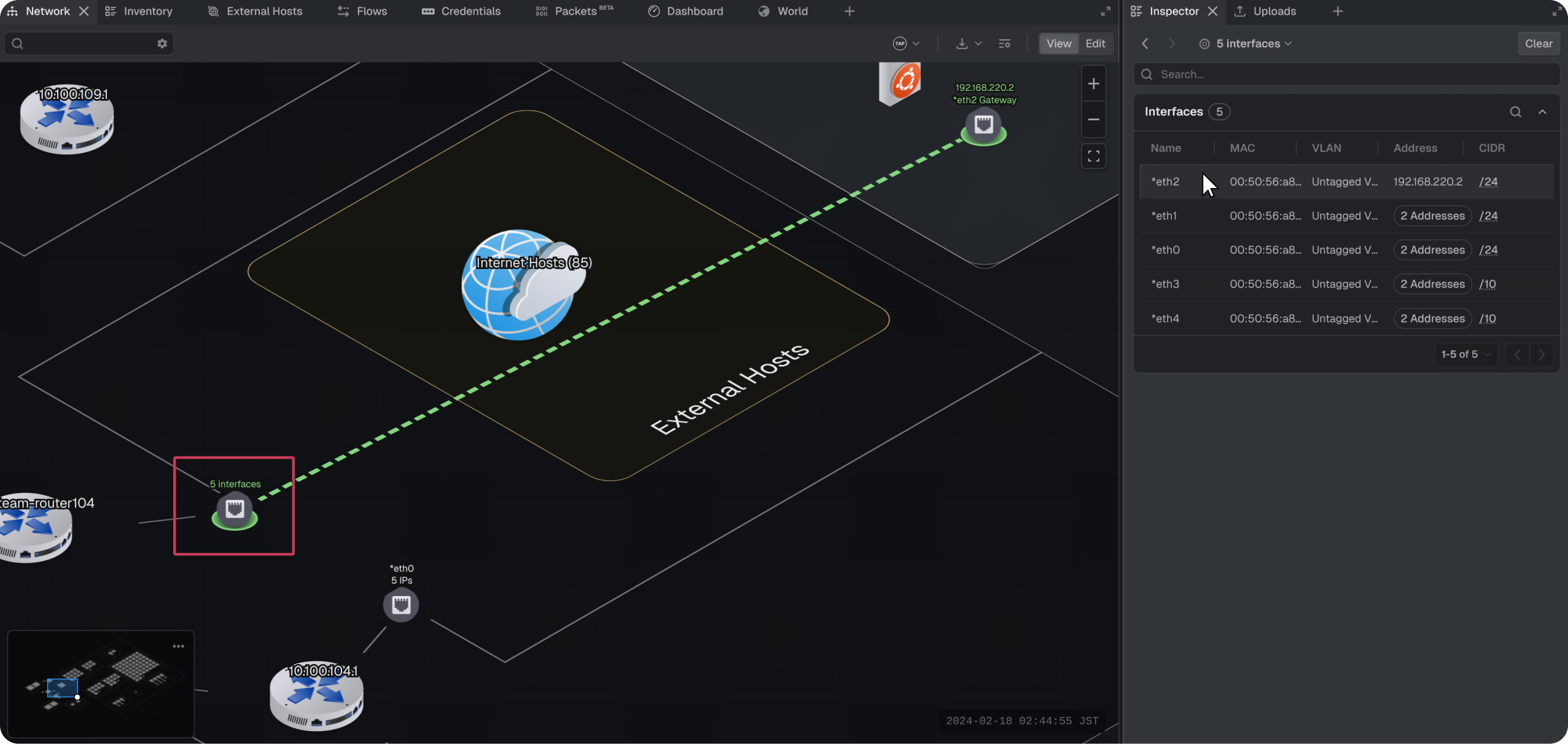
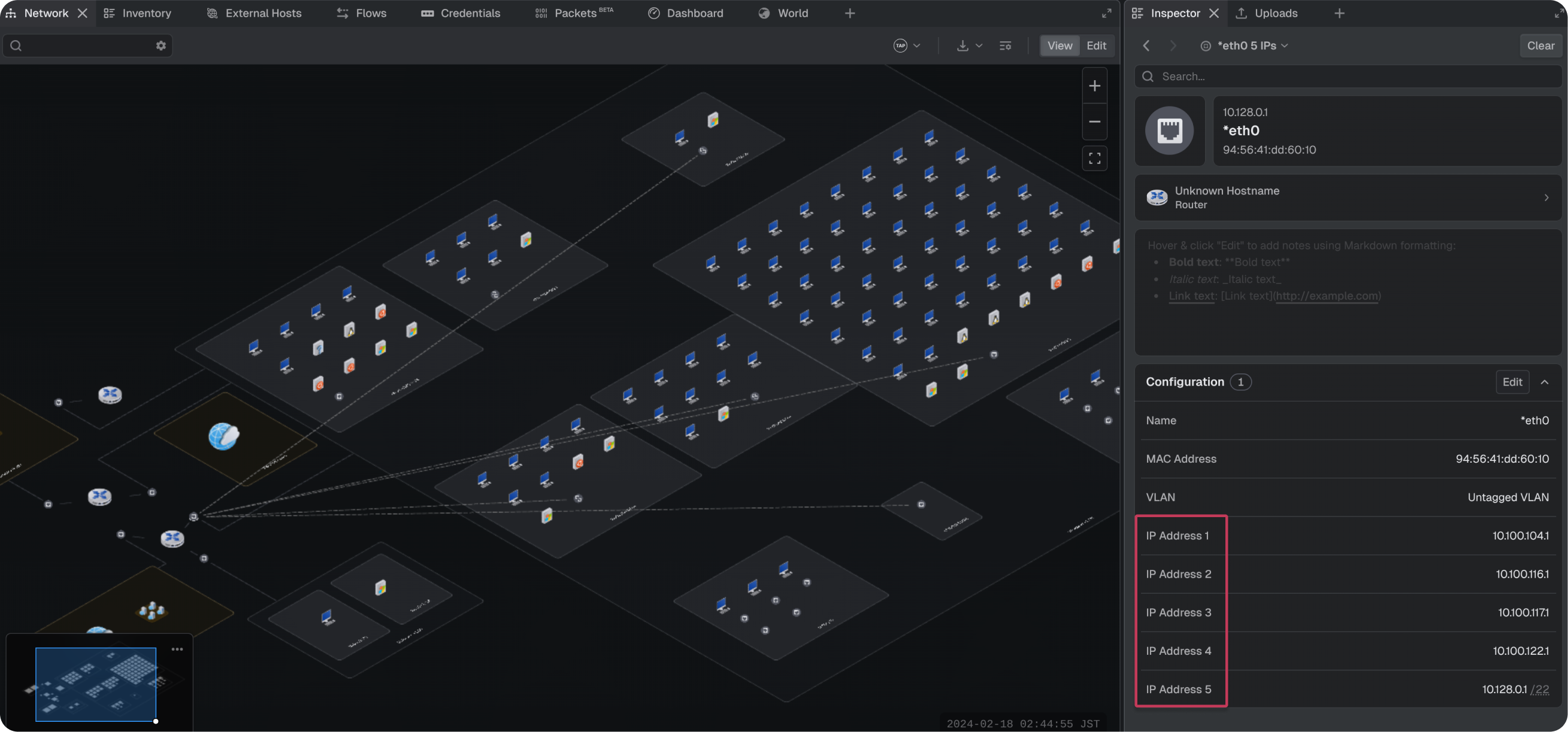
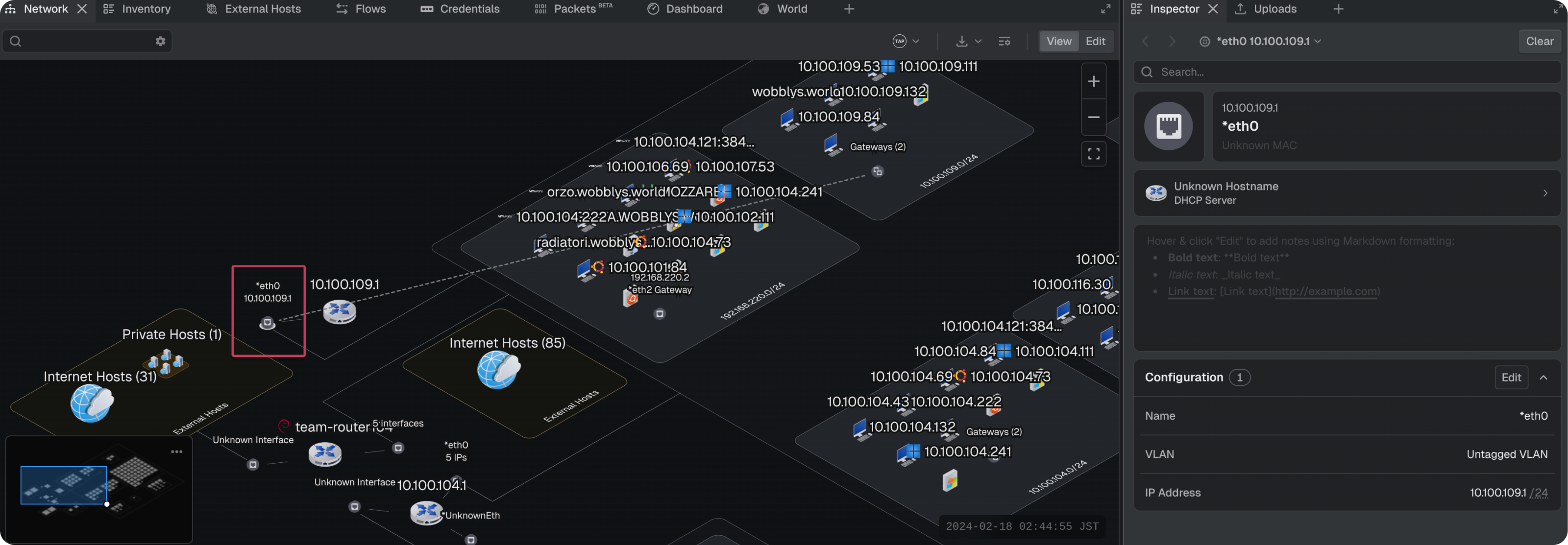
An interface represents a connection point on an asset, which may be a desktop, router, or other device. Selecting an interface on a router or elevated switch displays interface configuration details and the logical gateway(s) associated with the physical interface. Selecting a group of physical interfaces presents a paginated table of all detected physical interfaces associated with that device.
Below are some different examples of various interface selection types:
One router with multiple physical interfaces
One physical interface configured with multiple logical interfaces
One physical interface configured with one logical interface
Configuration
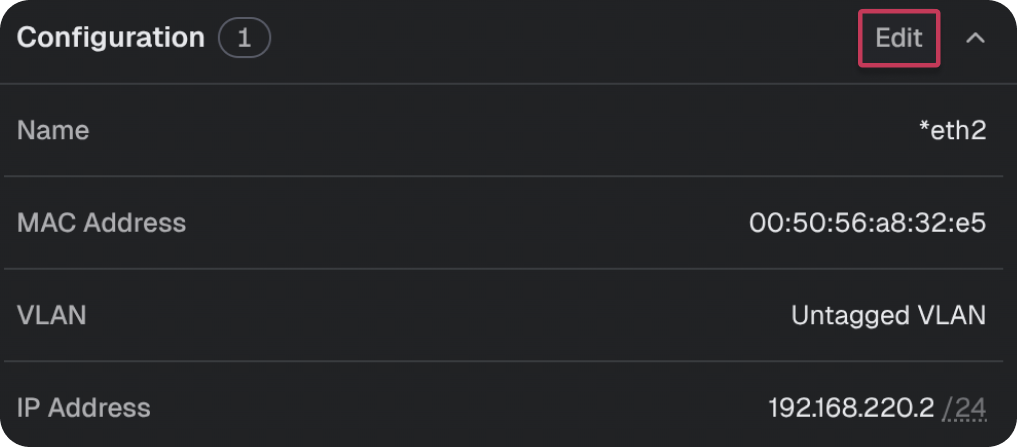
The configuration setting will display when only one physical interface is selected. It lists the name, MAC address, VLAN, IP address, and known subnet. Select the Edit button to modify these values. When an interface has multiple bound IP and subnet pairs, the IP Address and Subnet rows repeat for each pair.
Selected gateway
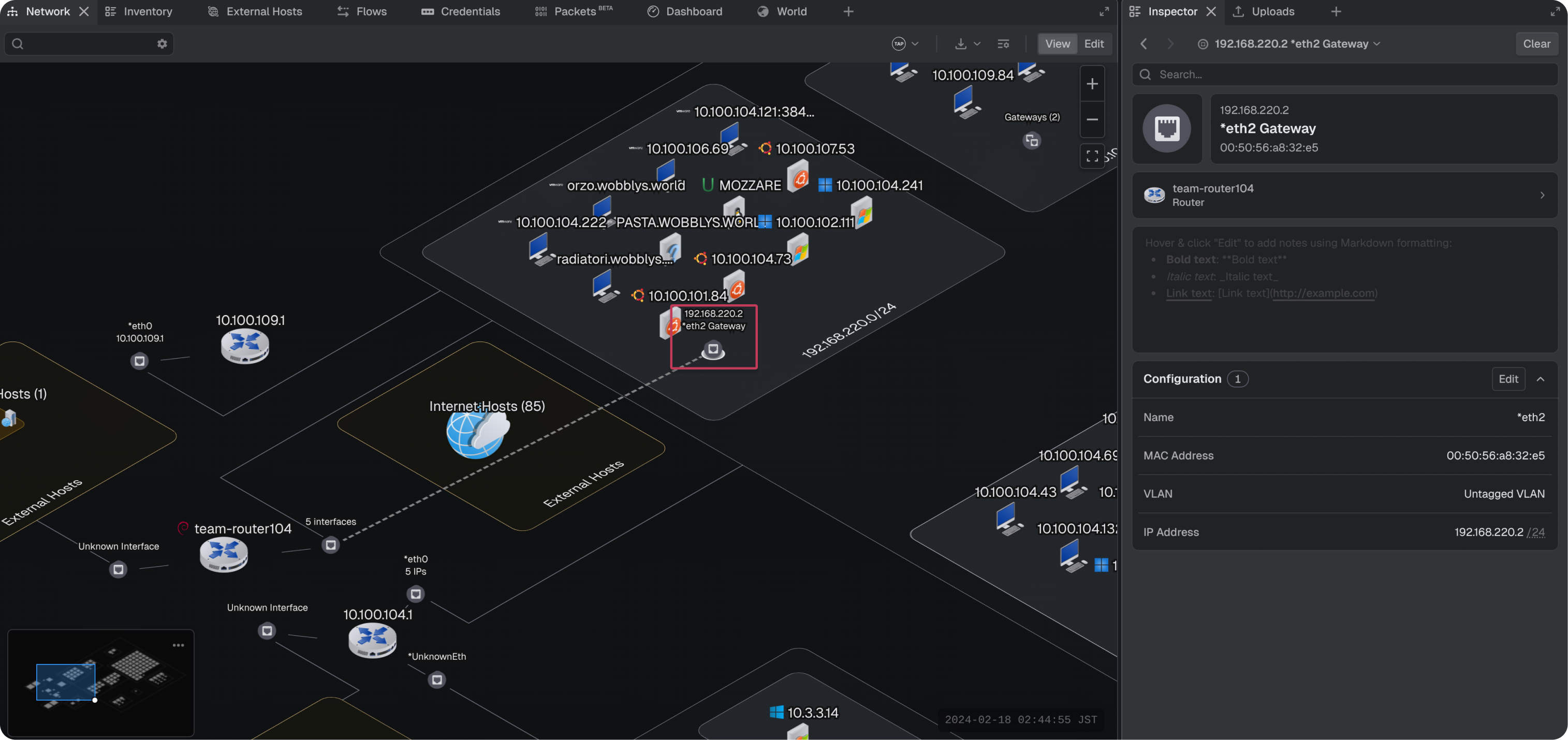
Router interfaces have a corresponding "twin" interface in the subnets they belong to; this twin is referred to as a Gateway. The gateway interface lives within a subnet and is an entry and exit point for the devices within that subnet. When a gateway is selected, the interface configuration section presents all of the logical gateway IPs and their associated subnets configured on the router.
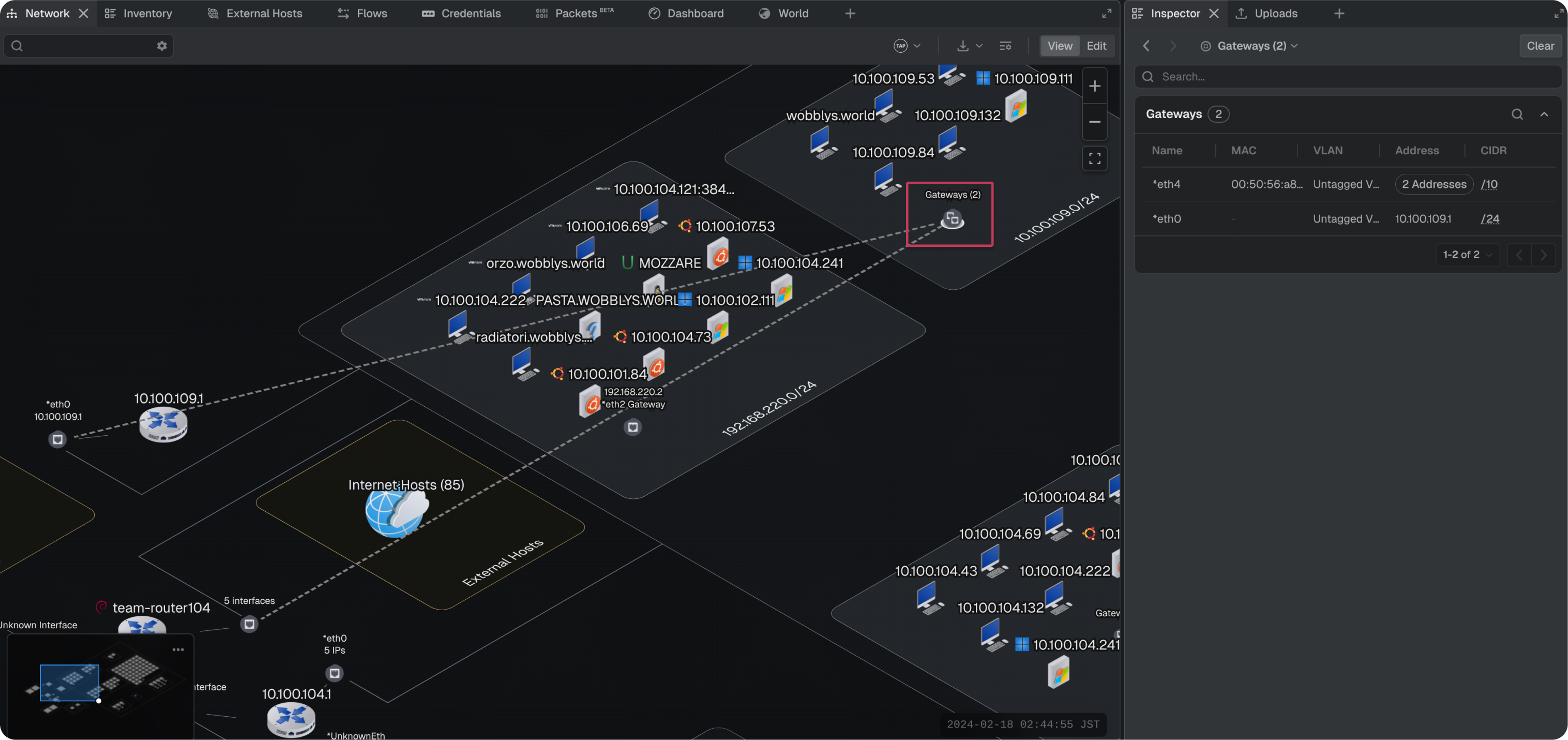
If multiple gateways are configured for a subnet, they are grouped together. Selecting the group gateway icon displays a paginated table of all the router interfaces it points back to.
Note: any changes made to a gateway configuration will be reflected on its twin interface. This is because logically the gateways are just a mirror object of the interface and serve only to visually represent a connection between a subnet and the router interface.
Selected subnets
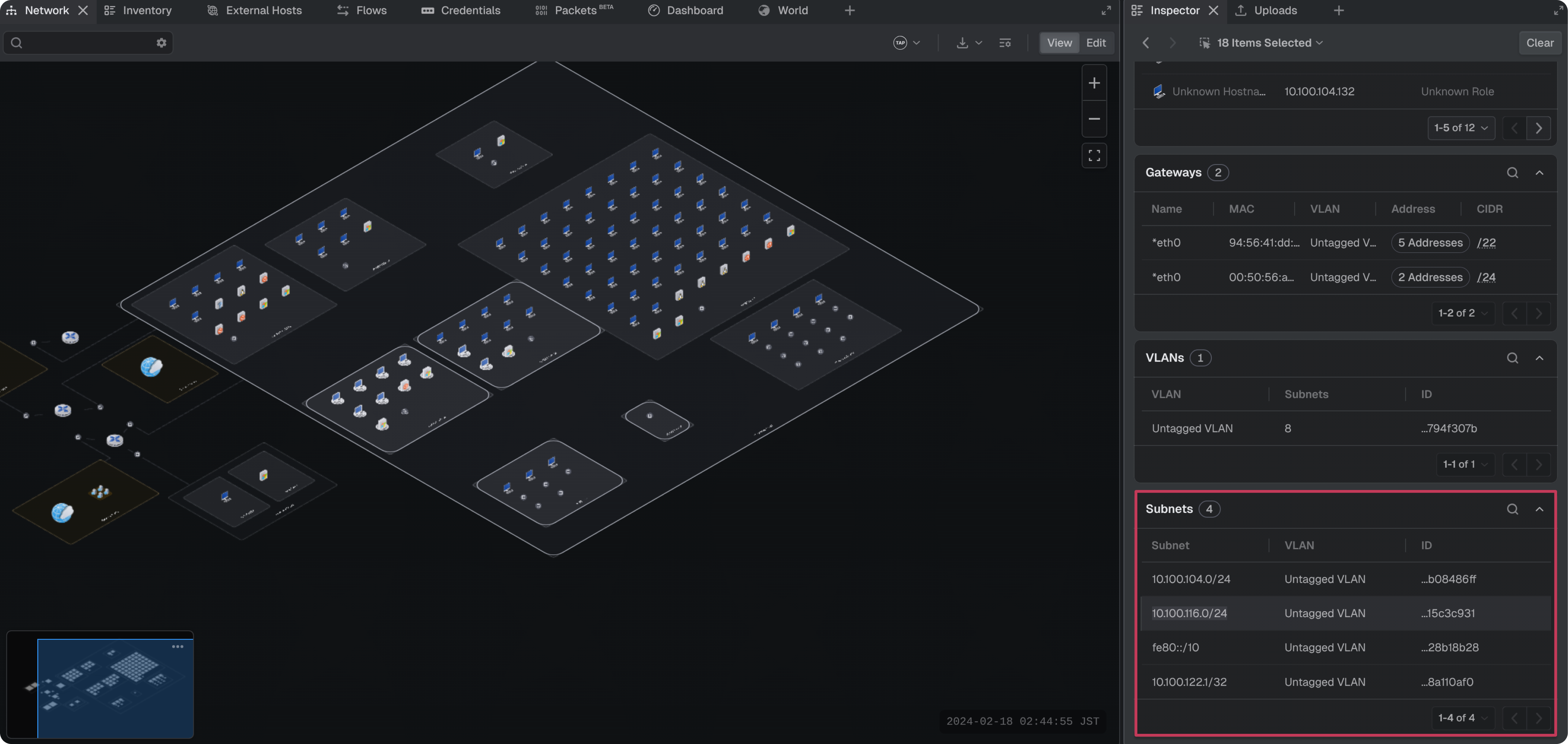
Selecting multiple subnets displays a paginated table with a high level overview of each subnet. Selecting a single subnet displays the subnet notes, roles, and the hosts within it.
Selected VLANs
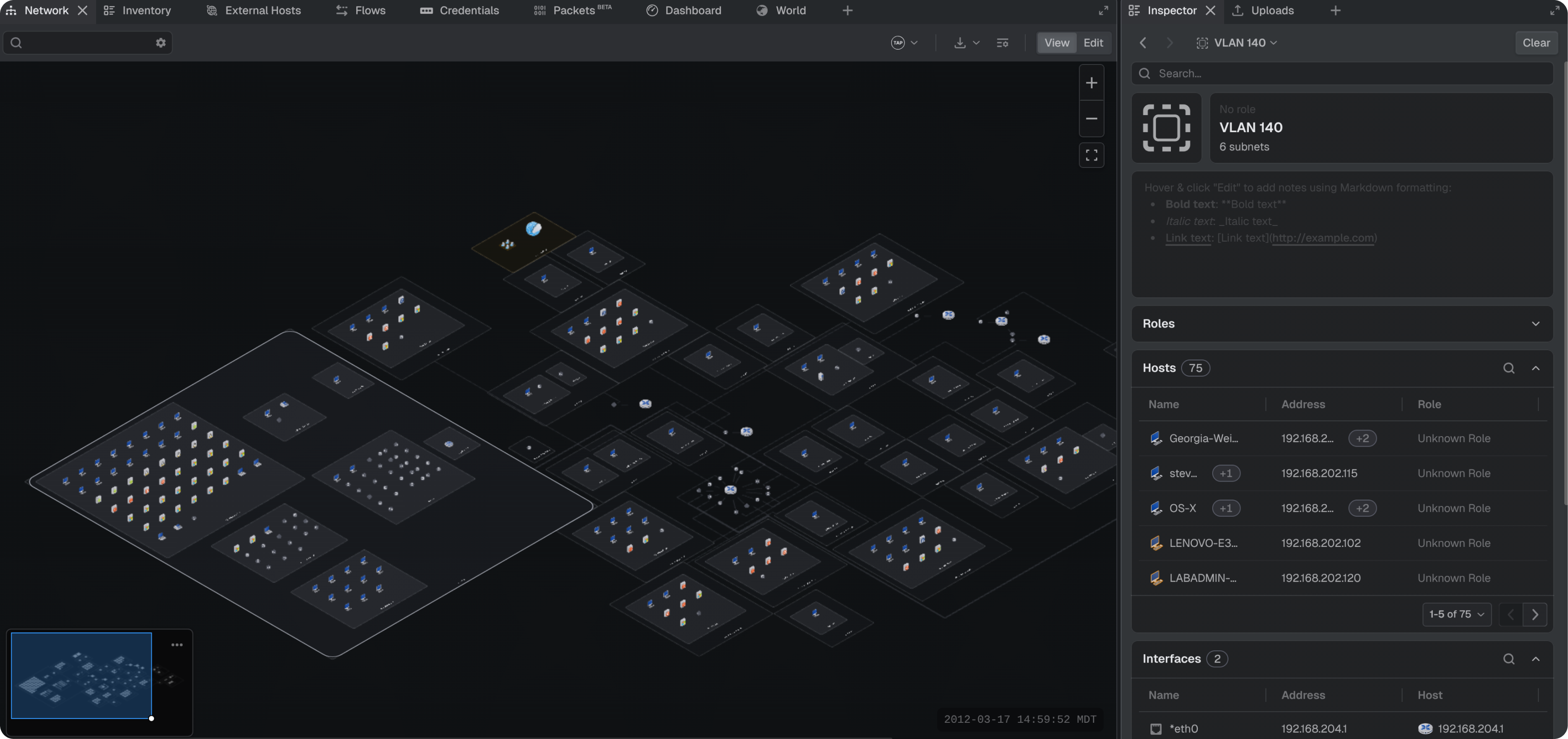
Selecting multiple VLANs displays a paginated table with a high level overview of each VLAN. Selecting a single VLAN displays the VLAN notes, roles, and hosts, configured router interfaces, and subnets within it.
Selected flows
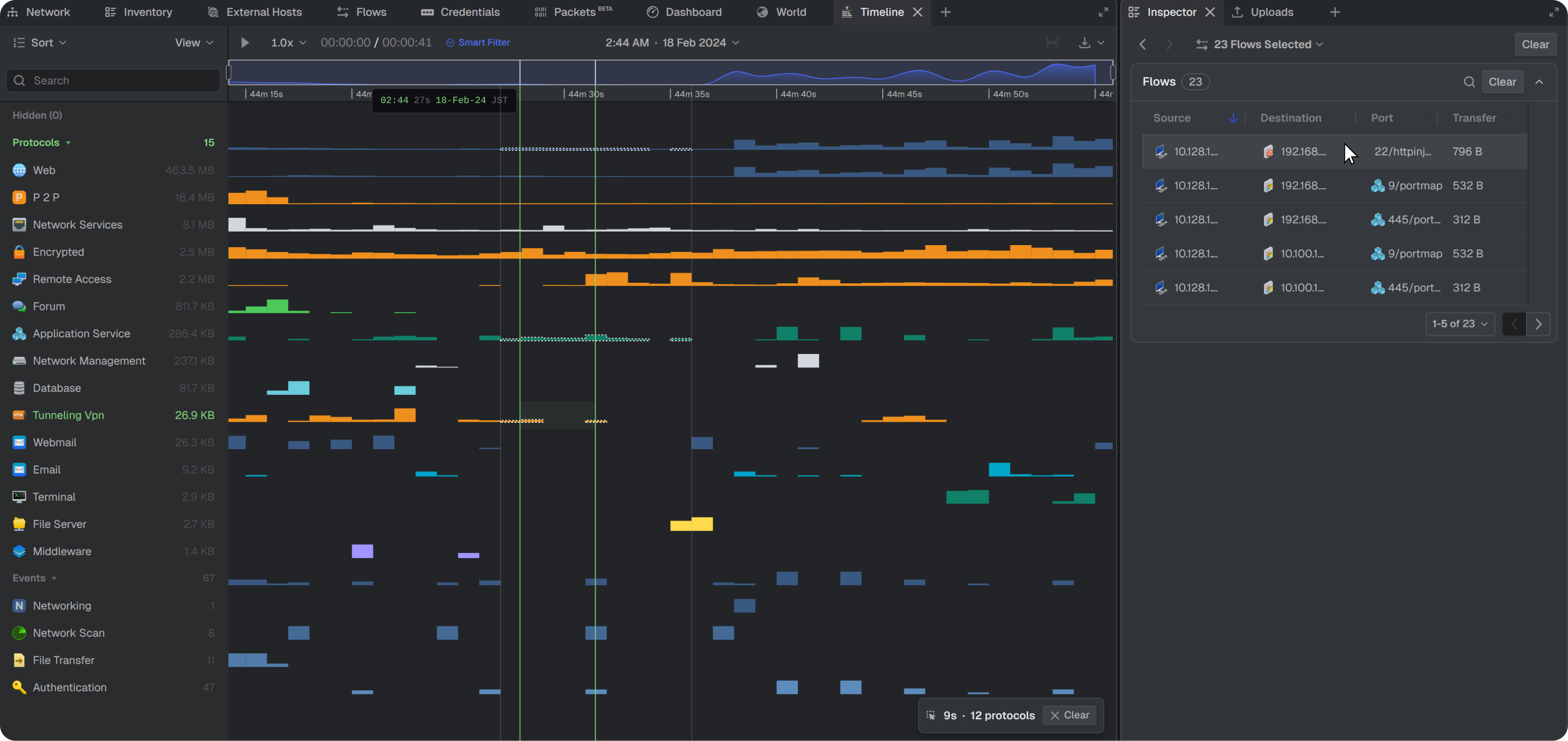
Selecting timeline traffic populates a Flows section with a sortable, paginated table displaying source, destination, port, and transfer columns. Hovering over a flow highlights its associated traffic and hosts in the timeline and network topology.
Selected packets
Selecting packets populates a Packets section listing each selected packet with an ID, source, and destination. Expanding a packet reveals its protocol layers (for example, Ethernet, Dot1Q, IPv4, TCP) as collapsible tree sections, each showing key fields, with a raw hex and ASCII byte view below. Expanding an individual layer shows full field-by-field detail.
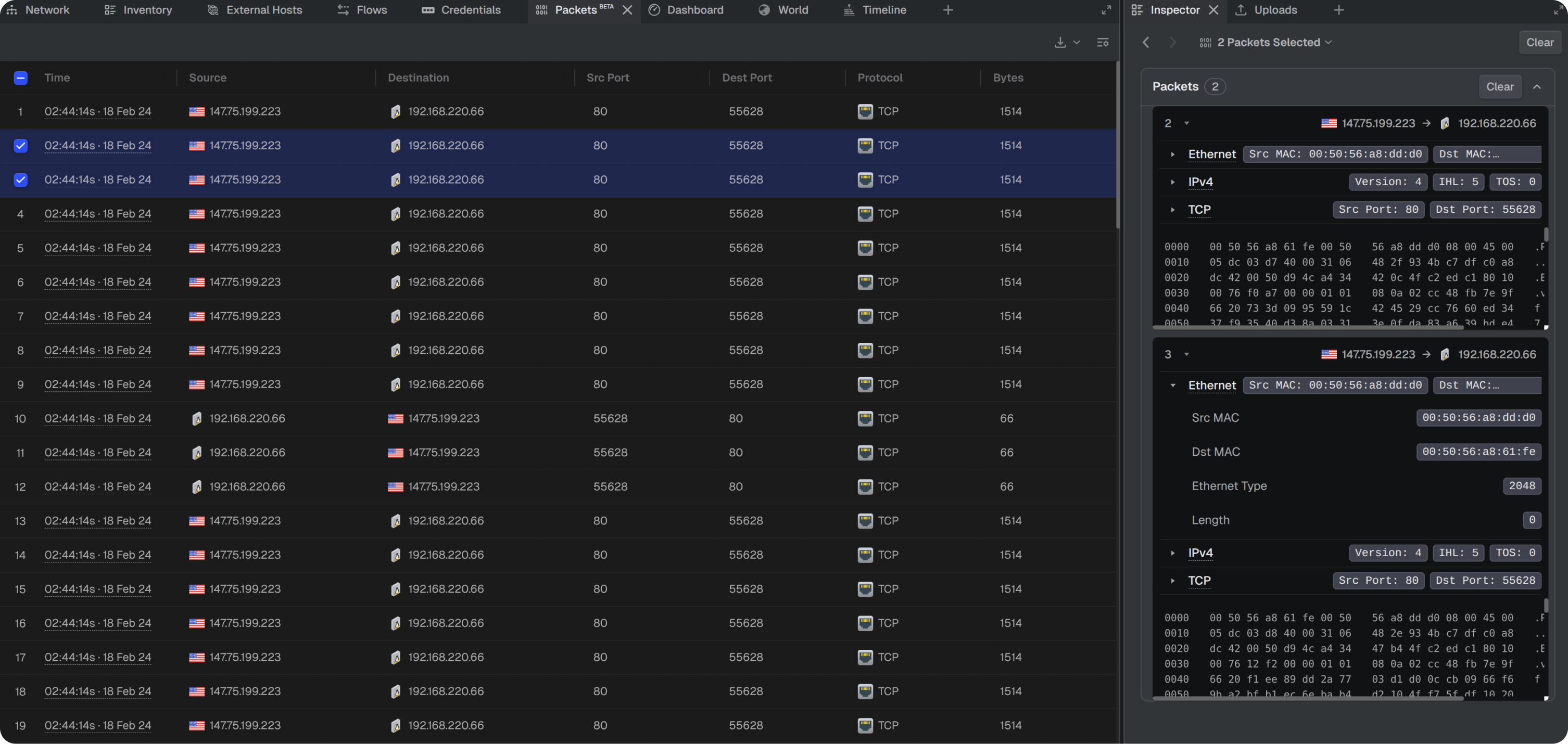
Note: If multiple flows are selected in the timeline and a packet from one of those flows is selected, the Inspector displays both the packet details and all selected flows. This does not imply that the packet belongs to every displayed flow.
Selected events
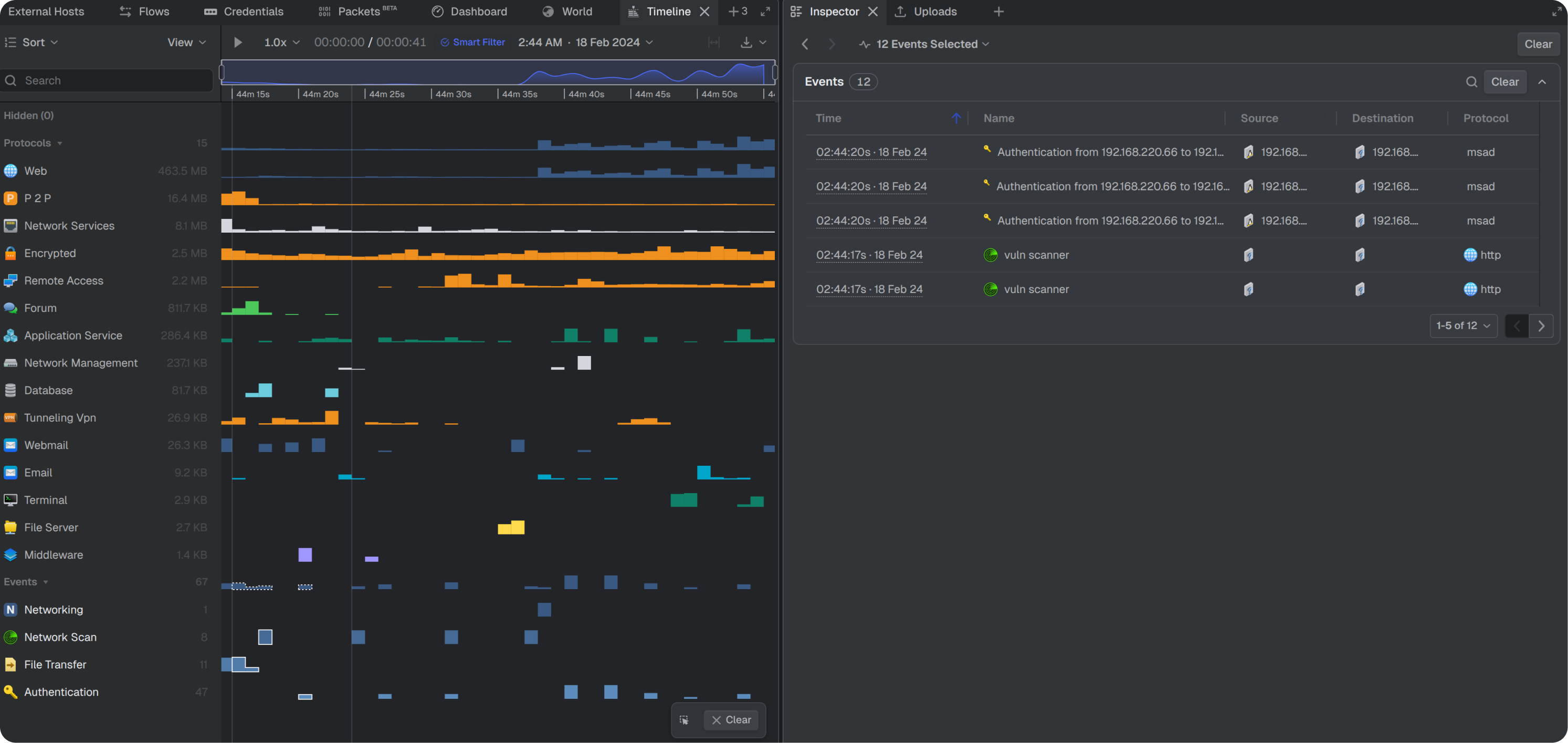
When a selection includes events, an Events section appears with a sortable, paginated table showing time, type, source, and destination. Hovering over an event highlights its associated traffic and hosts in the timeline and network topology.
Elastic events
Events sourced from an Elastic integration render in a separate Elastic Events section. Each entry displays a source label and a full timestamp with timezone offset. Hovering over a row loads the full JSON file in a tooltip that can be copied.
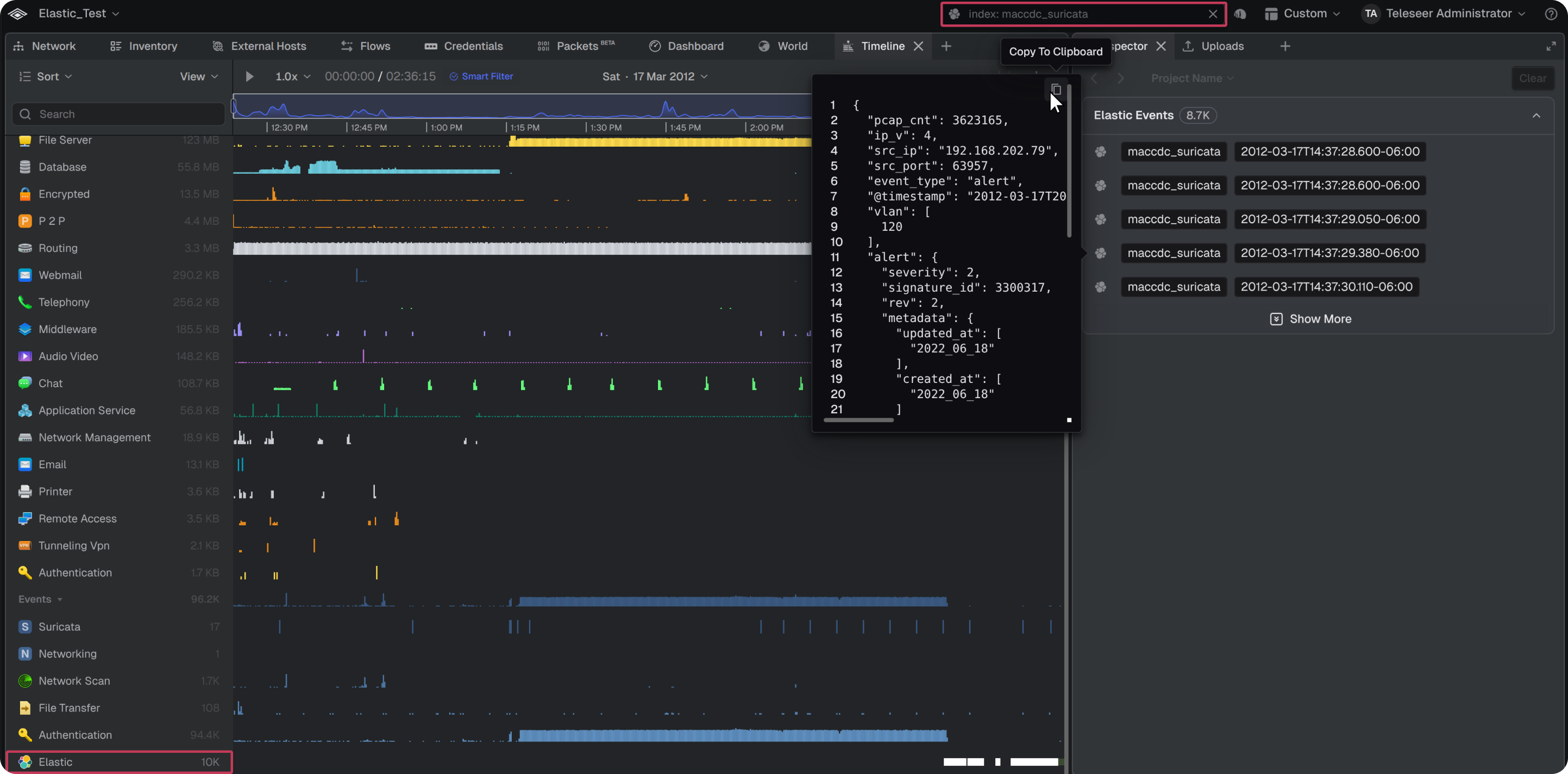
Note: Elastic must be triggered at the top right toolbar to stimulate the events in the timeline.
Selected alerts
Alert selection has three levels.
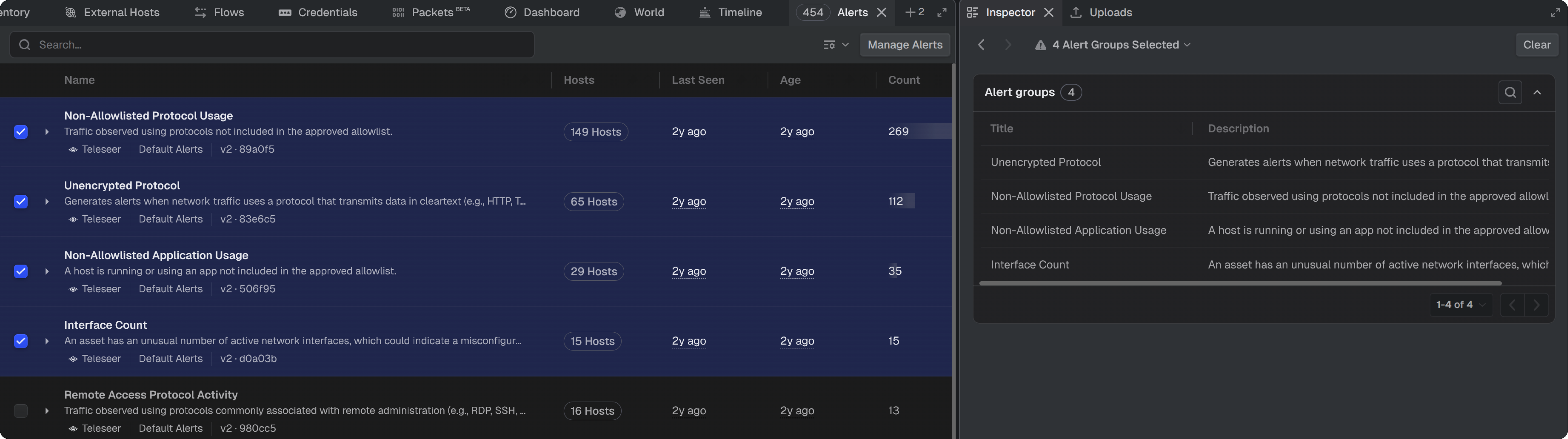
Multiple alert groups
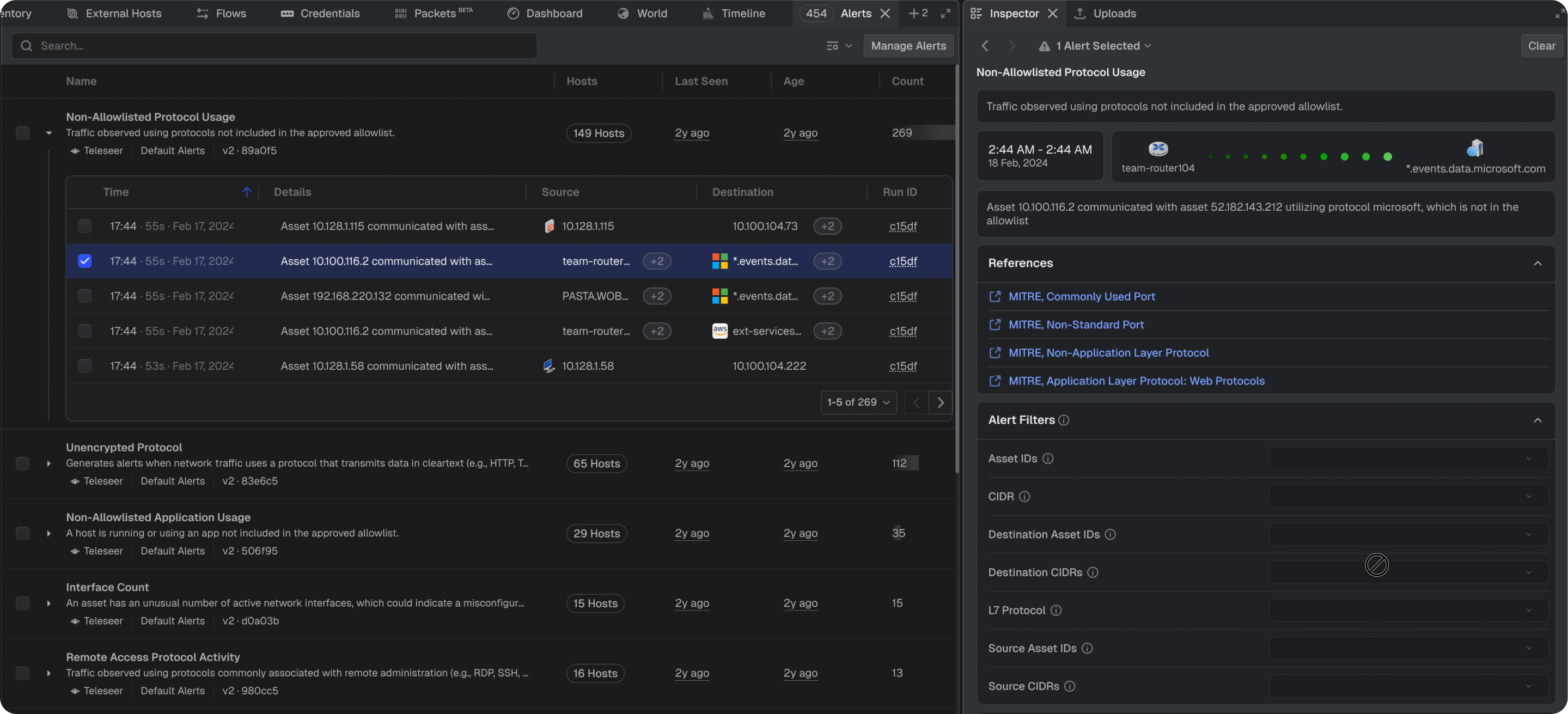
Displays an Alert groups section with the alert title and description. Granular detail is not available at this level; selecting a single group or alert displays further information.
Single alert group
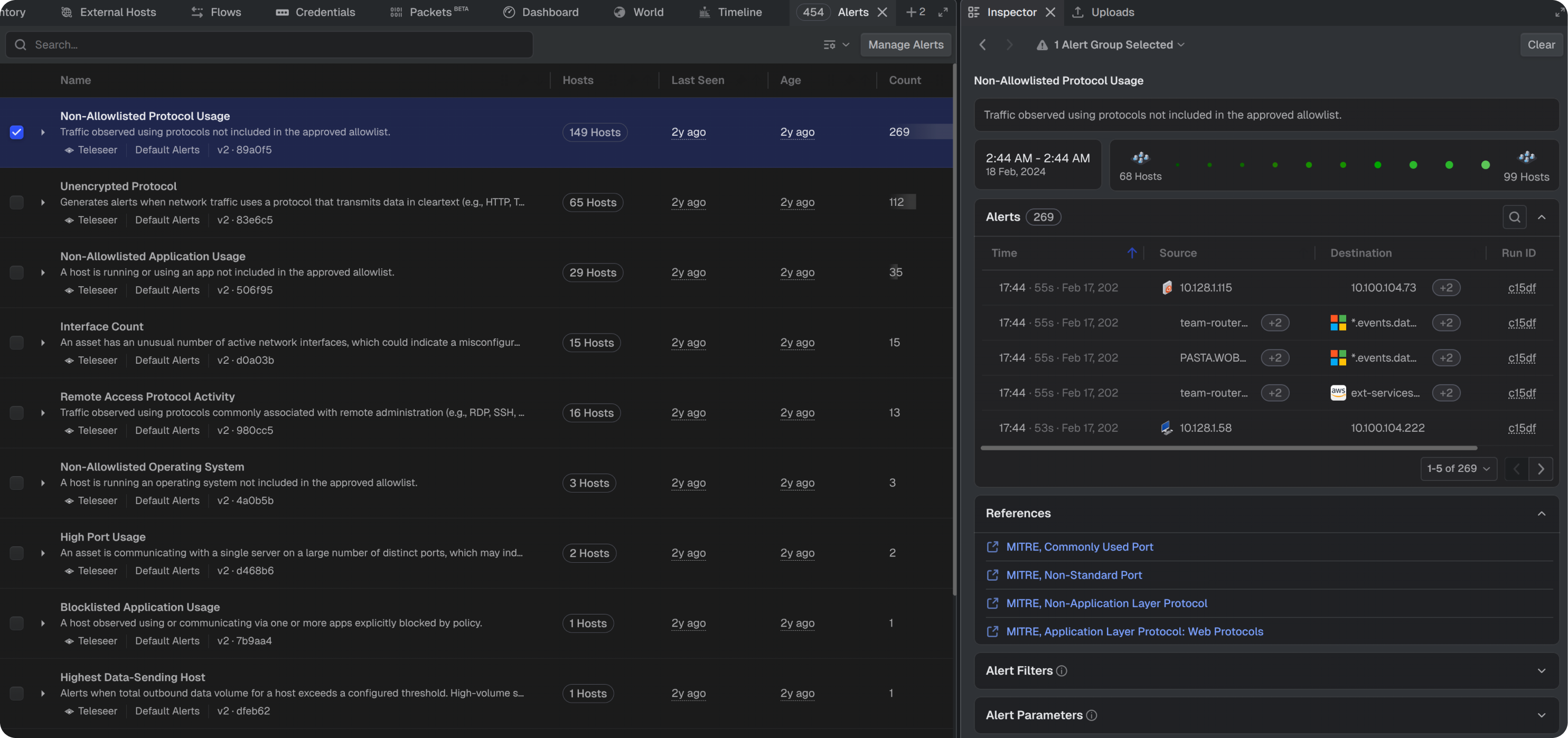
Displays the alert name, description, time range, and the number of arcs and hosts related to the group. Below that, an Alerts table section with a sortable time, source, details, destination, and run ID columns. The Details column can be resized by dragging its edge and is specific to the hosts associated with the alert hit. Additional sections include:
- References: outbound links to relevant MITRE ATT&CK technique pages, providing semantic information about what the alert refers to
- Alert Filters: read-only filter fields, including Asset IDs, CIDR, Destination Asset IDs, Destination CIDRs, L7 Protocol, Source Asset IDs, and Source CIDRs
- Alert Parameters: the parameter and threshold values that define the alert
Note: To configure or enable new alerts, follow the alerts process guide.
Single alert
Expands a single alert hit to display the alert description, the time range, the arc of traffic between source and destination, and the specific triggering condition. Further down is the alert's reference list, as well as view-only configuration details.
Additionally selecting a single alert displays a single arc from source to destination on the network map. The number of arcs and related hosts is shown in the bottom right of the topology. Alert type colors can be changed in the timeline to differentiate the arcs on the topology.