
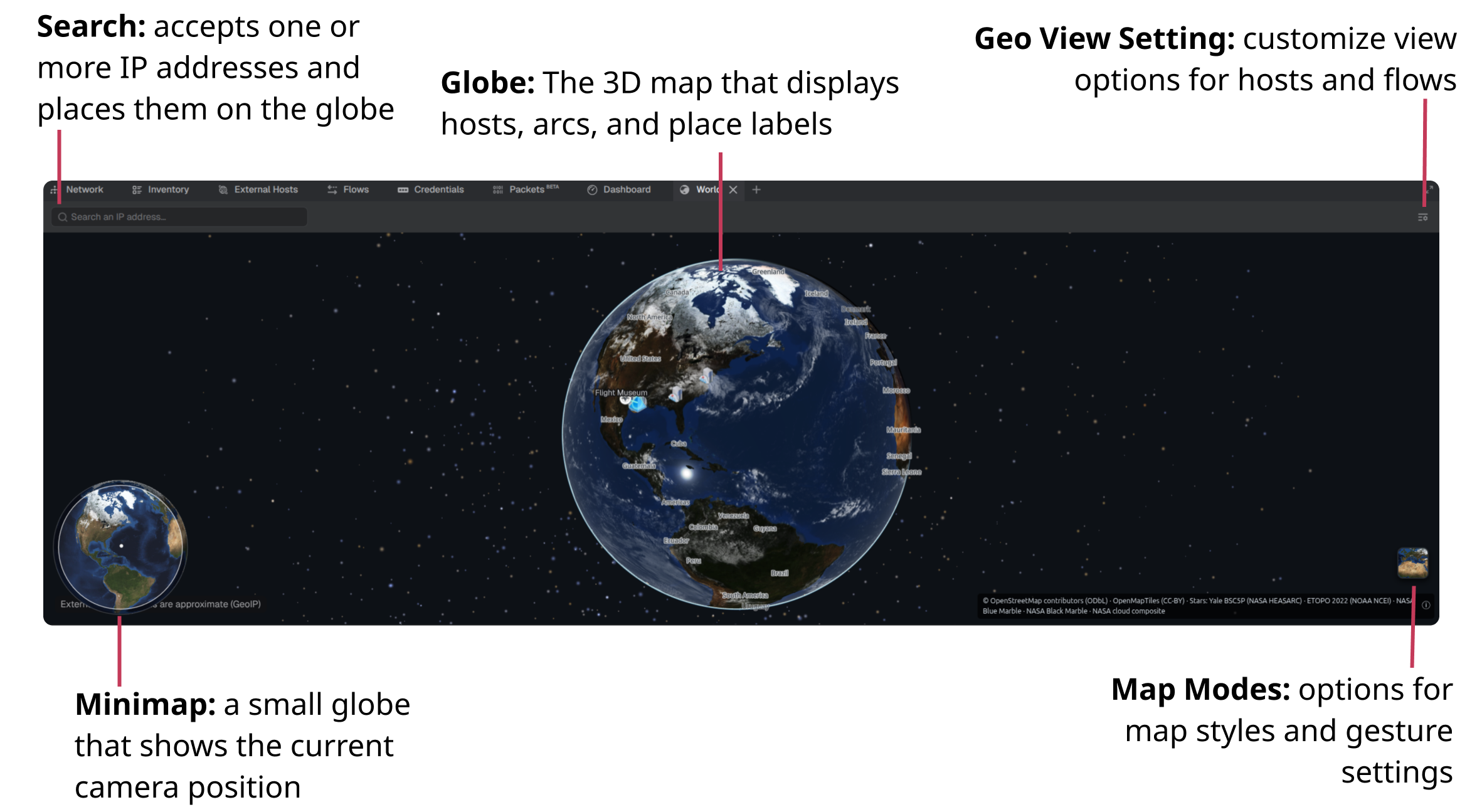
The World panel displays a project's hosts on a 3D globe, positioned by geographic location. Hosts with geolocation data appear at their derived locations, and the remaining hosts appear at the location assigned to the project. Selecting traffic in the Timeline panel draws arcs between host locations.
Project location
A project location determines where hosts without their own geolocation data appear on the globe. When a project has no location, the World panel displays a prompt to select one.
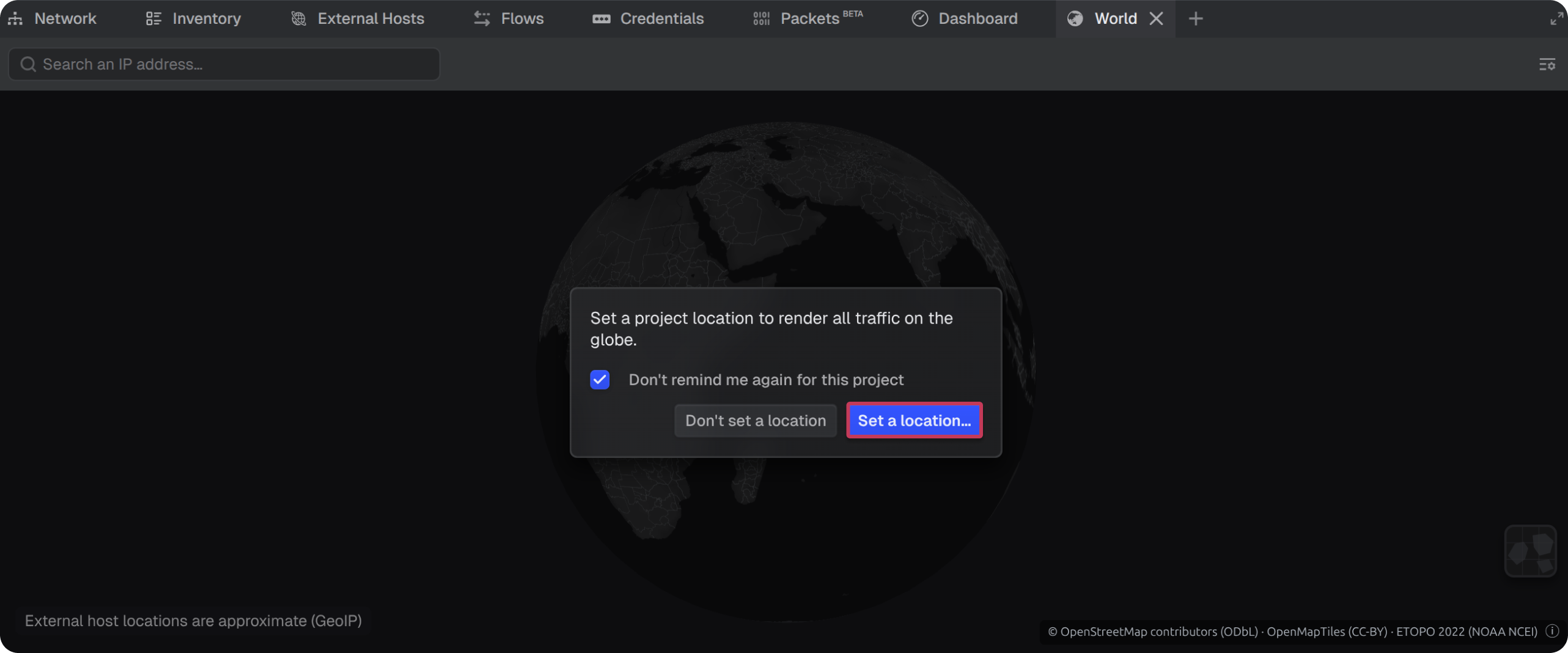
To set a location:
- In the prompt, select Set a location
- Select the target point on the globe
To stop the prompt from appearing again for the project, select the Don't remind me again for this project checkbox and dismiss the prompt by selecting Don't set a location.
Note: The project location can also be set or changed at any time from workspace, see how to add a project location doc for steps.
Project origin
Once a project has a location, hosts that are internal to the network, and hosts with no geolocation data, render at that point. This places every host in the project on the globe.
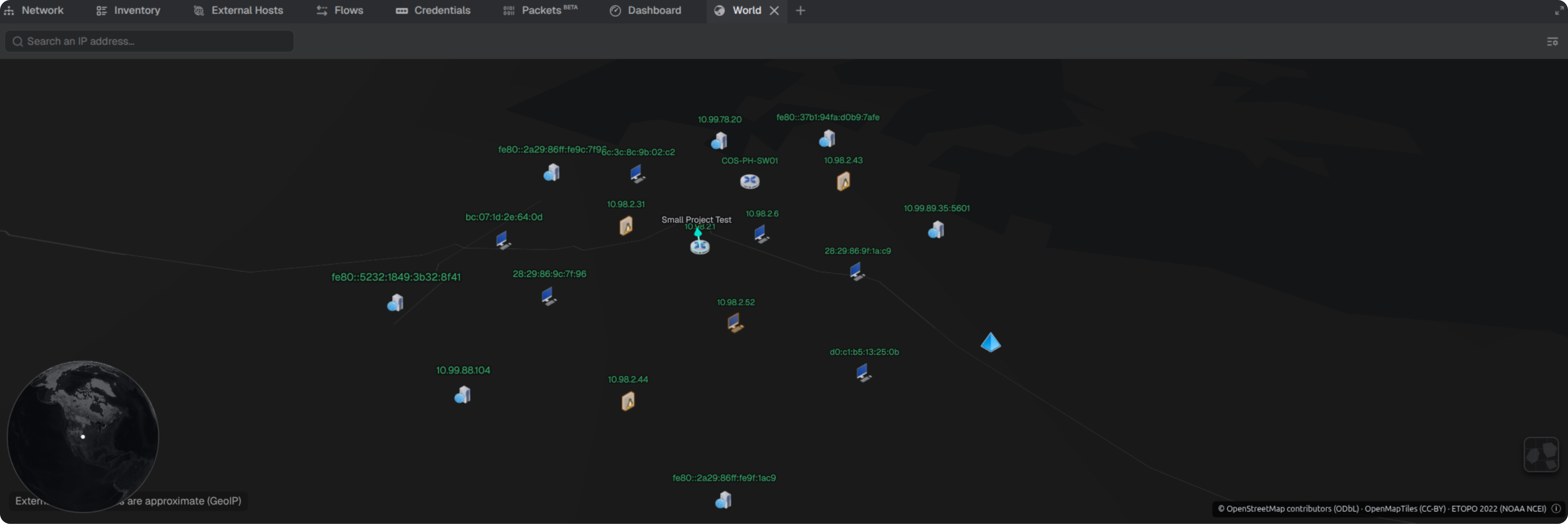
Warning: Hosts drawn at the project location are placed there because a more specific location is not known. Teleseer does not verify that these hosts are geographically near the project. A network that spans multiple sites can show hosts at the project location that are in fact far apart.
Host geolocation
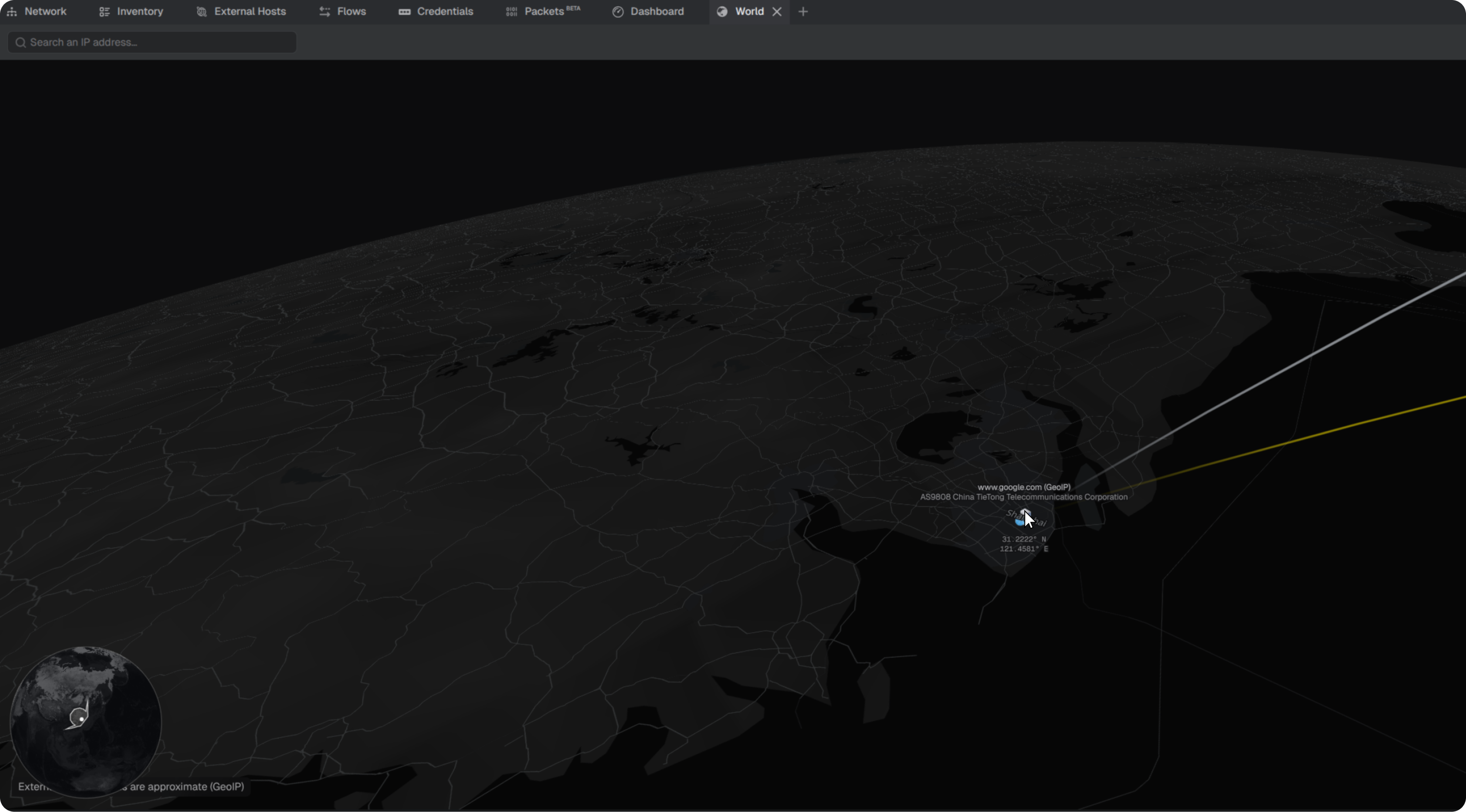
External hosts appear at the approximate locations derived from IP registry data. Hovering over a host on the globe opens a tooltip with its coordinates.
Geo View Settings
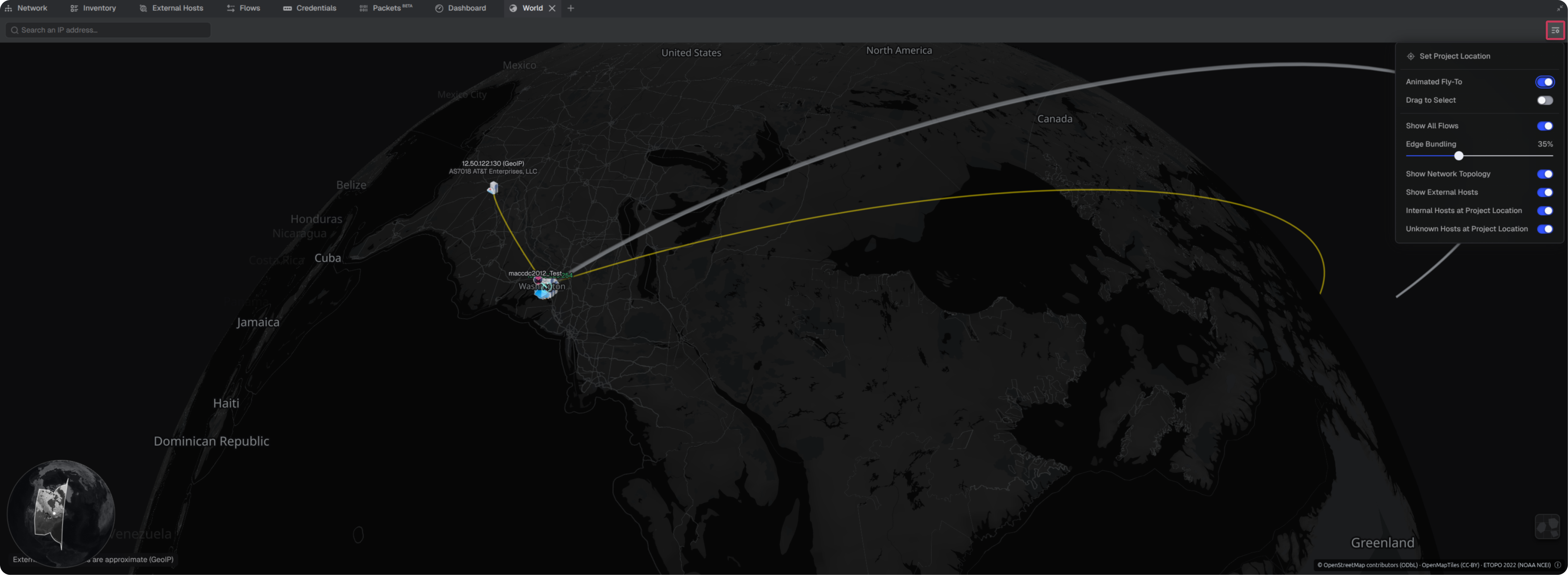
The settings menu in the panel toolbar controls what the globe displays. Settings are saved with the project.
Flow arcs
Selecting traffic in the Timeline panel draws flow arcs between the locations of the hosts in that traffic. A counter at the lower right of the globe reports how many arcs are drawn. To draw every flow in the project without a timeline selection, enable Show All Flows in the settings menu.
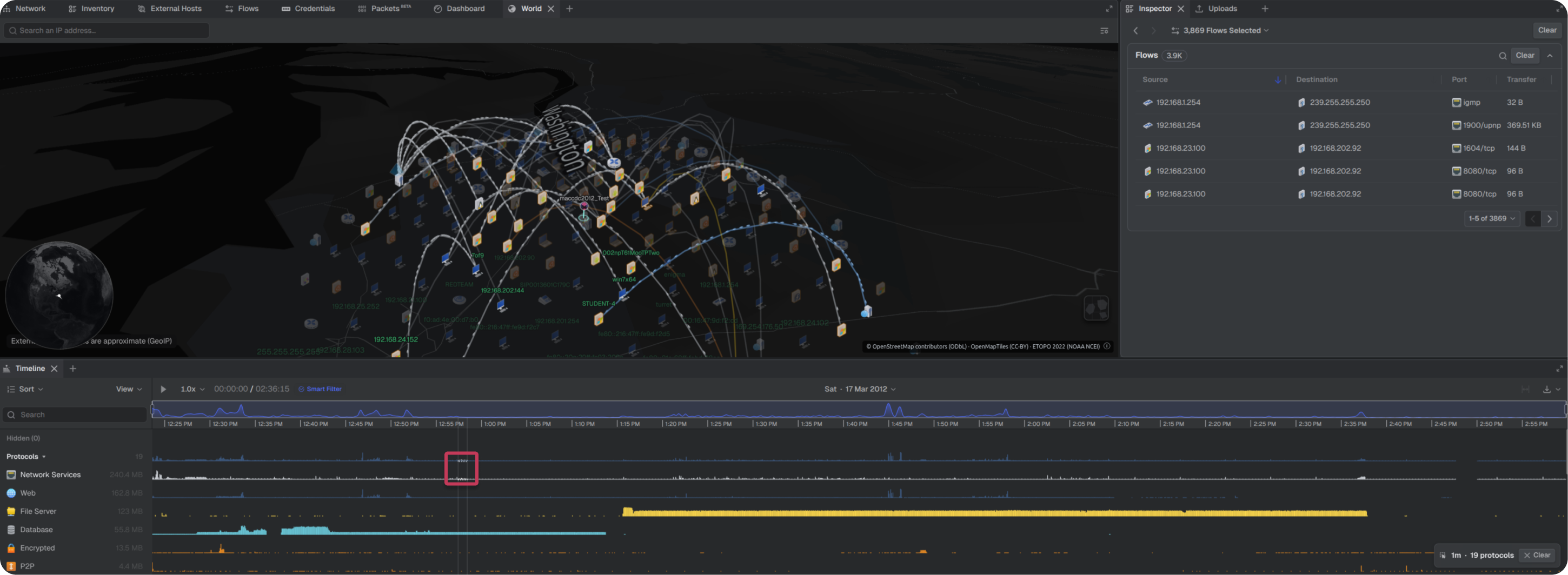
Warning: An arc shows the two endpoints of a flow. It does not show the route the packets took between them. Traffic between the same two hosts can follow different physical paths, even within a single flow.
Searching for an IP address
The search field accepts IP addresses and compares them with the GeoIP registry. Teleseer resolves each address to a location and places a pin on the globe. Selecting a pin opens a card with the location, network, and coordinates for that address.
- In the search field, enter an IP address
- Press Enter to drop a pin
- Add additional IPs to drop additional pins
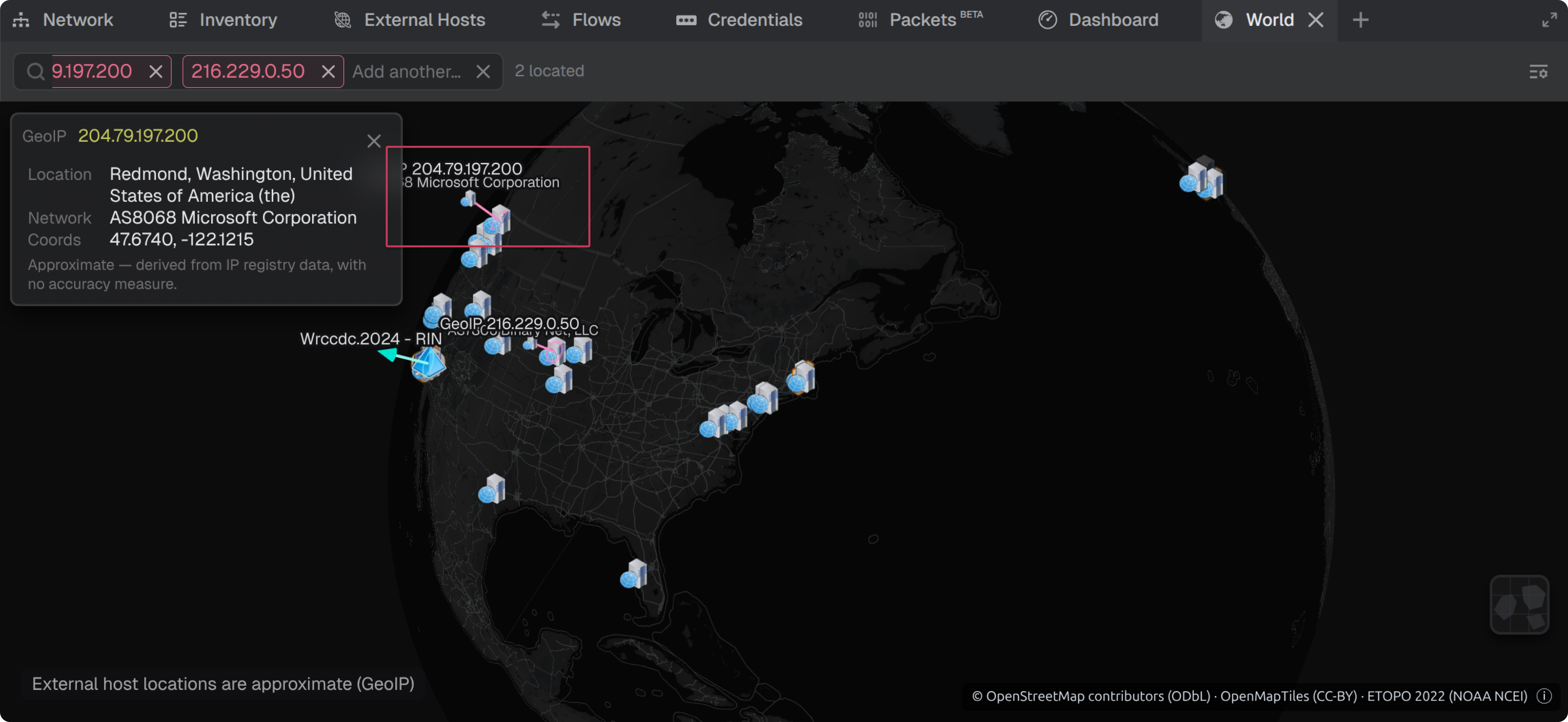
Note: Host locations derived from IP registry data are approximate and based on GeoIP. If no known location is found, the host will exist visually on the map at the project's set location by default.
Selection Persistence
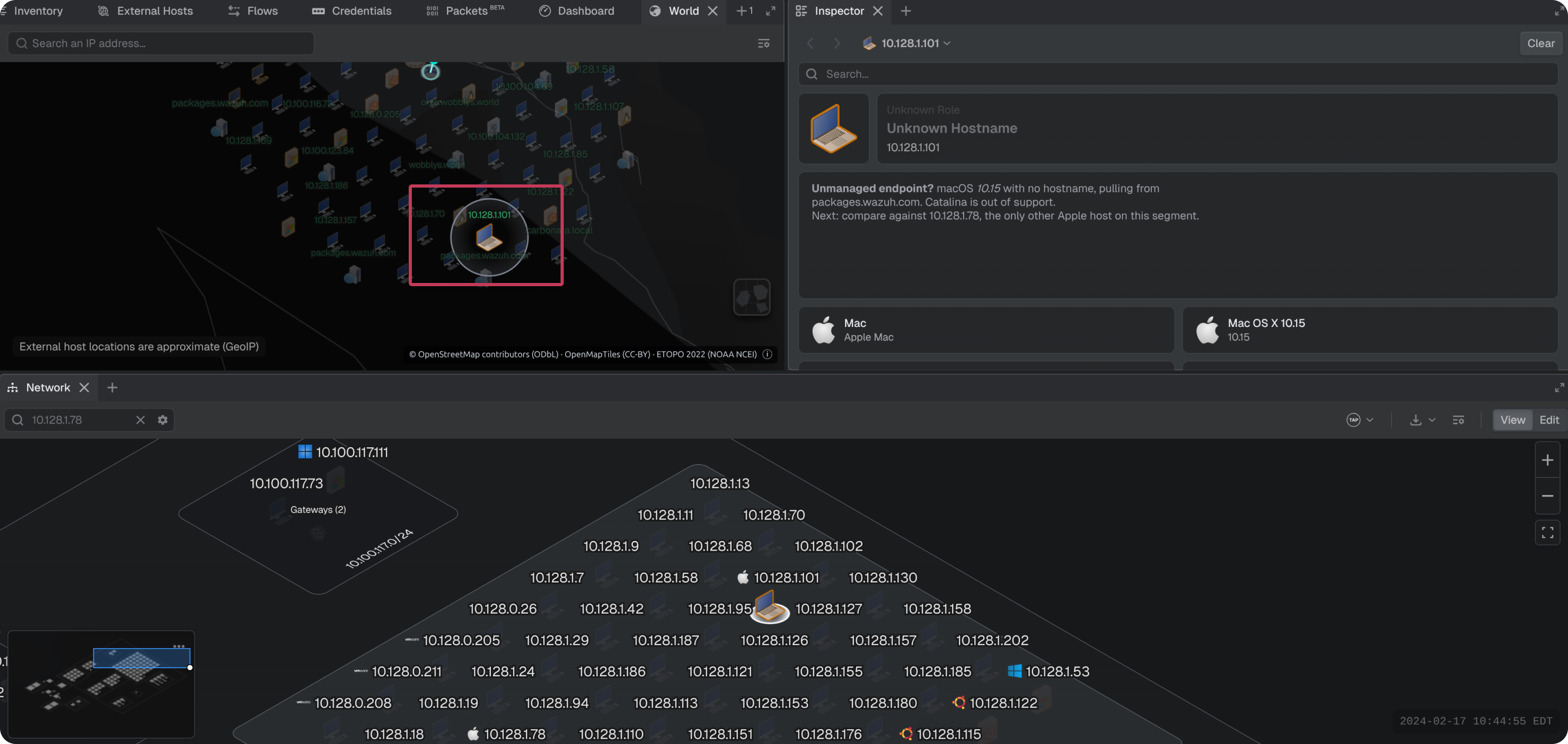
Selecting a host on the globe selects the same host across Teleseer, and a selection made in another panel carries into the globe. The focus moves to the selected host, and the Inspector panel displays the details for that host.
- Animated Fly-To: the camera animates across the globe to reach a selection. Turning this option off teleports the camera directly to the selection.
- Drag to Select: when enabled dragging across the globe selects every host inside the dragged area.
Map Modes
The Map Modes submenu controls the appearance of the globe.
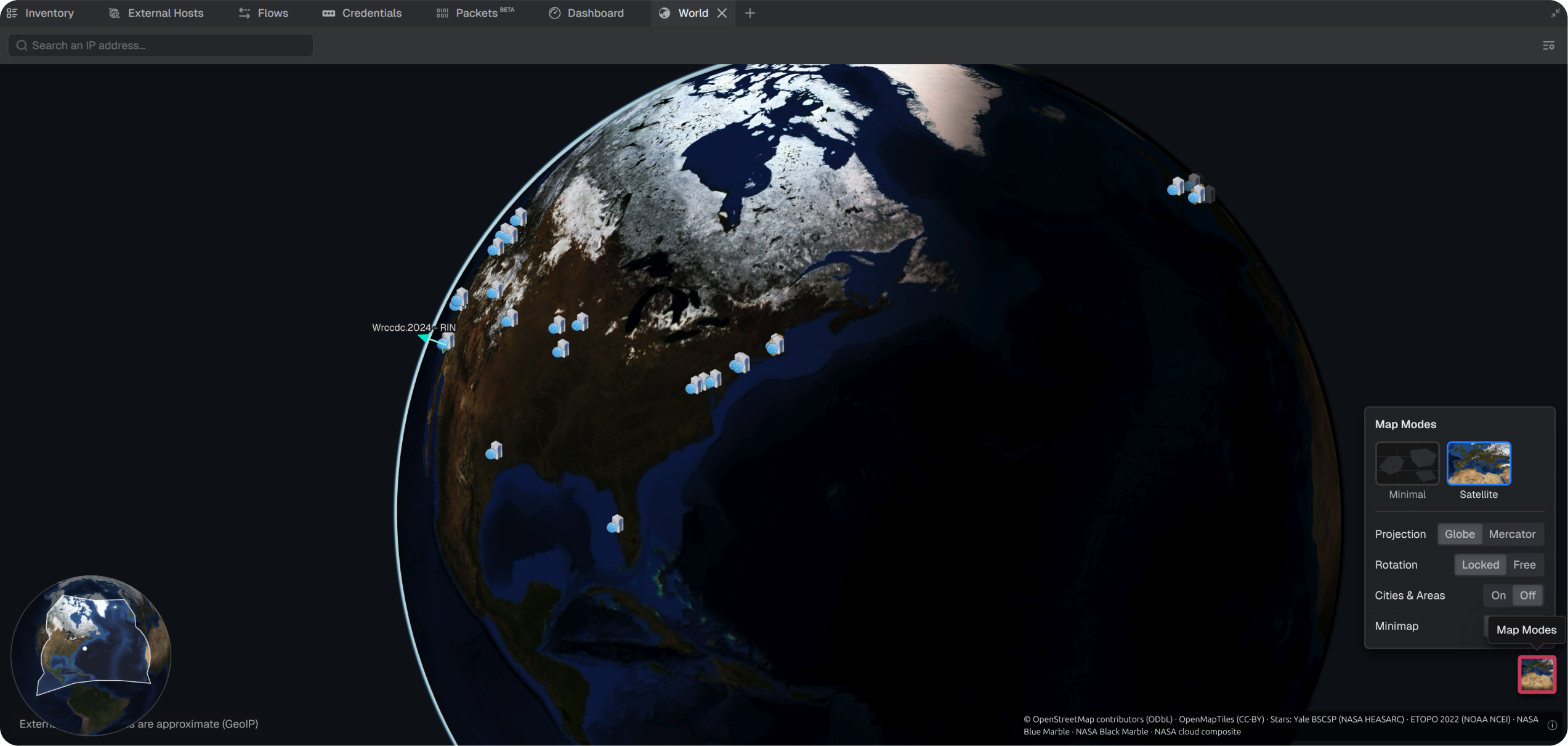
Movement Gestures
The globe uses a locked rotation by default, which keeps the North Pole pointed toward the top of the panel. To move the camera freely, toggle Free in the Map Modes menu.
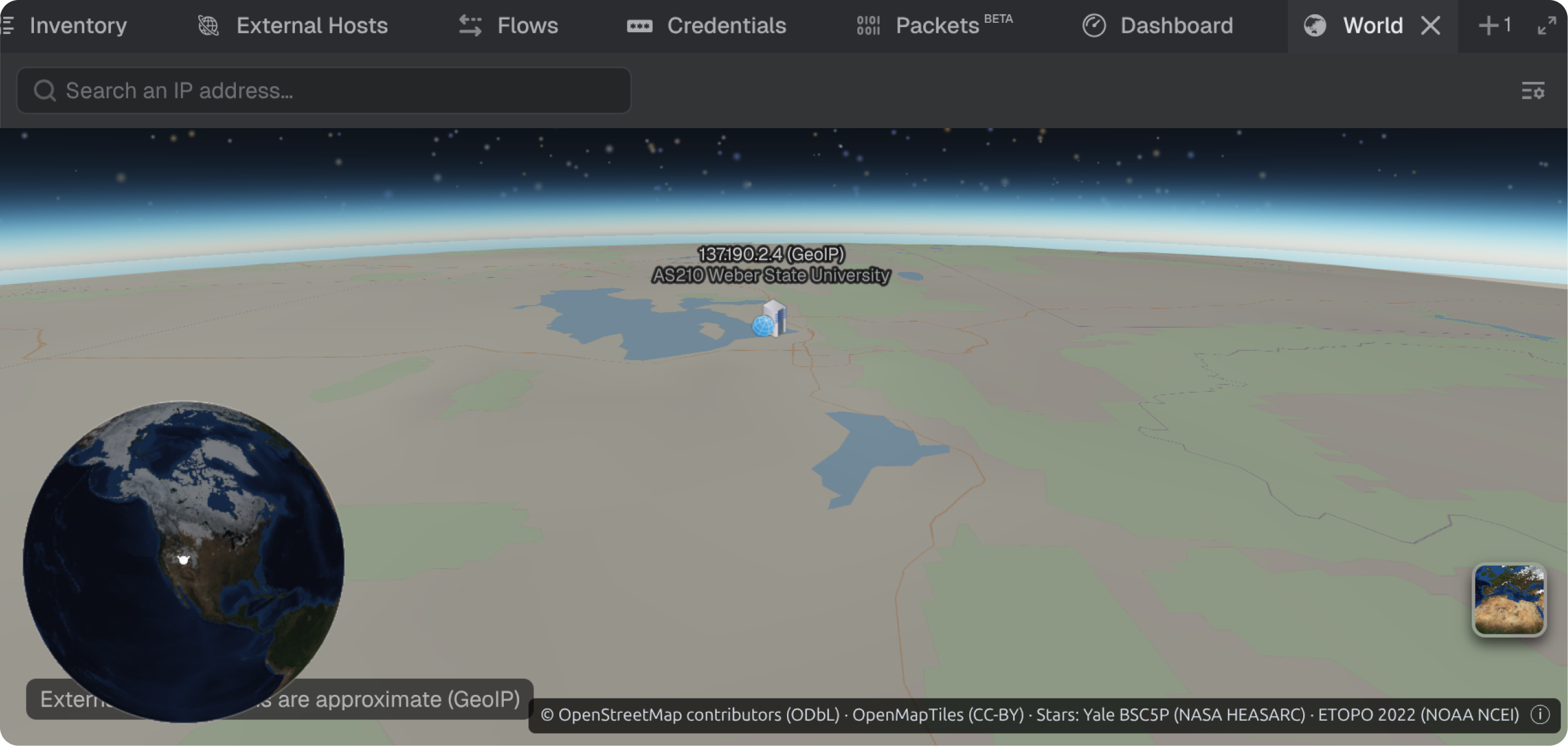
Note: Zooming in on the globe may be required for tilt functionality.
The Globe in the Workspace
The Projects area includes a globe view alongside the existing map and table views. Projects with an assigned location appear on the globe.
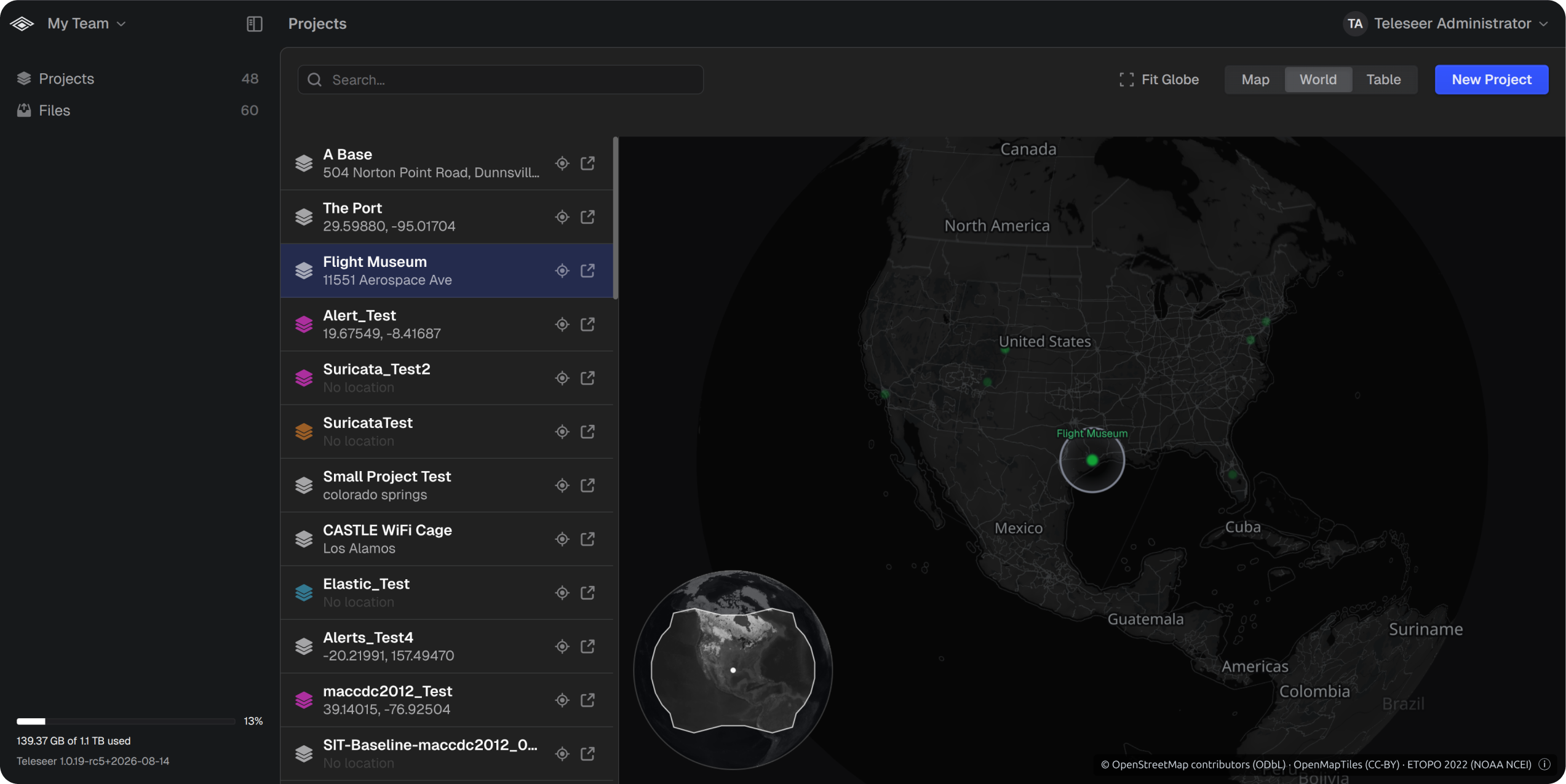
To open the globe view, select Globe at the top right of the Projects area. Selecting a project in the list moves the camera to its location and displays its name. Project locations can also be set by selecting the target icon and choosing a point on the globe.
Warning: The map view converts an entered address into coordinates through an external service. An on-premises deployment without internet access cannot use this conversion. The globe view does not require internet access, because Teleseer hosts its map assets.
