
Tags are searchable keywords that make it easy to organize and filter projects or uploads.
Add Tags via Project Workspace
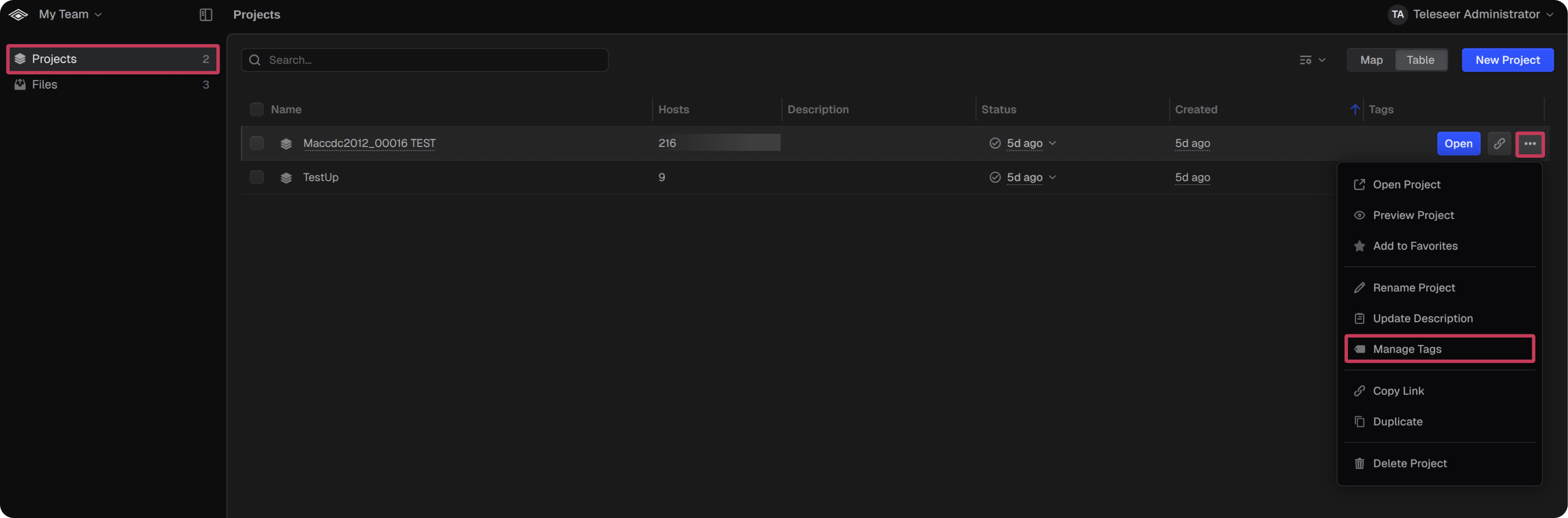
- Select the Projects tab
- Hover over the target project and select the
...menu - Select Manage Tags
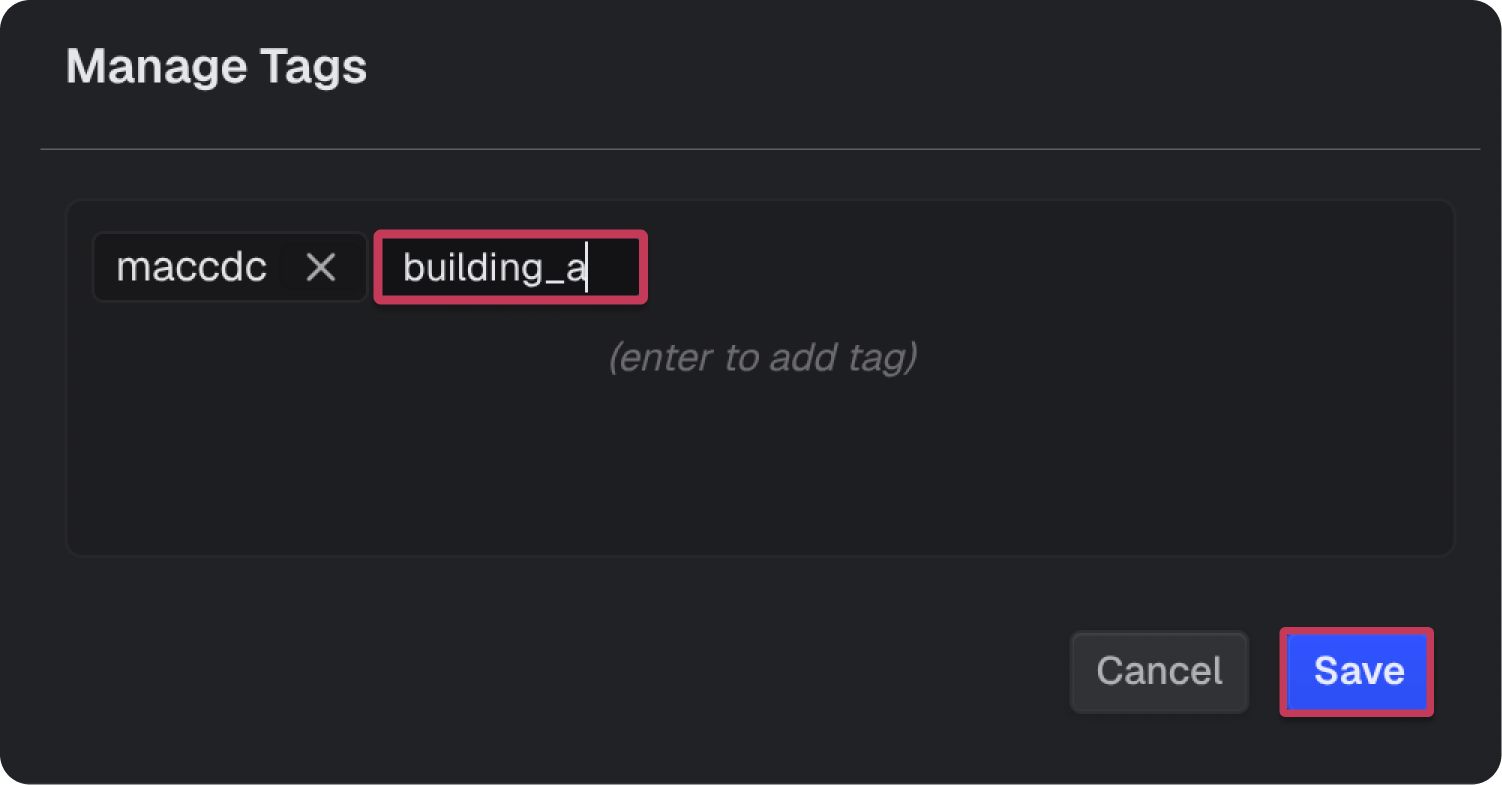
- Enter a value in the Add tag field and press
Enterto create it - Select Save
Add Tags within a Project
- Open the target project
- In the Inspector panel, locate the Tags section
- Select the Tags section to expand it
- Enter a value in the Add tag field and press
Enterto create it
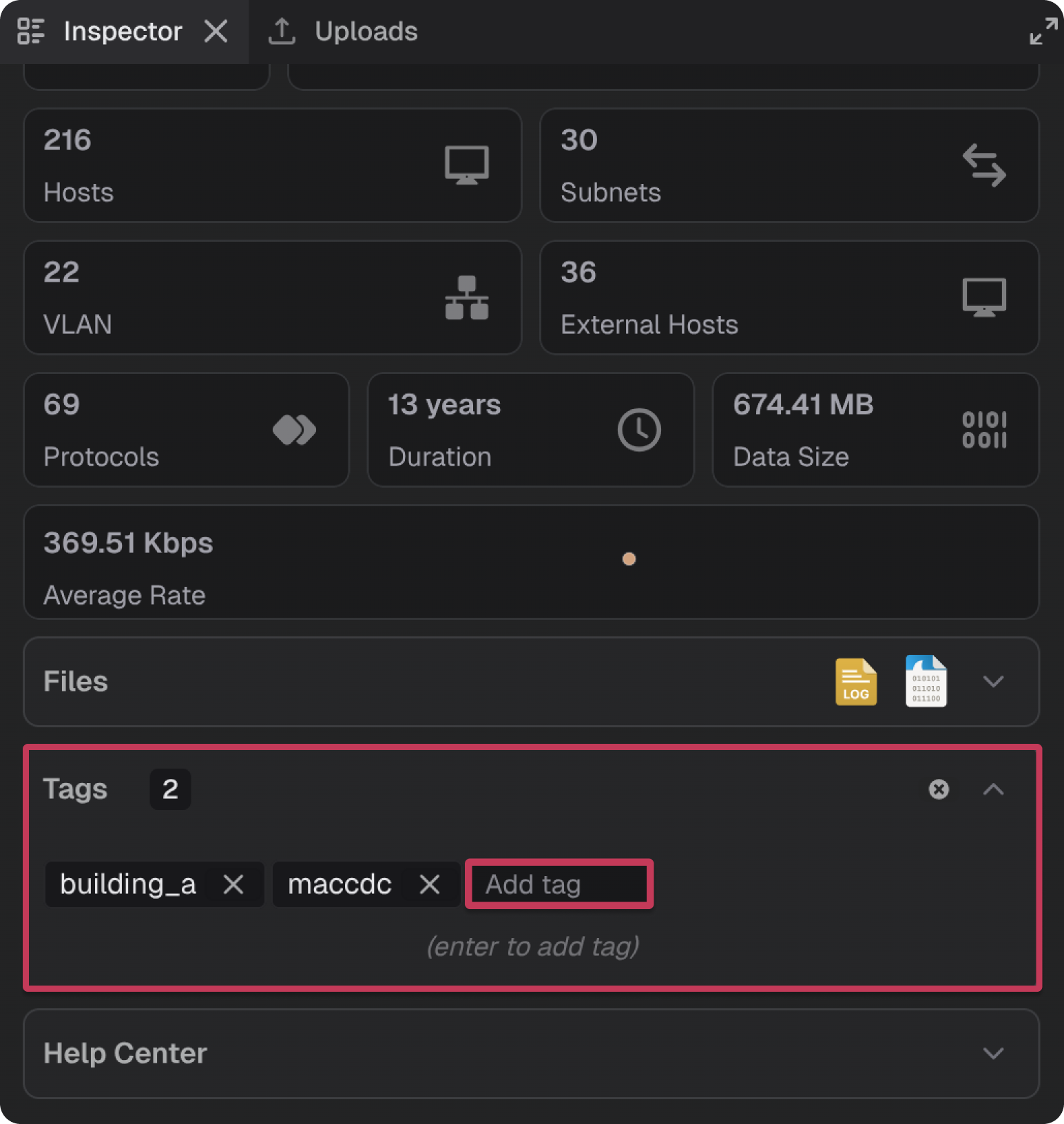
- Select the up arrow to collapse the panel
Add Tags to an Upload
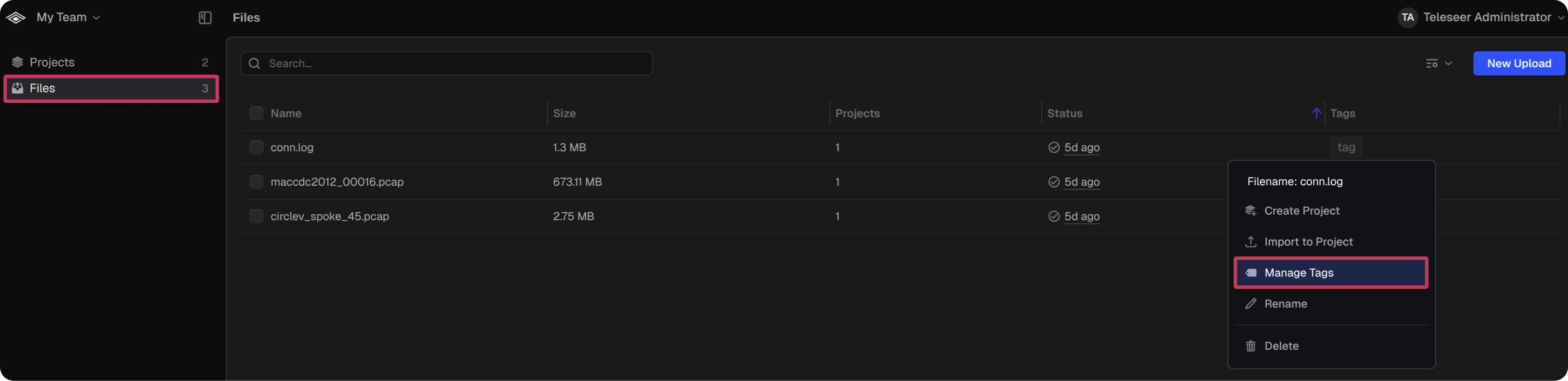
- Navigate to the Files table
- Hover over the target upload and right-click to display menu
- Select Manage Tags
- Enter a value in the Add tag field and press
Enterto create it - Select Save
Note: The files tags will not populate in the projects table.
