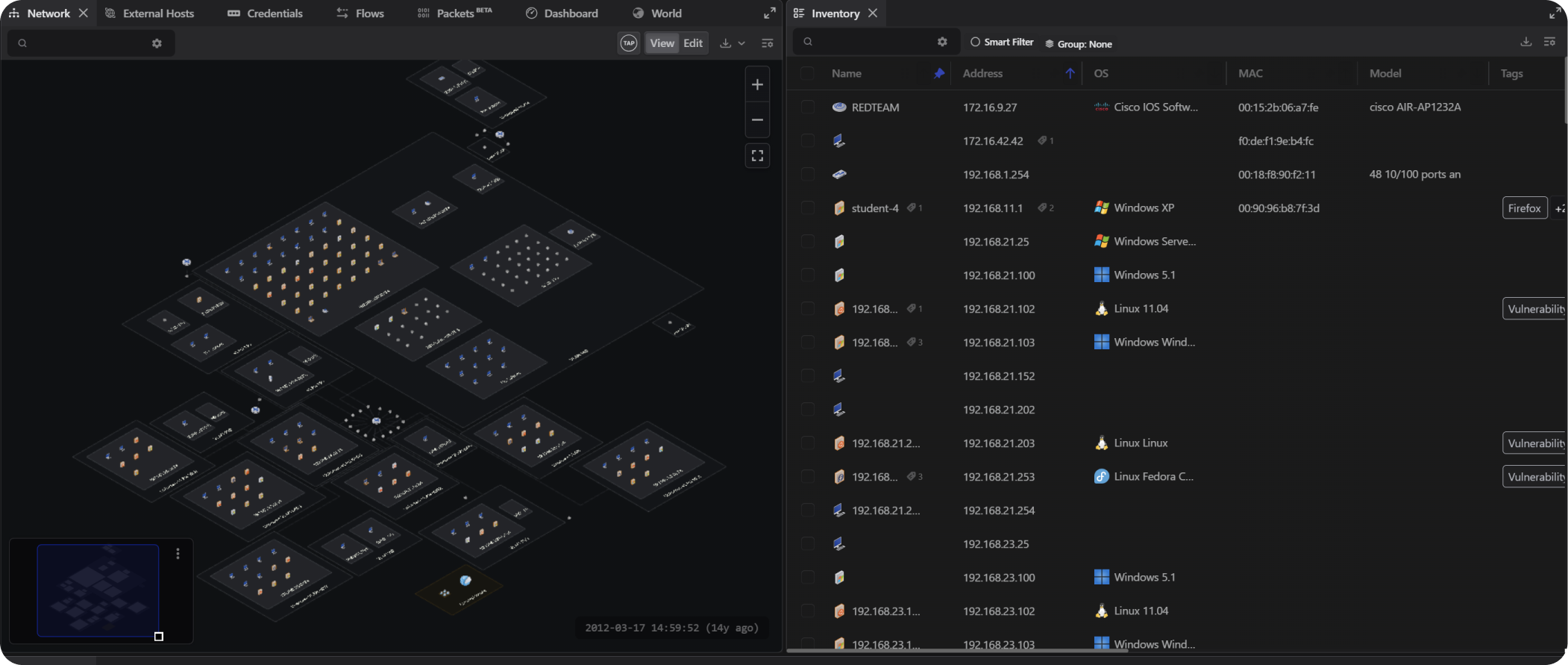
Each panel can be moved and resized to create a custom workspace. For example, you can view the Network topology and Inventory tab side by side by repositioning the Inventory tab, or maximize the Network topology to fill the entire screen using the maximize button.
Example
Follow the steps below to display both the Network topology and the Inventory panel:
1. Open a project.
2. Select the Network tab.
3. Select the Inventory tab and drag it to the right.
4. Position the Inventory tab where desired.
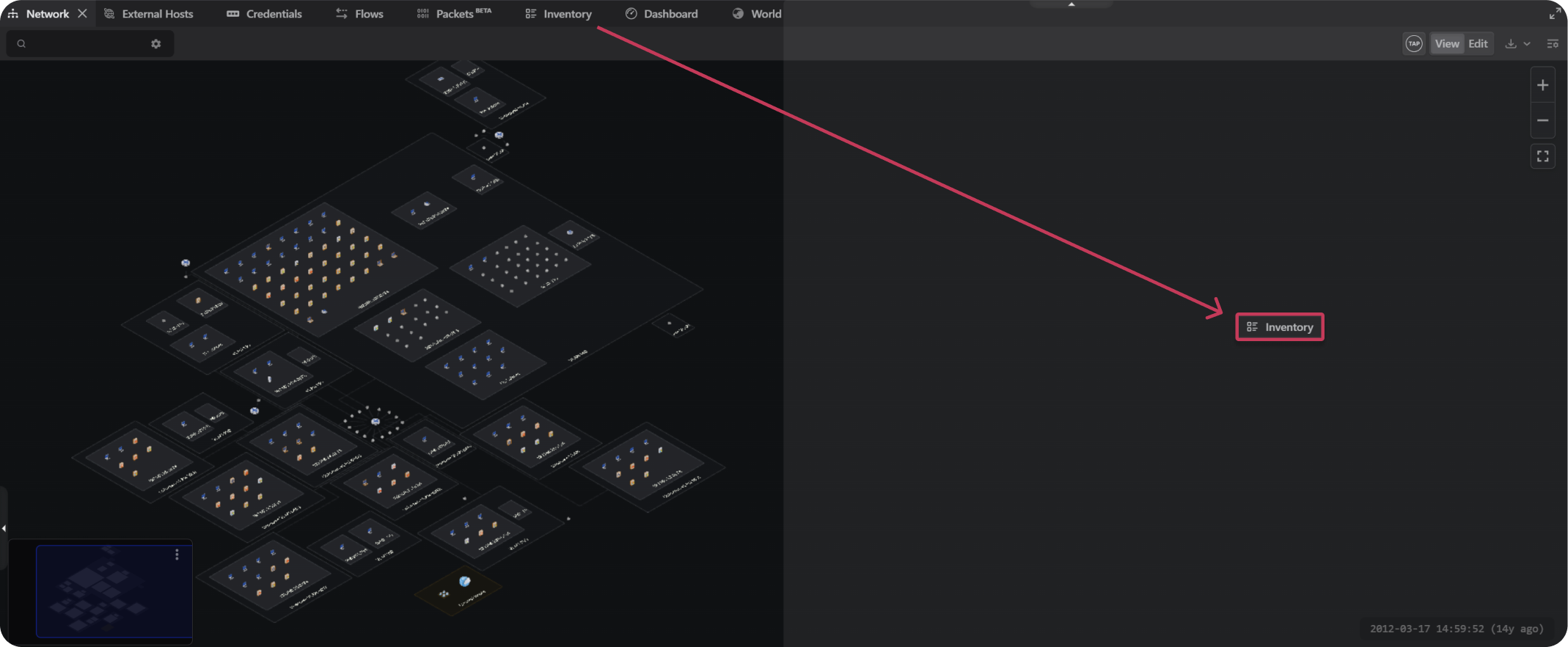
5. When the translucent placement indicator appears, release the mouse button.
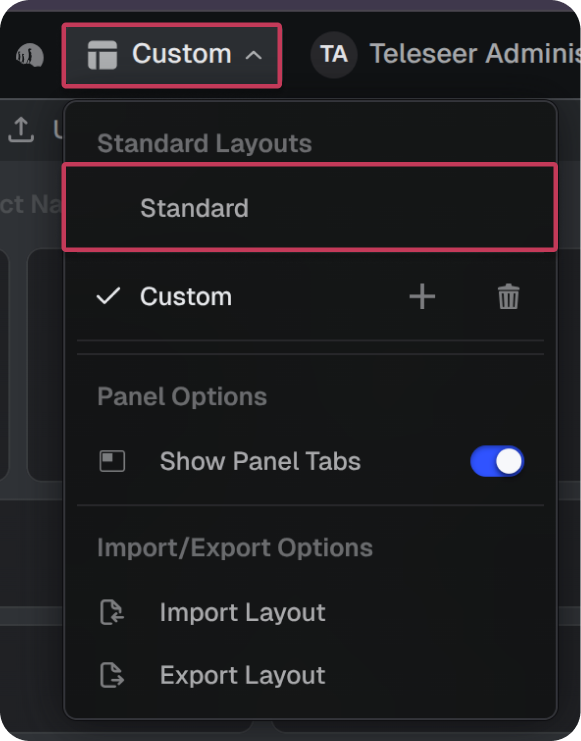
Restoring the Default View
You can restore the default layout by selecting the Custom dropdown and then choosing Standard.
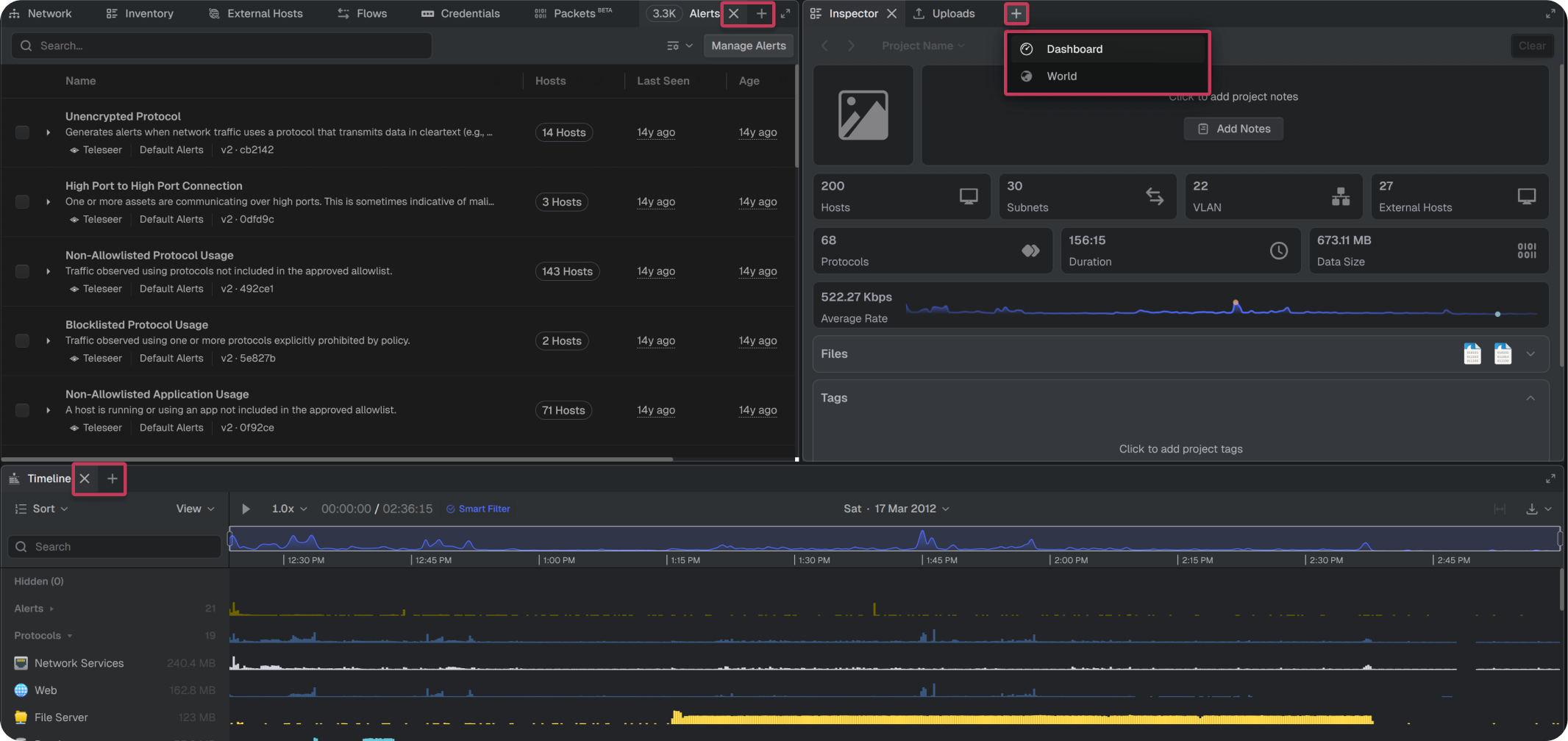
Adding Additional Panels
Additional panels can be added or removed from the layout by selecting the + or x icons.