
Users can manage swim lanes when working with protocol timelines to hide or unhide desired protocol traffic.
To Hide Swim lanes
- Open the desired project.
- View the timeline.
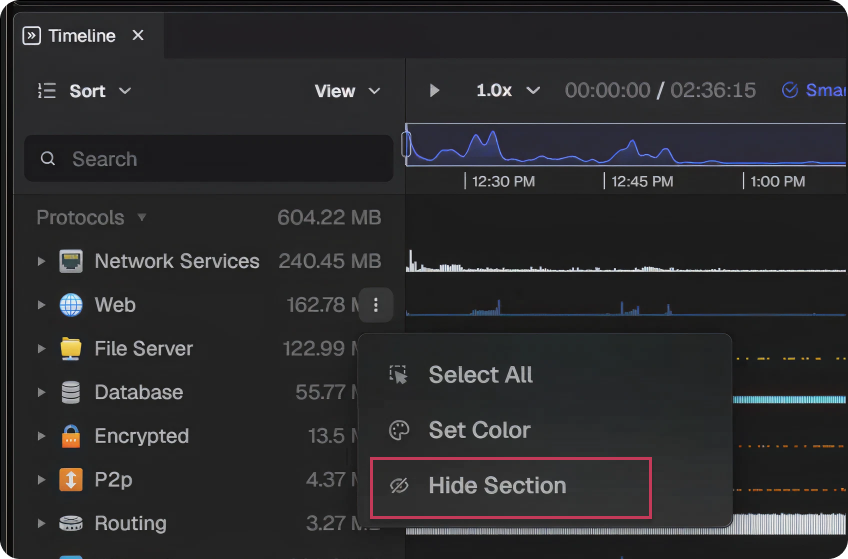
- Within the timeline hover over a protocol you would like to hide and select the 3 dots next to the protocol → Hide Selection.
- The traffic will now be hidden from the timeline.
To Unhide Swim Lanes
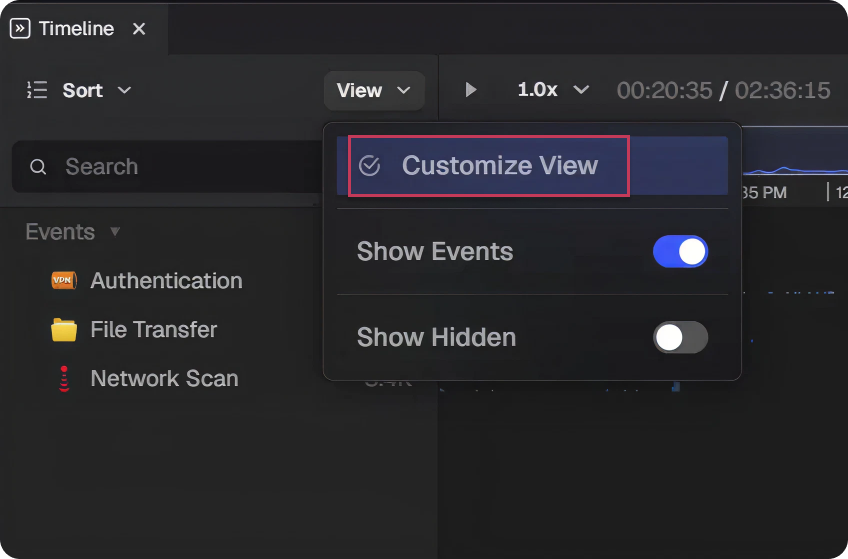
- Within the timeline select View → Customize Timeline View.
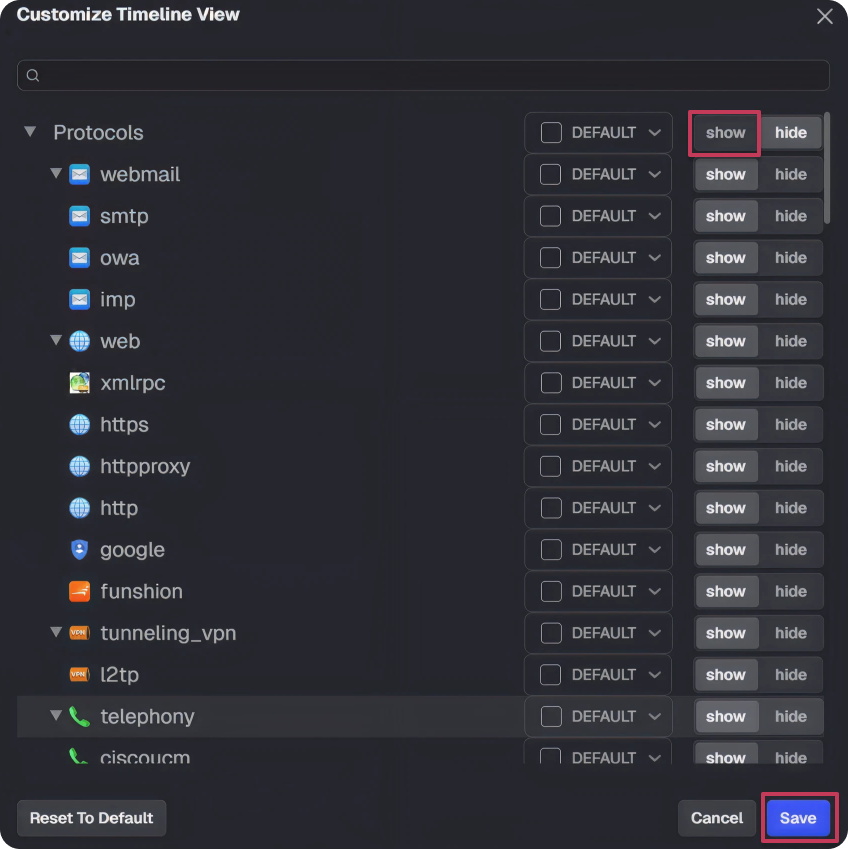
- Toggle the hidden sections back to Show and Save.
- The hidden protocol traffic will now be restored.
Tip: To quickly toggle hidden swim lanes on or off select view → Show Hidden.
