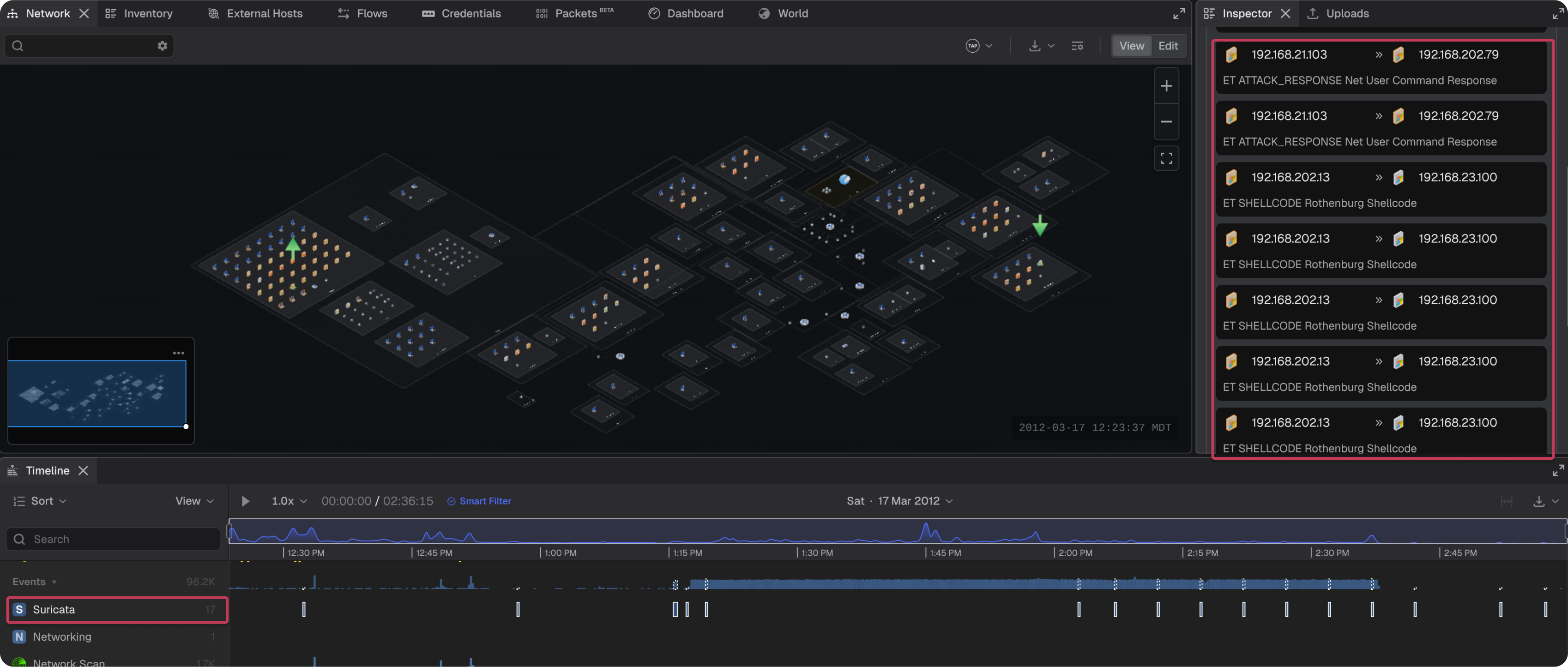
Teleseer integrates Suricata, an industry-standard open-source network intrusion detection system (IDS), directly into its processing pipeline. Every packet processed by Teleseer is evaluated against active Suricata rule sets, surfacing matching events in the project timeline.
Rule sets
A rule set is a collection of Suricata rules used to evaluate network traffic. Rules can detect known threats, suspicious behavior, or informational patterns. It is recommended to start with a curated rule set from a trusted source.
Emerging Threats Pro: Paid subscription with professionally curated and frequently updated rules. Available via the Emerging Threats website.
Existing Suricata instance: Where a Suricata instance is already deployed, its rule set is the recommended starting point.
Rule set scope
Activated rule sets apply to every project in the workspace. A rule set cannot be activated for one project and left inactive for another. Teleseer evaluates each processed packet against all activated rule sets during file ingest.
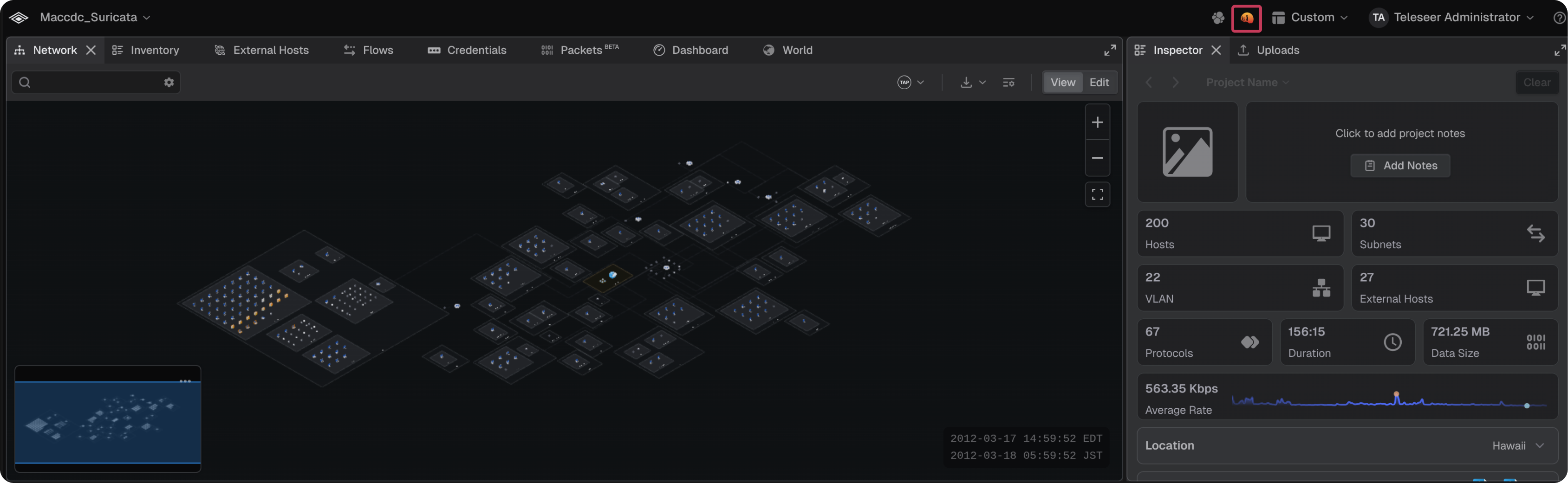
The Suricata panel opens from the project toolbar, so a project must exist before the panel can be reached. The rule sets and variables configured there are not limited to that project.
Preparing a rule set archive
A rule set archive can include a suricata.yaml configuration file that defines the Suricata variables. Rule sets downloaded from Suricata or Emerging Threats do not include this file. Add the file before import.
Decompress the downloaded rule set archive
Add a suricata.yaml file to the root of the archive contents, next to the rule files
Replace the example values with the values for the target network
Compress all files, including suricata.yaml, into a single .tar.gz archive
An existing Suricata instance can supply its own configuration file in place of the template. The template below defines the required vars section. Everything after the vars section is ignored on import.
Note: A configuration file is optional. If the archive does not include one, set the variables in Teleseer after import and before activation. See the Variables section below.
Importing a rule set
Any user can import a rule set. The import must contain all files in a single .tar.gz archive.
Navigate to the Suricata panel
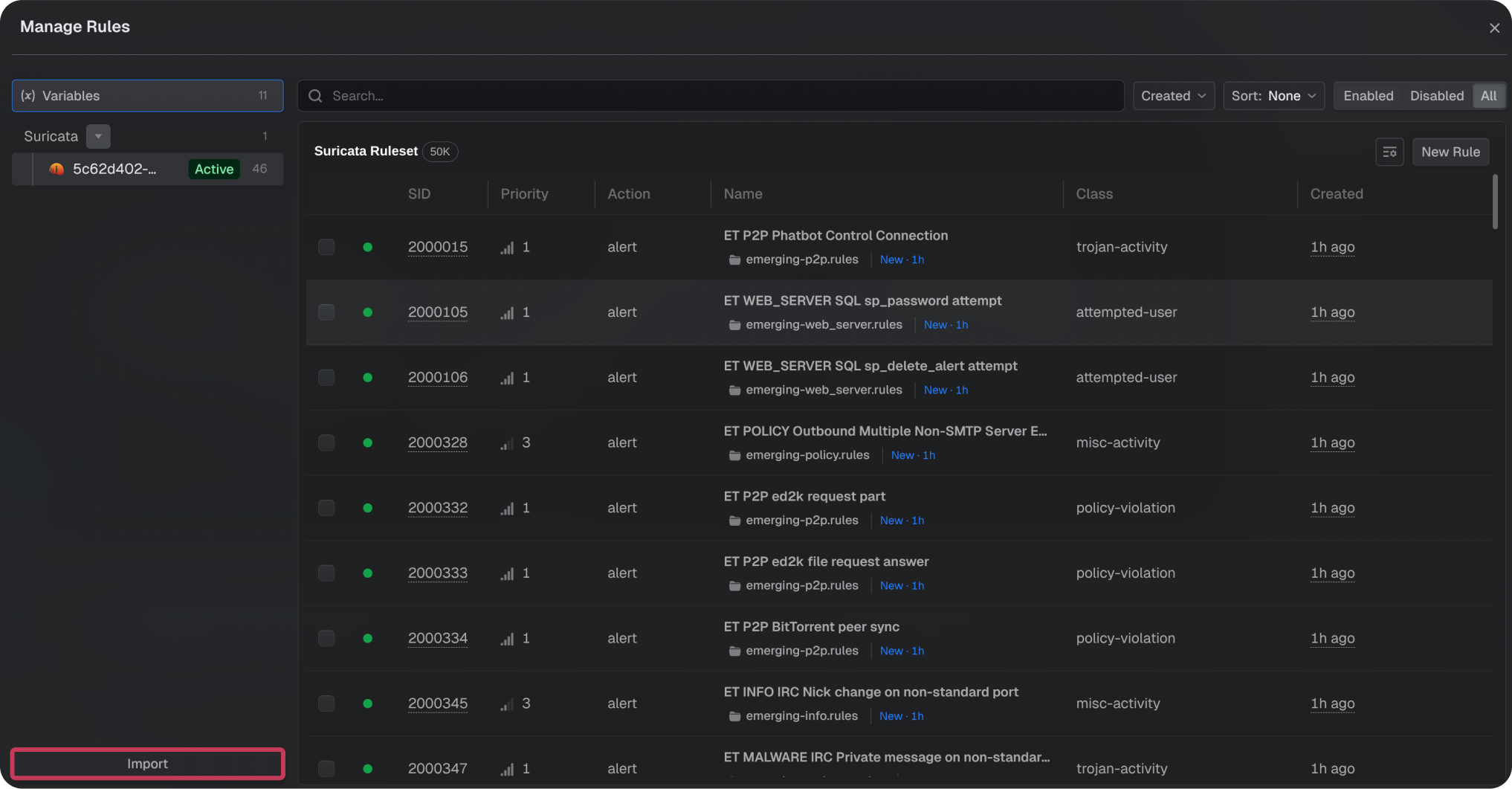
Select Import
Select the rule set archive
Variables
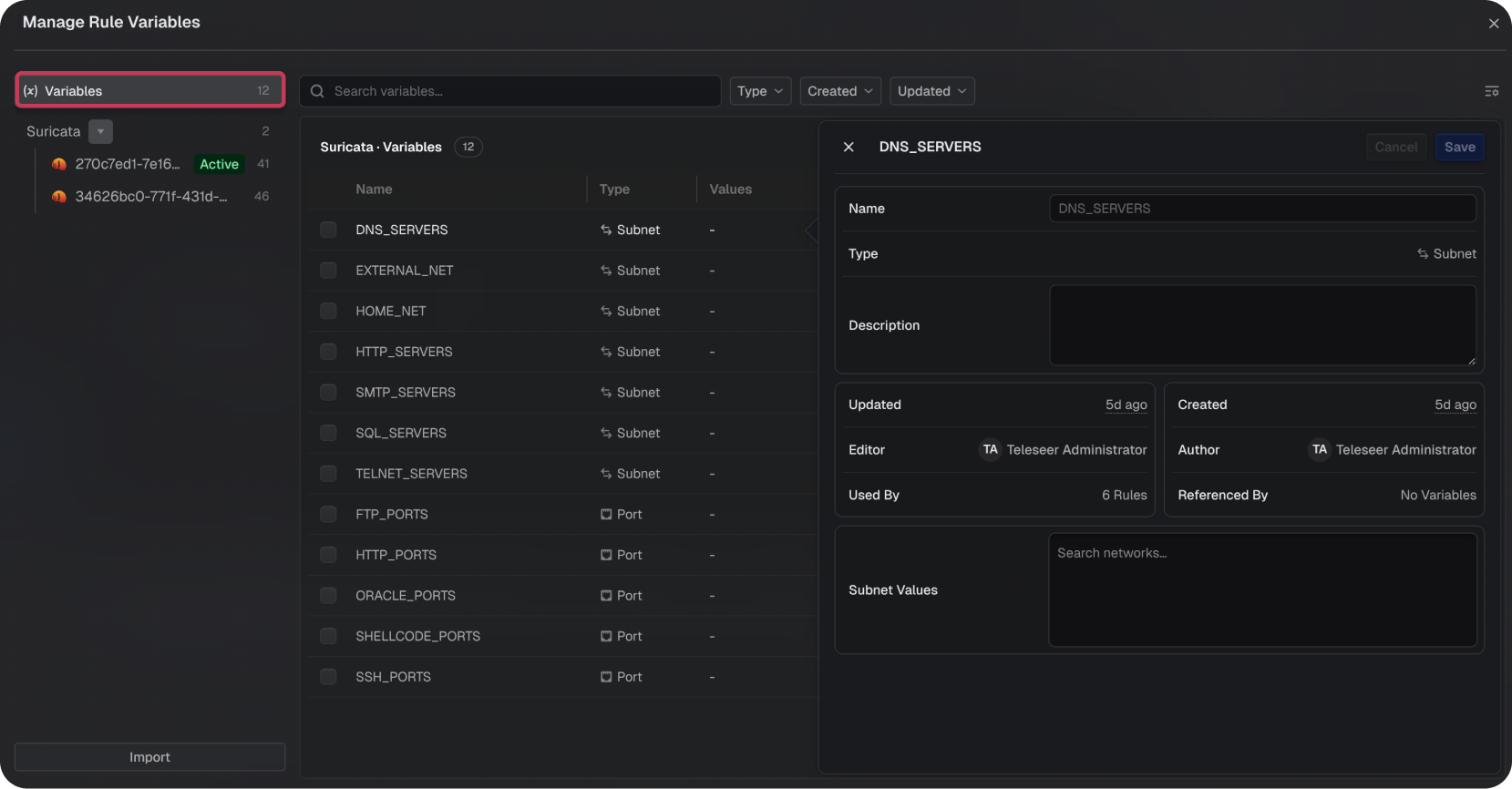
Suricata rules reference variables such as HOME_NET in place of literal subnets and ports. Variables are shared across all rule sets. A variable can hold any subnet or port, not just the values detected in project telemetry.
HOME_NET and EXTERNAL_NET are the most important values. HOME_NET holds the subnets inside the network under analysis. EXTERNAL_NET is commonly set to everything outside HOME_NET. For the remaining variables, set the known values. Where the network has no dedicated server of a given type, reference HOME_NET so that the rules using the variable still resolve.
Each variable contains the following fields:
FIELD
DESCRIPTION
Name
The variable name
Type
The variable type (Subnet or Port)
Values
The subnet or port values assigned to the variable
Used By
The number of rules that reference this variable
Referenced By
Other variables that reference this variable
Created
Timestamp of when the variable was created
Updated
Timestamp of the last modification
Note: The Used By count shows how many rules reference a variable. Check this column to find variables that the configuration file did not set but that rules of interest depend on. A rule that references a variable with no value produces no events. Set the variables before activating a rule set.
Editing a variable
Navigate to the Suricata panel
Select Variables
Select the target variable
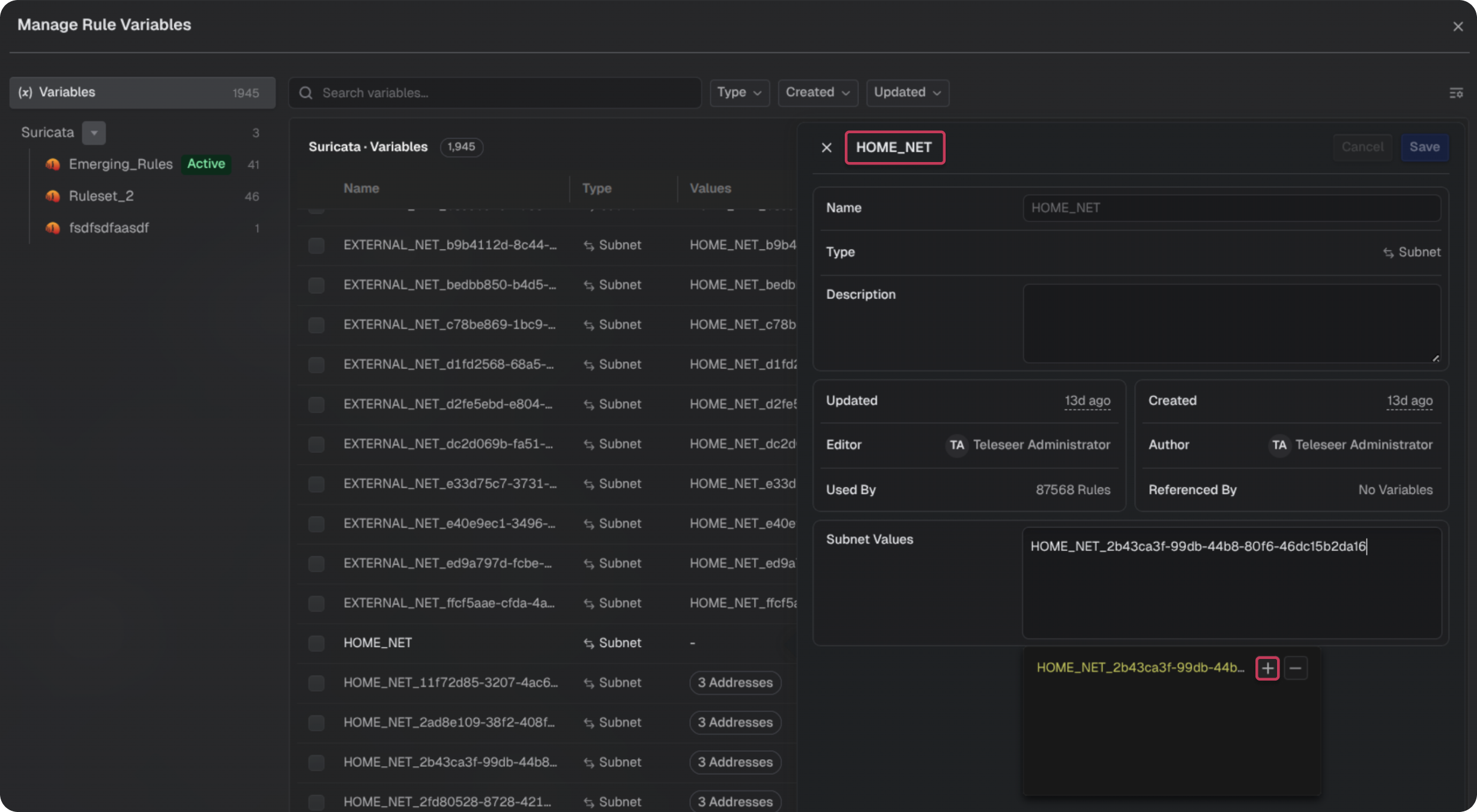
In Subnet Values, enter a subnet, or select a value from the list
Select the plus icon to include the value
Select the minus icon to exclude the value
Select Save
Importing additional variables
A suricata.yaml file can also be uploaded on its own to import new variables in bulk. The file uses the same format as the configuration file included in a rule set archive. Imported variables do not replace the variables already present. Each imported variable is created under a new name with an appended identifier, so the original variable must be updated to reference it.
Navigate to the Workspace
Select the Files panel
Select New Upload
Upload the variable configuration file
Open a project and navigate to the Suricata panel
Select Variables
Locate the imported variable and copy its name
Select the original variable
In Subnet Values, paste the name of the imported variable
Select Save
Repeat for each imported variable
Note: The original variable is the one with a value in the Used By column. The imported variable carries the same name with an appended identifier, for example HOME_NET_<identifier>
Activating a rule set
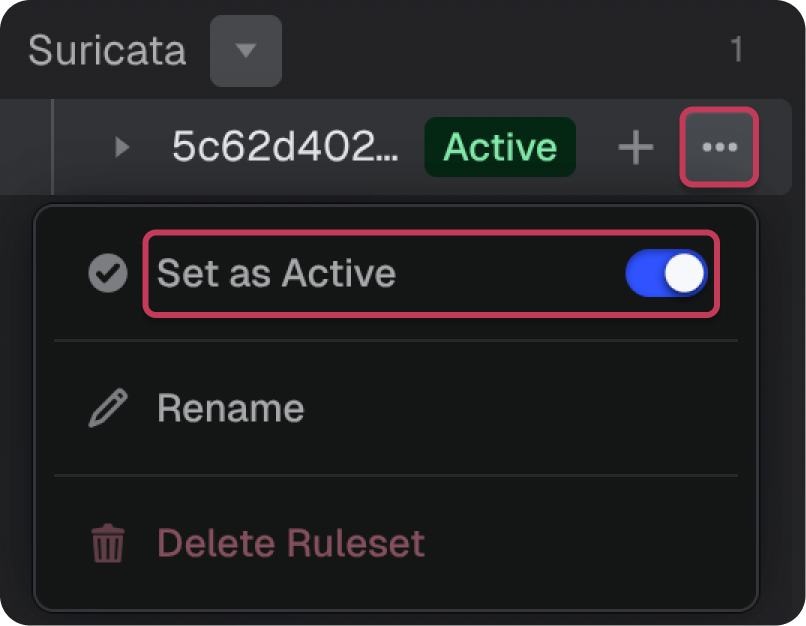
A rule set must be activated before it evaluates traffic. Only admins can activate a rule set. Set the variables before activation.
Navigate to the Suricata panel
Locate the target rule set
Select the ... menu next to the rule set
Toggle Set as Active
After activating a rule set, upload the PCAP data to be evaluated into the project. Suricata evaluates packets at upload, so data already in the project is not re-evaluated when a rule set is activated.
Managing rules
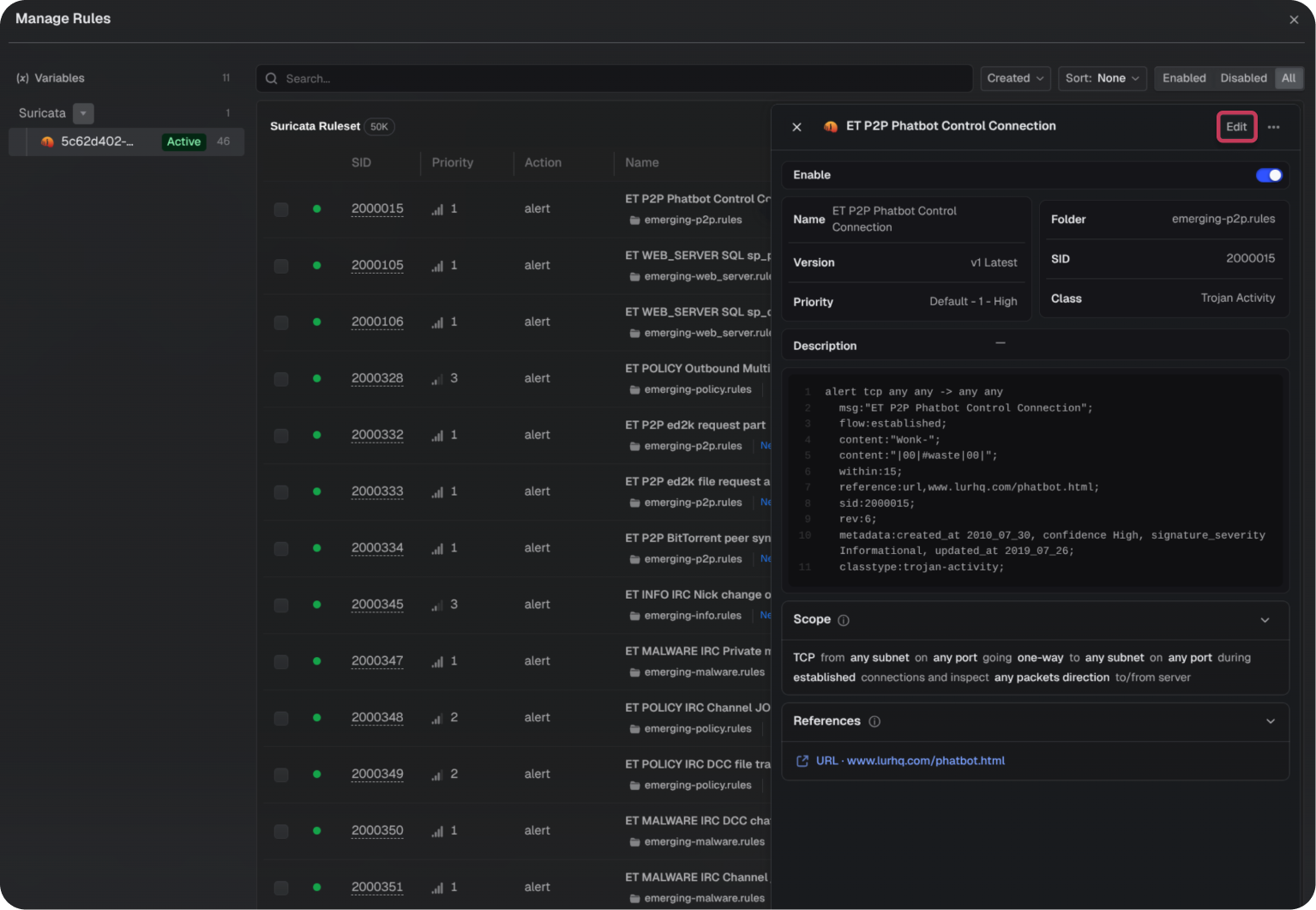
Rules within an imported rule set can be viewed and edited in the UI. Rules are written in Suricata's signature format, a Suricata-specific rule language. All edits are made through the UI fields, and can be viewed or copied from the signature field.
To edit a rule
Navigate to the Suricata panel
Select the target rule
Select Edit
Select Save when finished
To create a rule
Navigate to the Suricata panel
Select New Rule
Rule configuration
Each rule contains the following fields:
FIELD
DESCRIPTION
Name
The rule name
Folder
Organizational grouping for the rule. Rules imported from Emerging Threats are pre-organized into folders
Version
Updates automatically each time the rule is modified
SID
Unique identifier for the rule. Must be manually assigned when creating or cloning rules; Teleseer does not auto-assign SIDs
Priority
Determines evaluation order. Defaults to high. To prioritize a specific rule, lower the priority of others
Classification
Assigned by the imported rule set. Custom classification types are not yet available in the UI
Description
A plain text description of what the rule detects
Signature
The full Suricata rule in signature format. Read-only; reflects changes made through the UI fields
Scope
Defines the traffic a rule applies to, including protocol, direction, flow, state, source/destination hosts or subnets, and source/destination ports
References
Links to external resources such as CVEs or vendor advisories. Typically auto-populated from the rule set
Note: SID allocation is the responsibility of the user or their organization. Teleseer does not manage or suggest new rule SIDs due to client-specific allocation methodologies.
Scope
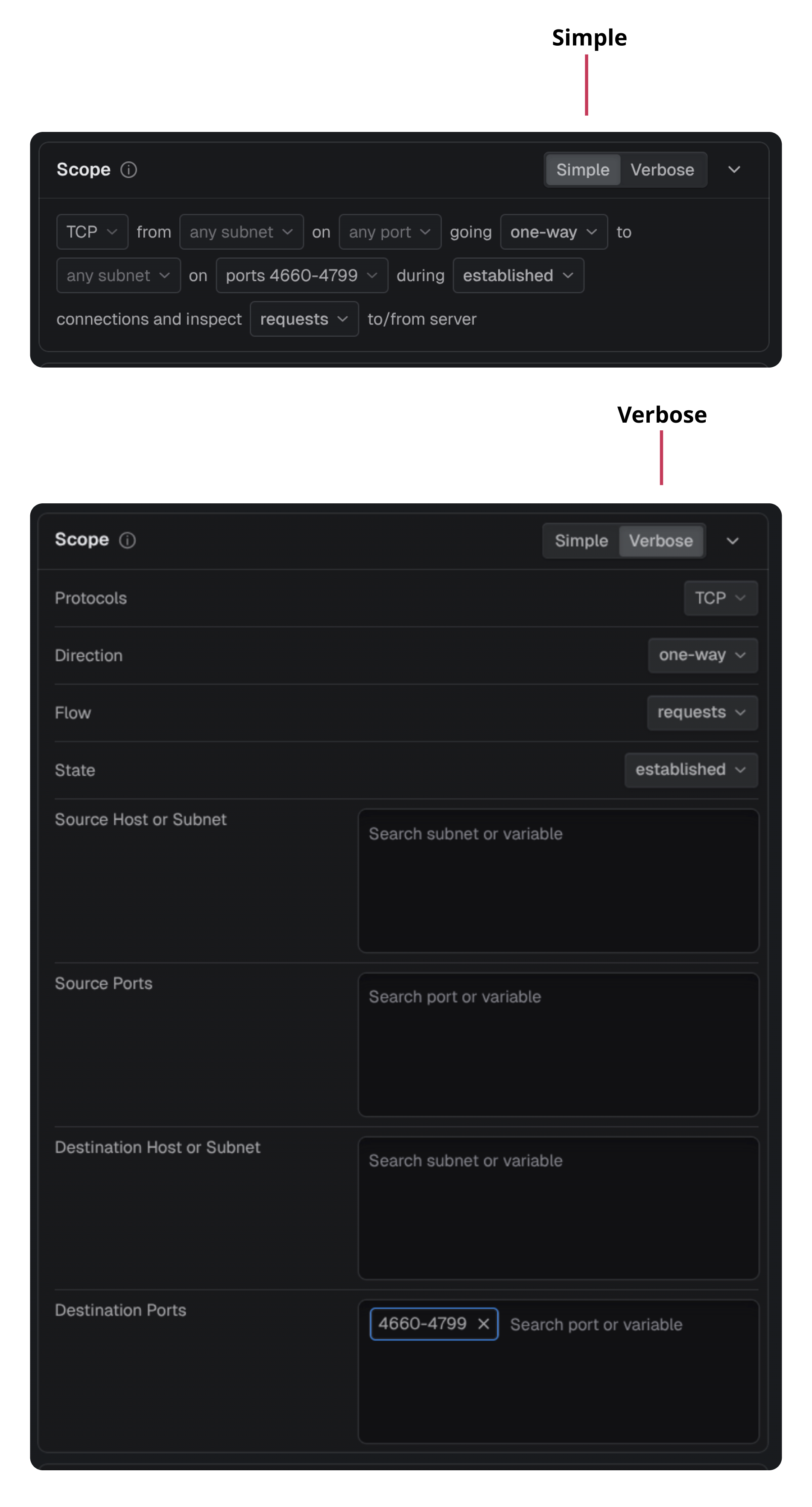
Scope can be configured in two views:
Simple: A condensed inline view showing all scope parameters in a single line
Verbose: A detailed form view with individual fields for each parameter
Scope fields
FIELD
DESCRIPTION
Protocols
The protocol the rule applies to (e.g., HTTP, TCP, UDP)
Direction
The direction of traffic (one-way, either, or both)
Flow
The flow type e.g., requests or responses
State
The connection state e.g., established
Source Host or Subnet
The source host, subnet, or variable the rule monitors
Source Ports
The source port(s) or variable the rule monitors
Destination Host or Subnet
The destination host, subnet, or variable the rule monitors
Destination Ports
The destination port(s) or variable the rule monitors
Filtering with chips
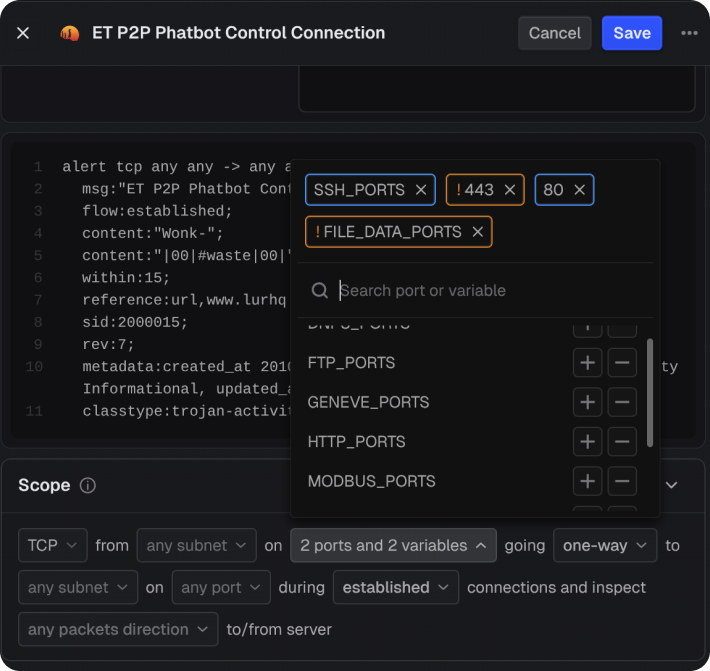
Scope fields use a combobox input. Selecting a field displays a dropdown of values already present in the project, such as known subnets, ports, and protocols. Selected values appear as chips:
Blue chips: Included values
Orange chips: Excluded values (NOT condition). To exclude a value, use the ! prefix or toggle Exclude Selected Item when adding
Viewing Suricata events
Suricata events appear in the Timeline panel after a PCAP is processed with an active rule set. Each event displays the point in time the rule matched and the source and destination hosts involved.
To view event details, select an event in the Timeline and inspect it in the Inspector panel.
Finding the rule for an event
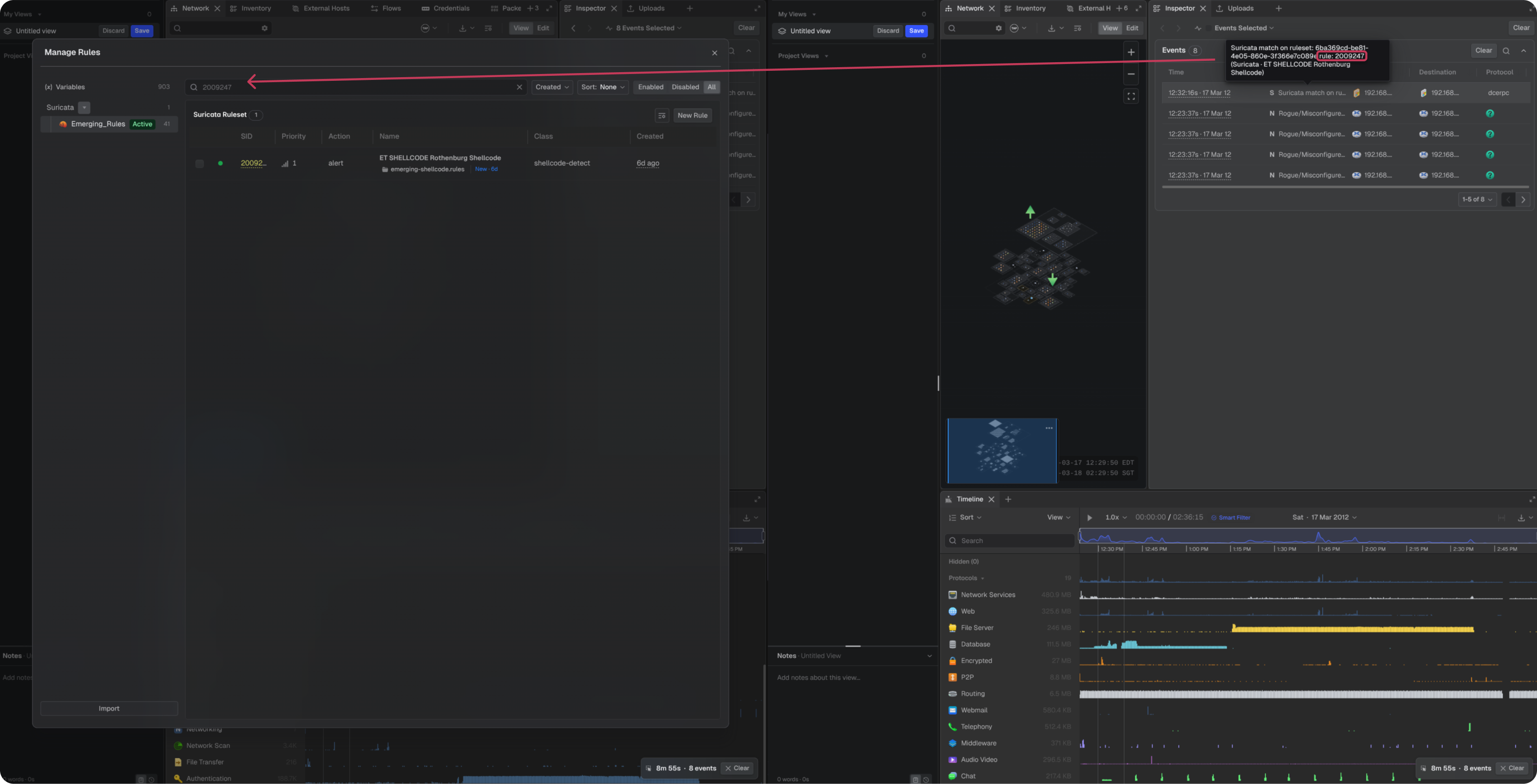
Each Suricata event names the rule that matched it. The rule SID connects the event back to the rule set, so the rule text and its detection details can be reviewed.
In the Inspector panel, locate the event in the Events list
Hover over the event name to display the rule set identifier, the rule SID, and the rule name