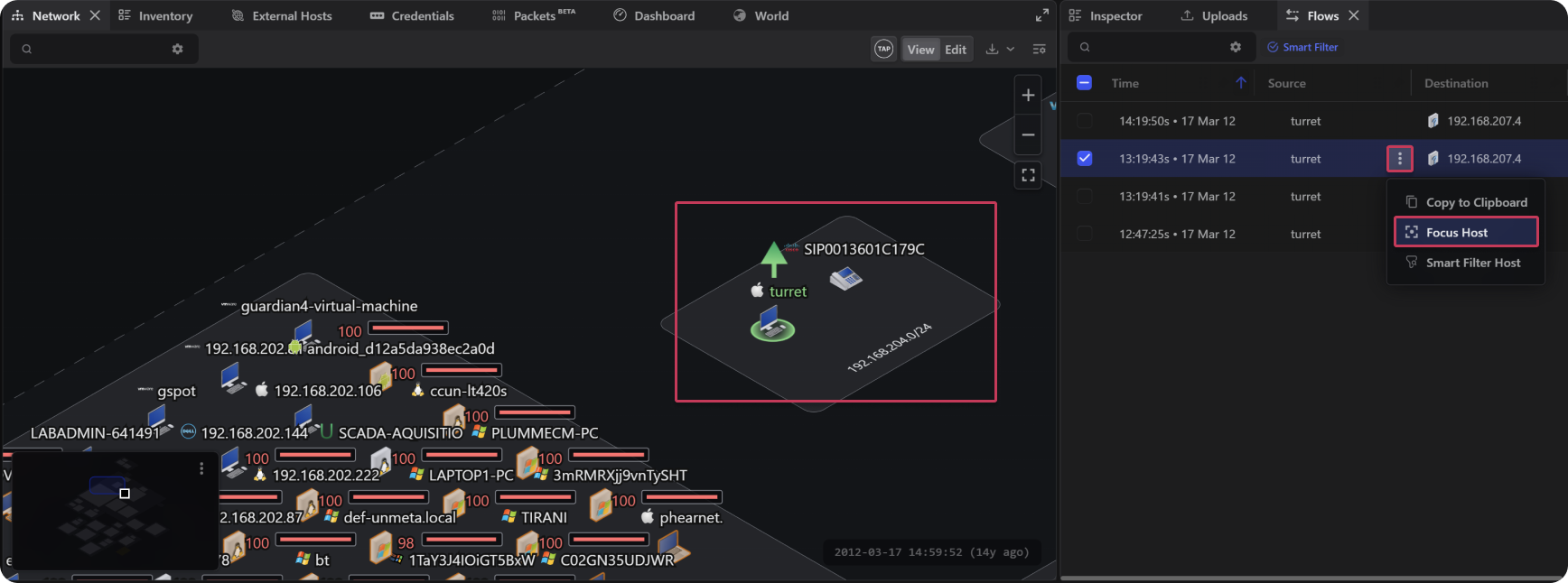
The Flows table allows users to view all network flows within the current project. A flow is a sequence of packets sharing common characteristics (like source/destination IP, ports, protocol) moving between two hosts.
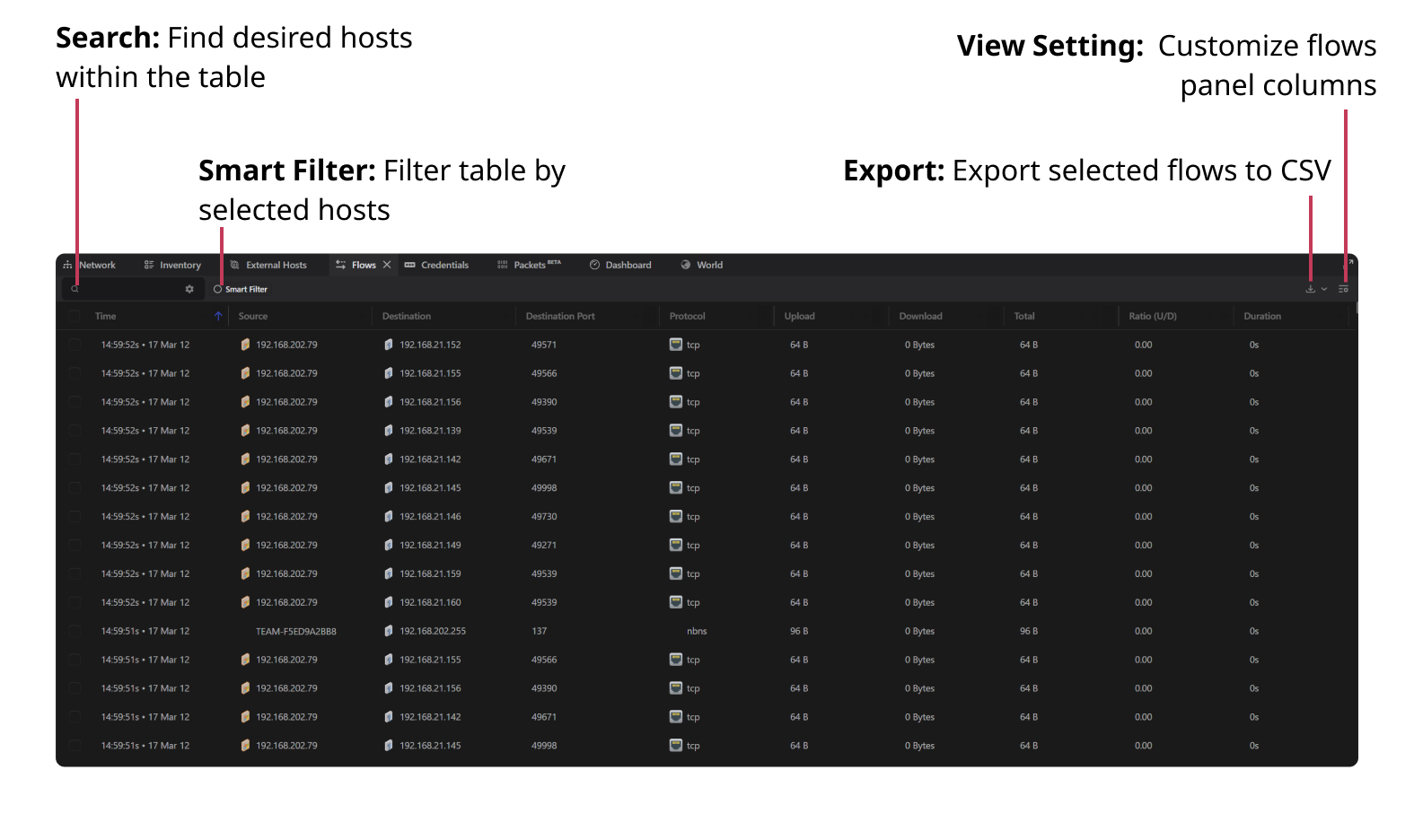
Columns
The Flows table contains the following columns:
Note: Columns marked with * can be added or removed using the View Settings dropdown.
Smart Filter
When the Smart Filter button is enabled, the table is filtered to display only flows associated with the selected host(s) or selected Timeline traffic.
Exporting Flows
The contents of the table can be exported by selecting Export Flows (CSV) in the top-right corner of the panel. For more information refer to our guide on how to export the flows table.
Note: Only the rows currently displayed in the table are exported. If specific flows are selected then only the desired flows will be exported. By default, 40 rows are shown. Use the table scrollbar to view additional rows.
Interacting with Flows
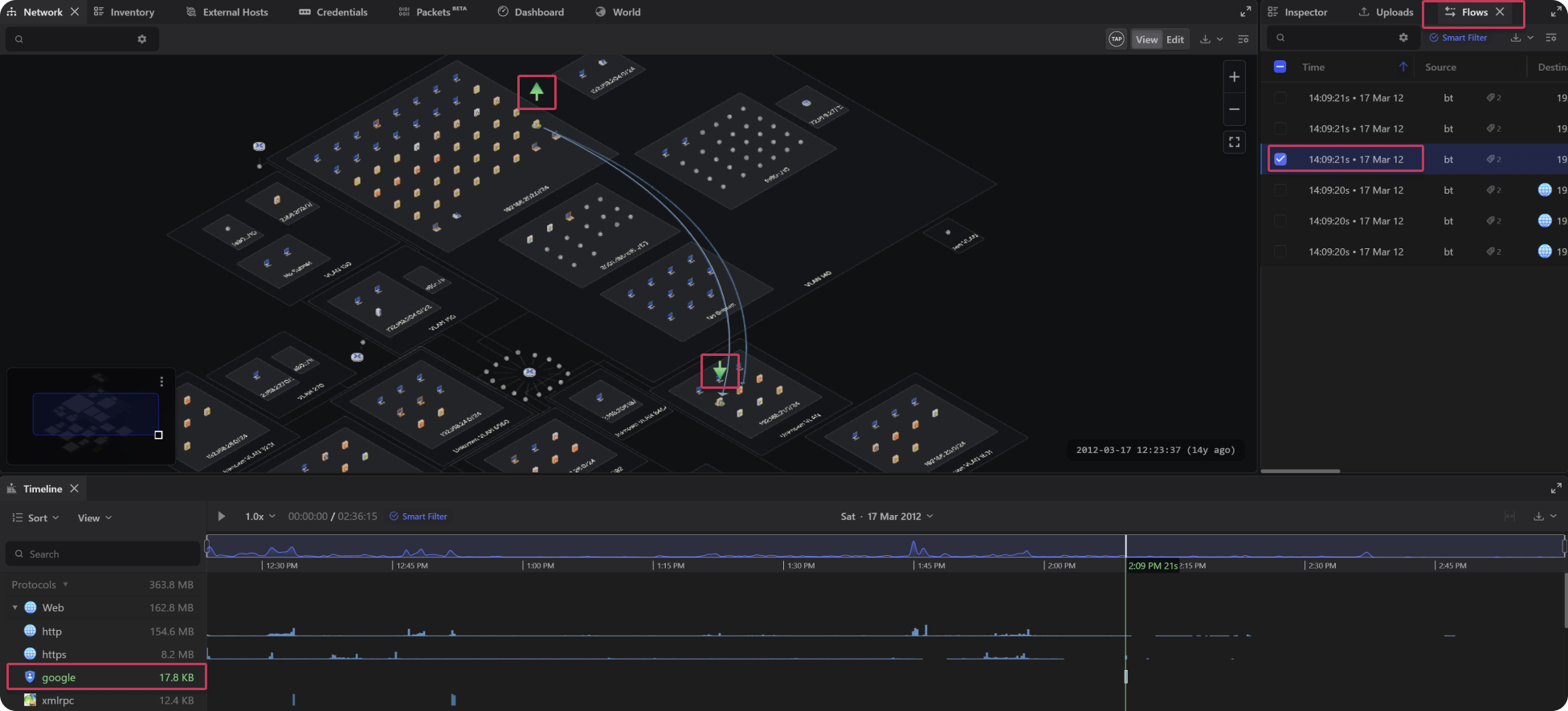
- Hover over a flow to reveal the source and destination devices in the Network topology view and the corresponding activity in the Timeline.
- Click a flow row to adjust the topology view so it encompasses the source and destination devices.
- Click the three-dot menu next to an individual host within a flow row and select **Focus Host** to zoom the topology view to that host.