
The Inventory table displays all identified hosts and can be sorted by selecting any column header. Selecting a row updates the Inspector panel with detailed information about the selected host.

Columns
The Inventory table contains the following columns:
Search
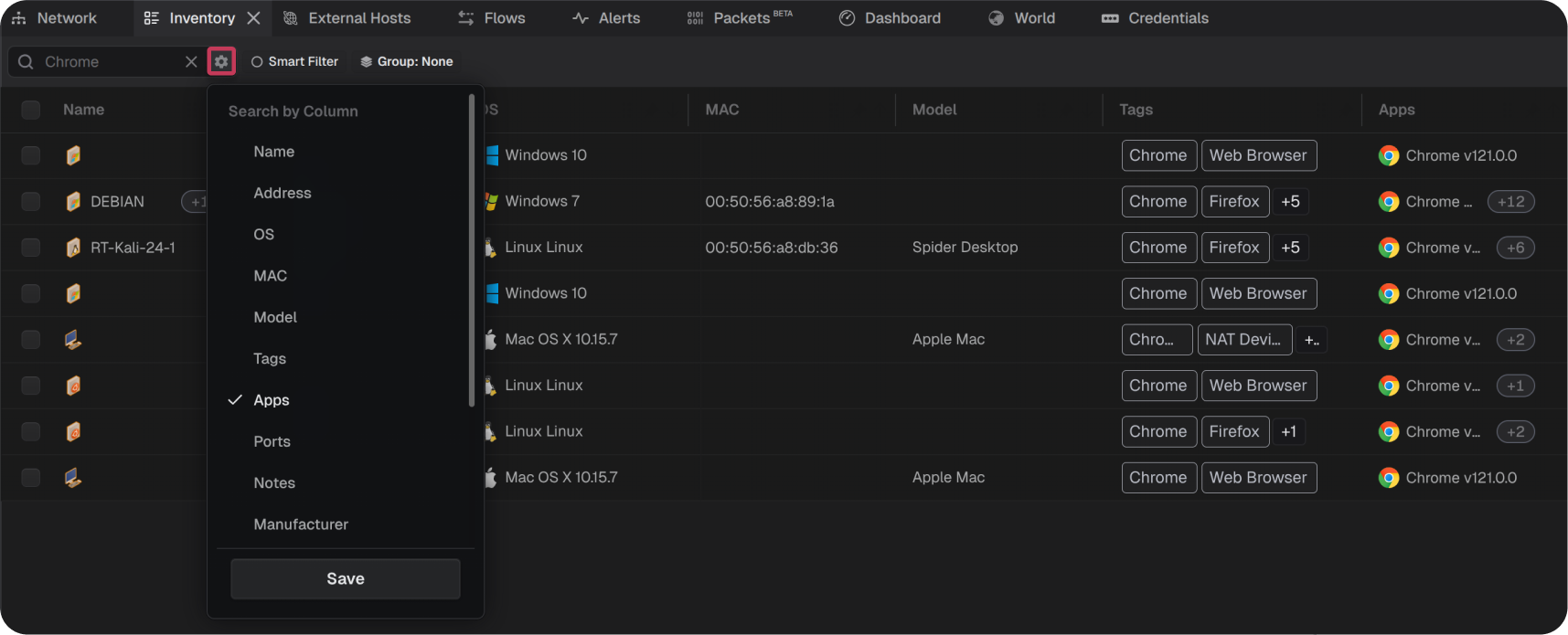
Each column within the table can be searched. Enter a value in the search field and optionally select a column to search via the gear icon.
Grouping
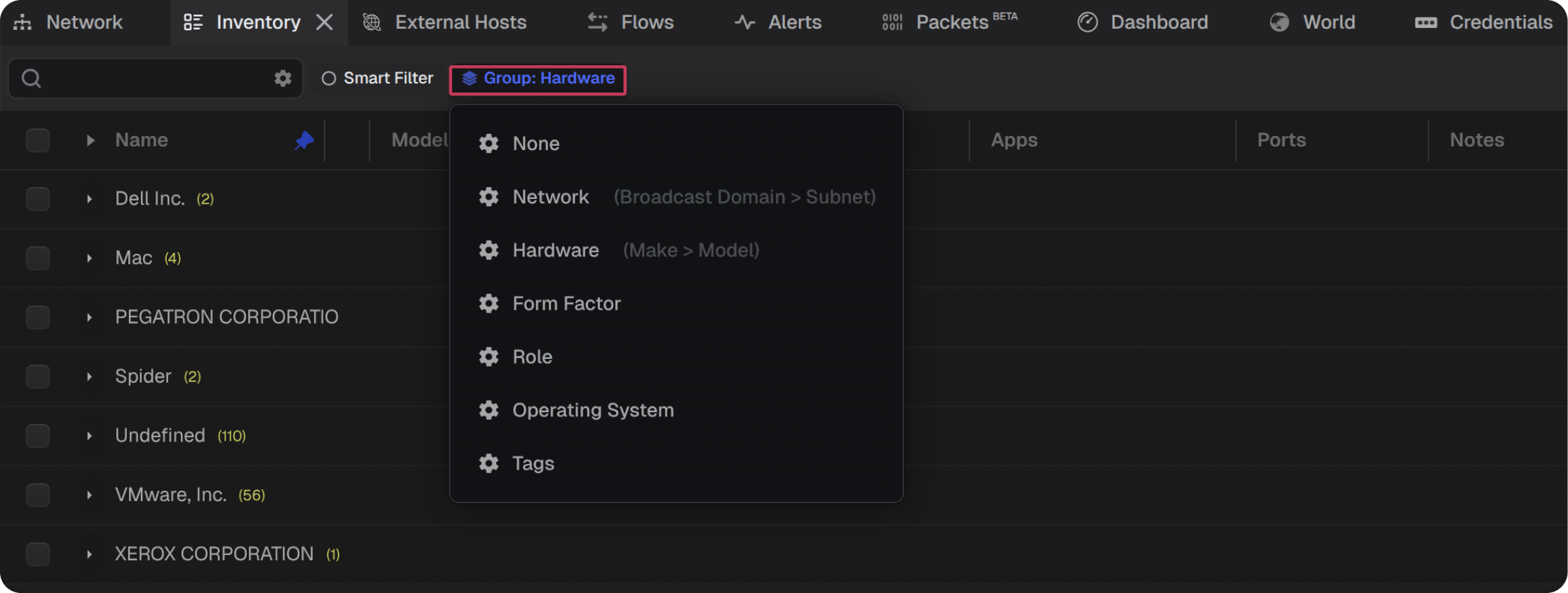
The table can be grouped by the following values:
- Network (VLAN > Subnet)
- Hardware (Make > Model)
- Form Factor
- Role
- Operating System
- Tags
Smart Filter
When Smart Filter is selected, the table filters to display only the selected host(s).
Export
The entire table can be exported by clicking the download button at the top right of the panel > **Export Host List (CSV)**.
Note: The exported CSV is saved with the naming convention Teleseer Export - <Project Name> - Network Inventory.View Settings
The visible columns can be customized by clicking the **View Settings** button at the top right of the panel.
