
The Packets viewer table allows users to view all network packets within the current project that are associated with flows.

Columns
The Packets table contains the following columns:
Note: If the protocol following the network layer is not TCP or UDP, the Protocol , Src Port, and Dst Port columns will be blank. Additional protocol details can still be viewed in the Inspector panel.
Inspector Panel
When a packet is selected, additional details are displayed in the Inspector panel. This includes the packet’s protocol headers and payload. For more information about specific protocol headers, refer to the IETF RFC documentation.
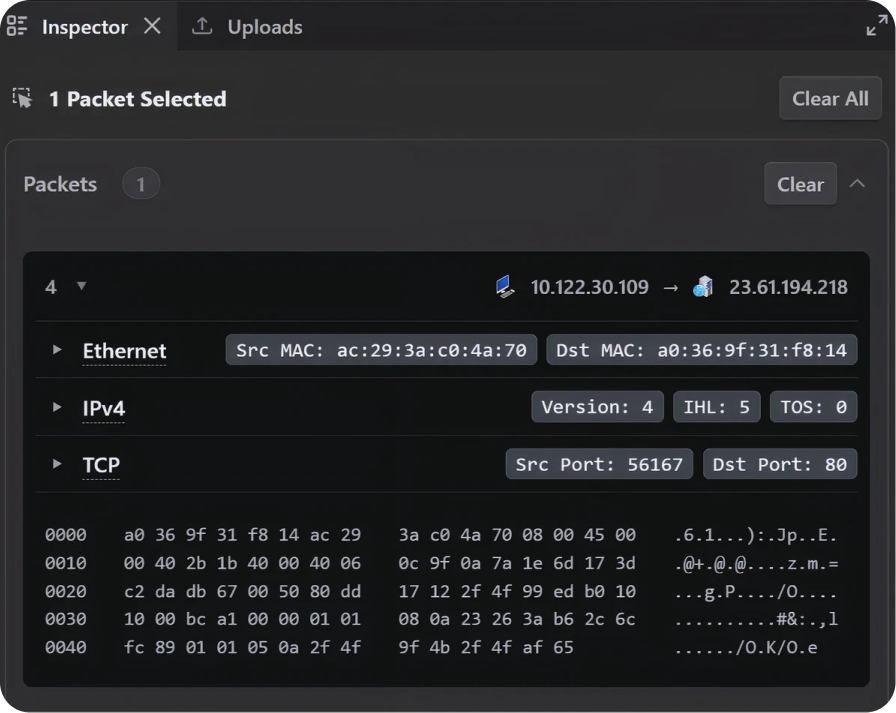
Note: If multiple flows are selected by highlighting a portion of traffic in the timeline and a packet is chosen from one of those flows, the Inspector*panel will display both the selected packet details and all selected flows. This does not mean the packet is associated with every flow shown.
Carving and Exporting
Packets can be carved based on a selected **Host** or a specific time range in the **Timeline**. The resulting packets can then be exported.
Carving by Host
- In the Network map, Inventory table, or External Hosts table select the desired host.
- Navigate to the Packets panel. All packets associated with the selected host’s network activity will be displayed.
Carving by Timeline Traffic
- In the Timeline panel, highlight a section of traffic by clicking and dragging over the desired range, or select traffic by clicking the three dots next to a protocol and choosing Select All.
- Navigate to the Packets panel. All packets associated with the highlighted traffic will be displayed.
Exporting as a CSV
- In the Packets panel, select the packets you want to export. If all visible packets are desired, no selection is needed.
- Select the export icon in the top-right corner of the panel.
- From the dropdown menu select Export packets (CSV) then select whether to export the Selected or Visible packets.

Note: The exported file is saved with the naming convention Teleseer Export - <Project_Name> - Packets.Exporting as a PCAP
- Carve the desired packets using the Timeline.
- Select the export icon in the top-right corner of the panel.
- From the dropdown menu select Export PCAP ➜ Selected Flows.
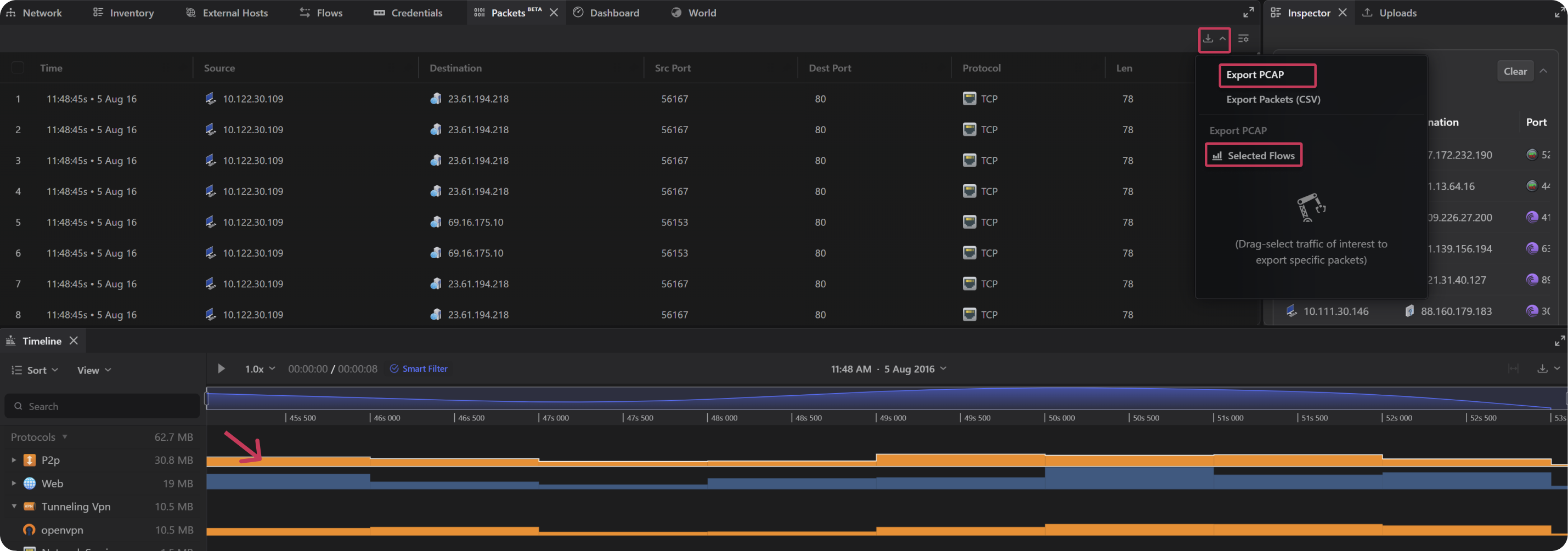
Note: Tunneled traffic may generate multiple flows, including both the outer encapsulation and inner tunneled sessions. As a result, packets selected from the Timeline may appear in multiple protocol swim-lanes. This behavior is expected.
